Live, interactive online classes for college students. I was the first design hire and designed the MVP ahead of their $38M Series A.
Role
Sole designer
Designs circa
2021
Employment type
Contract
Type
Native mobile & web
Raised
$38M Series A
Planning Your Week
24 screens
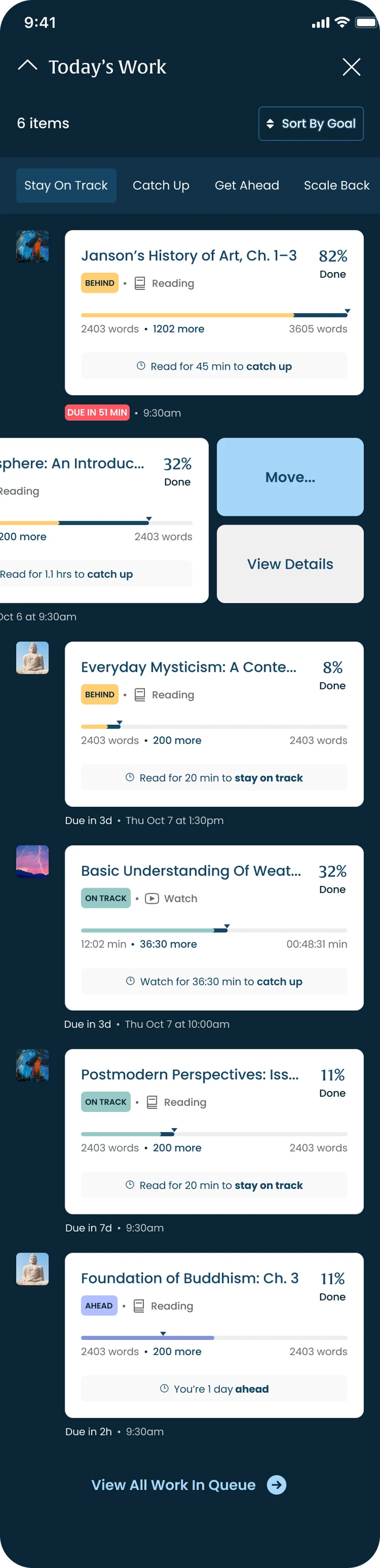
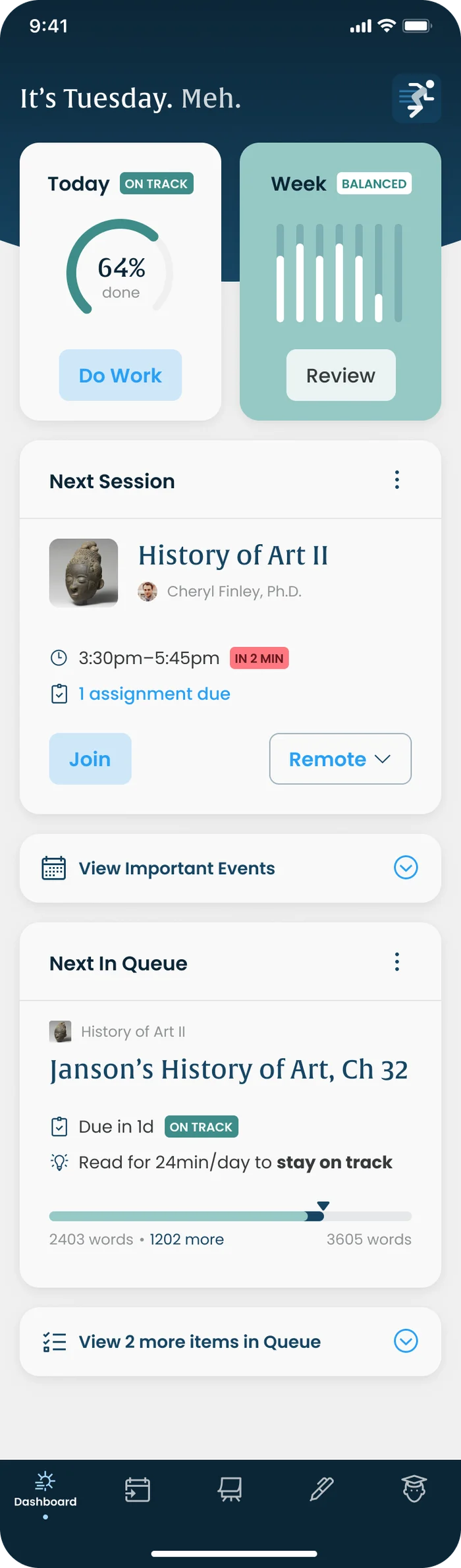
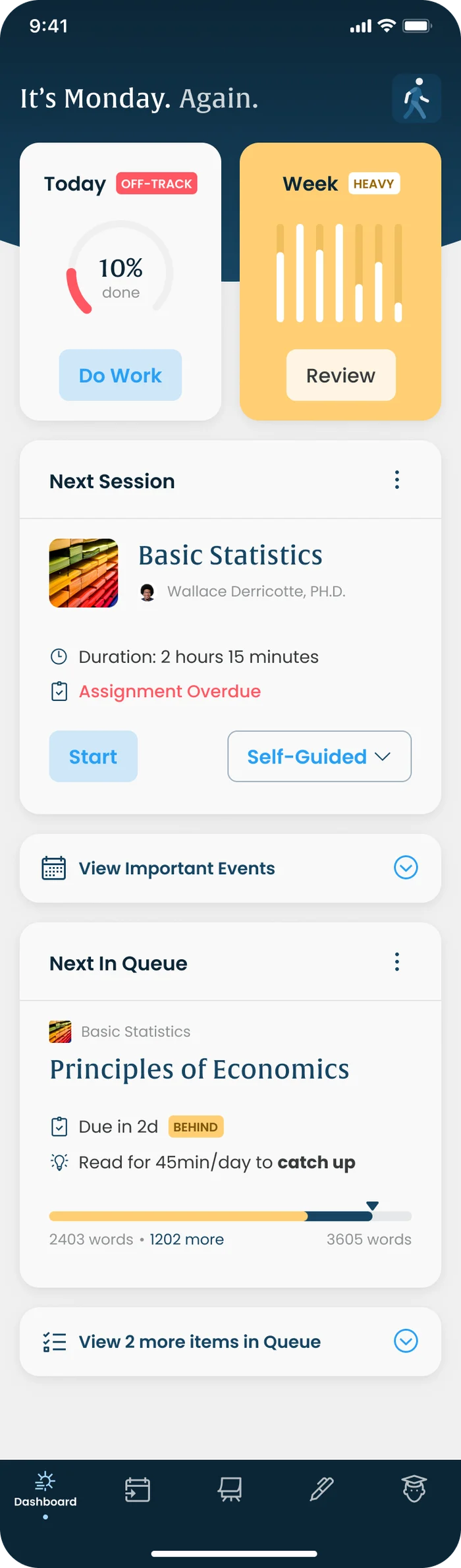
Today, in minutesThe student dashboard turns deadlines into daily effort: 'Read for 20 min to stay on track'. Warns when a day is over-scheduled and shows who's studying now.
Move work with a swipeSwipe a task to move it or view details, so rescheduling takes one gesture.
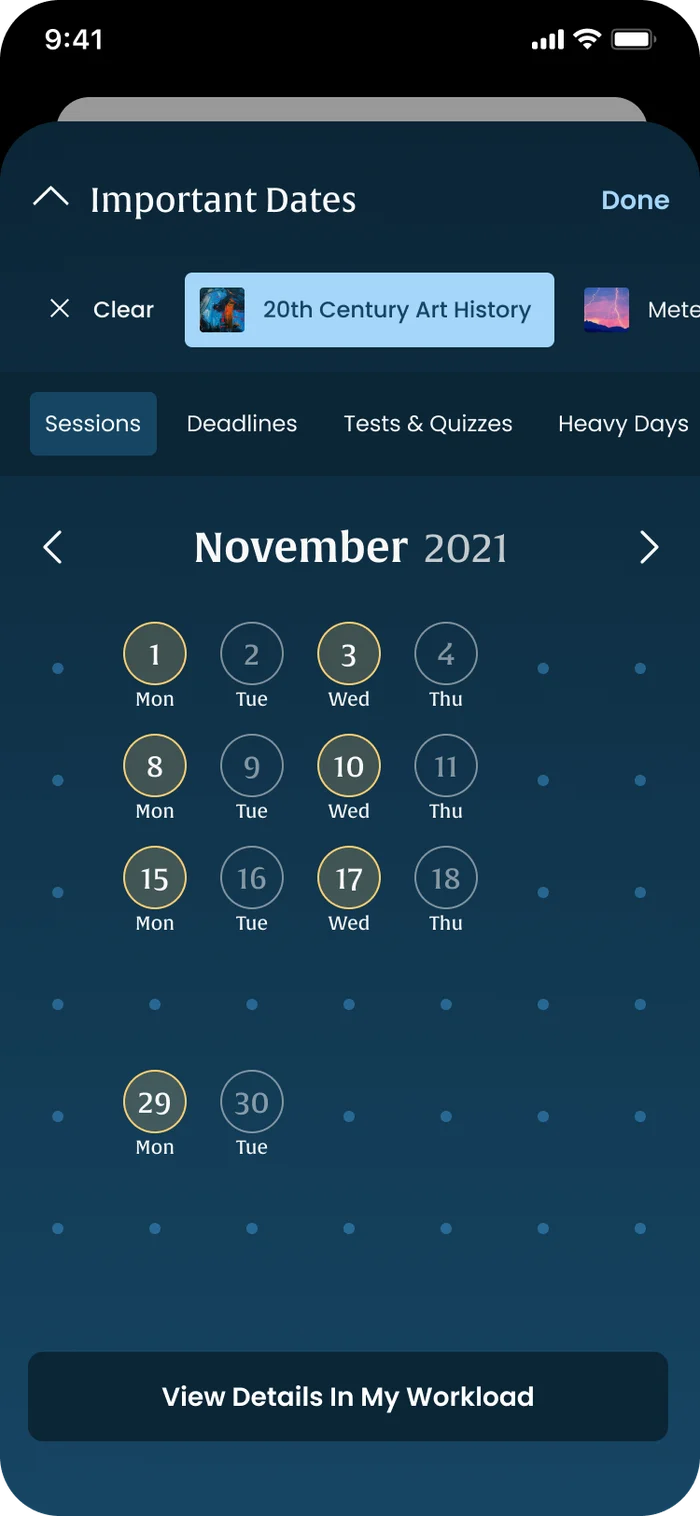
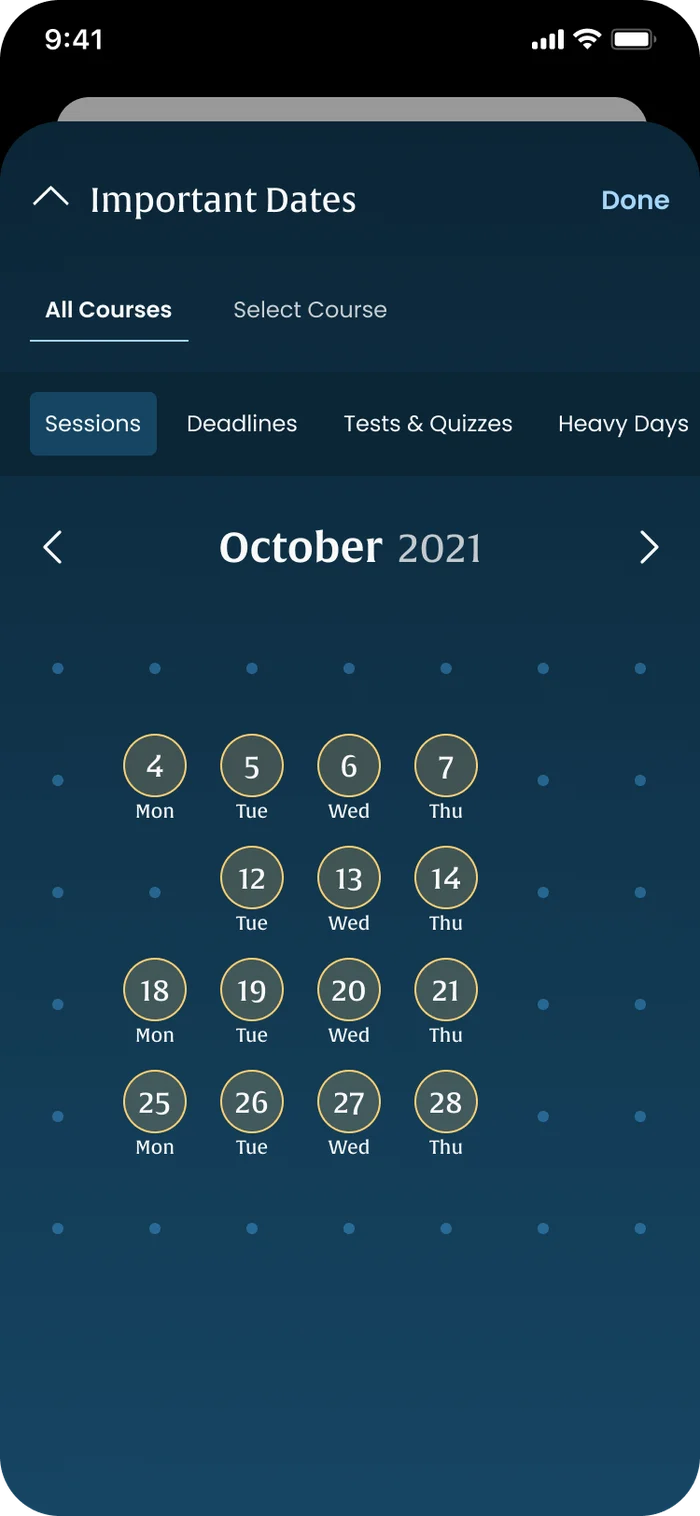
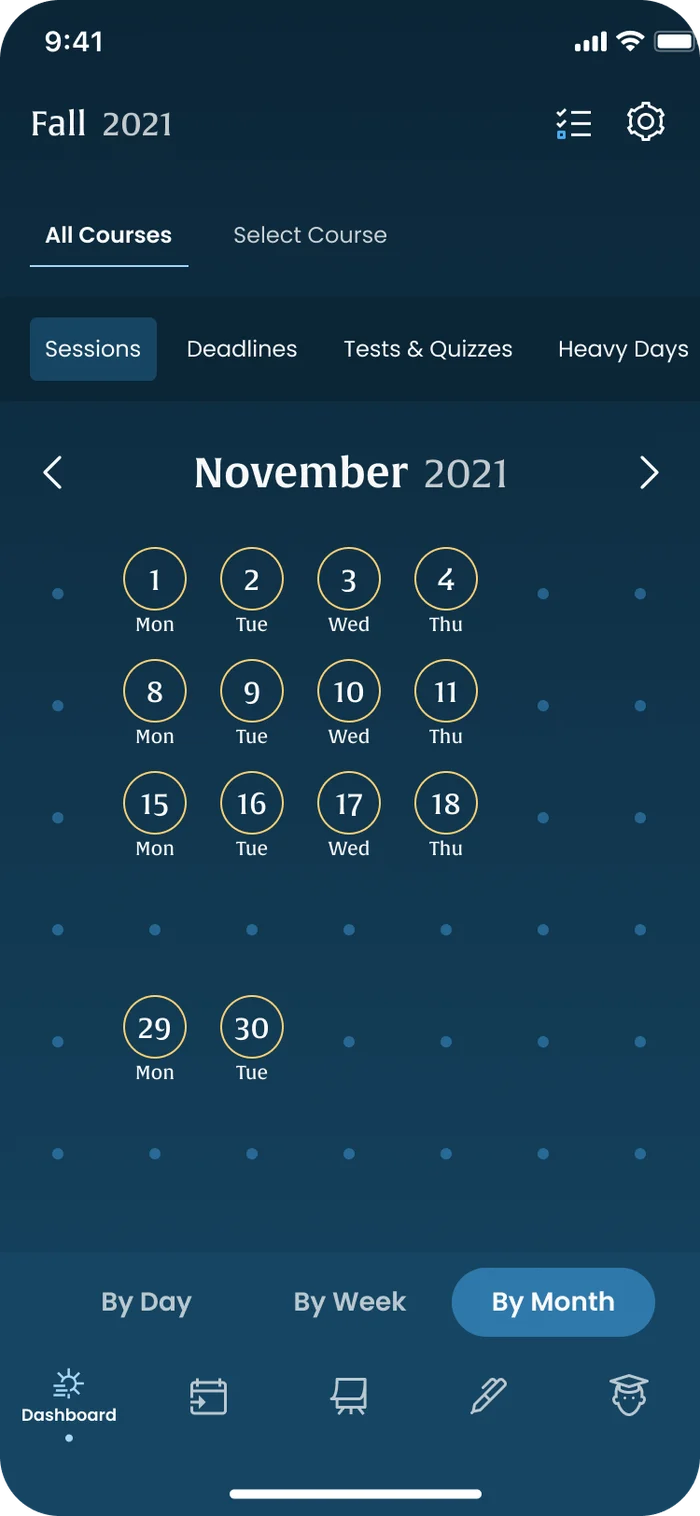
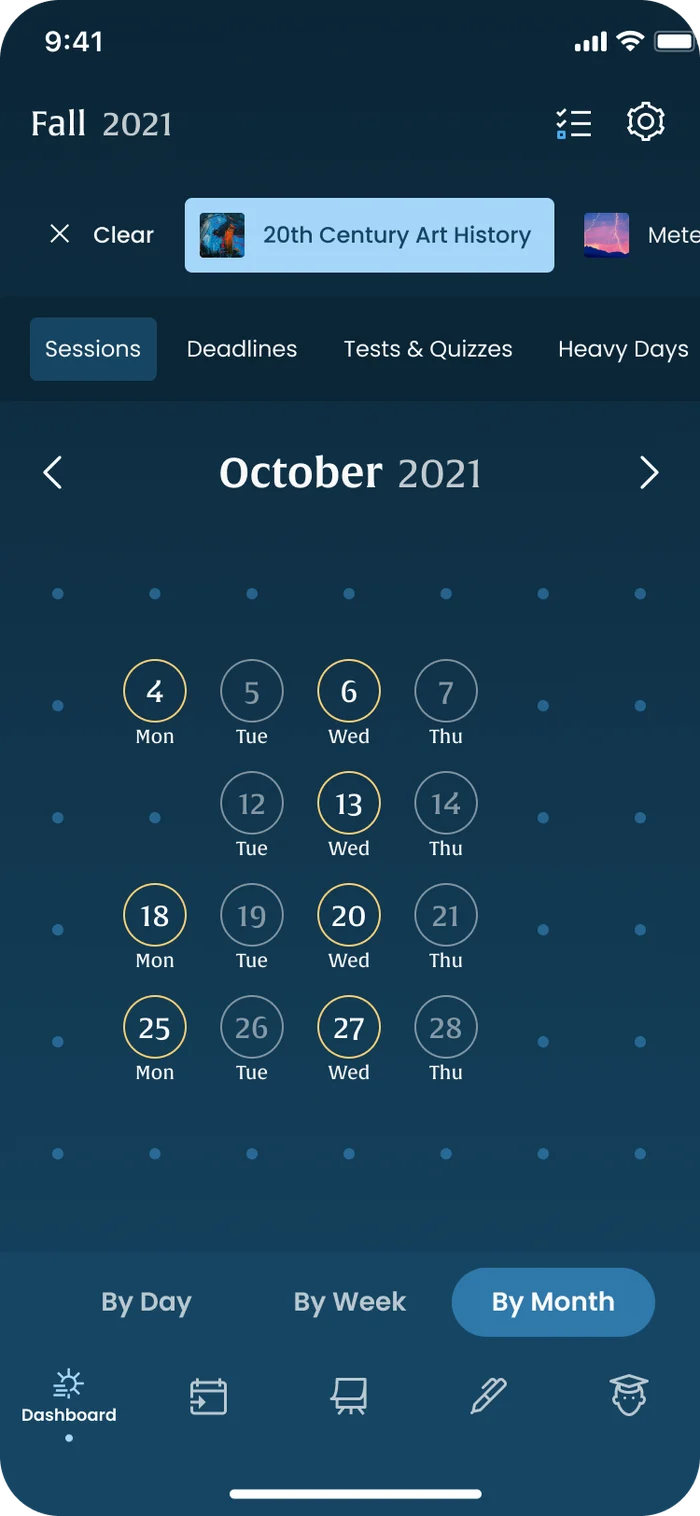
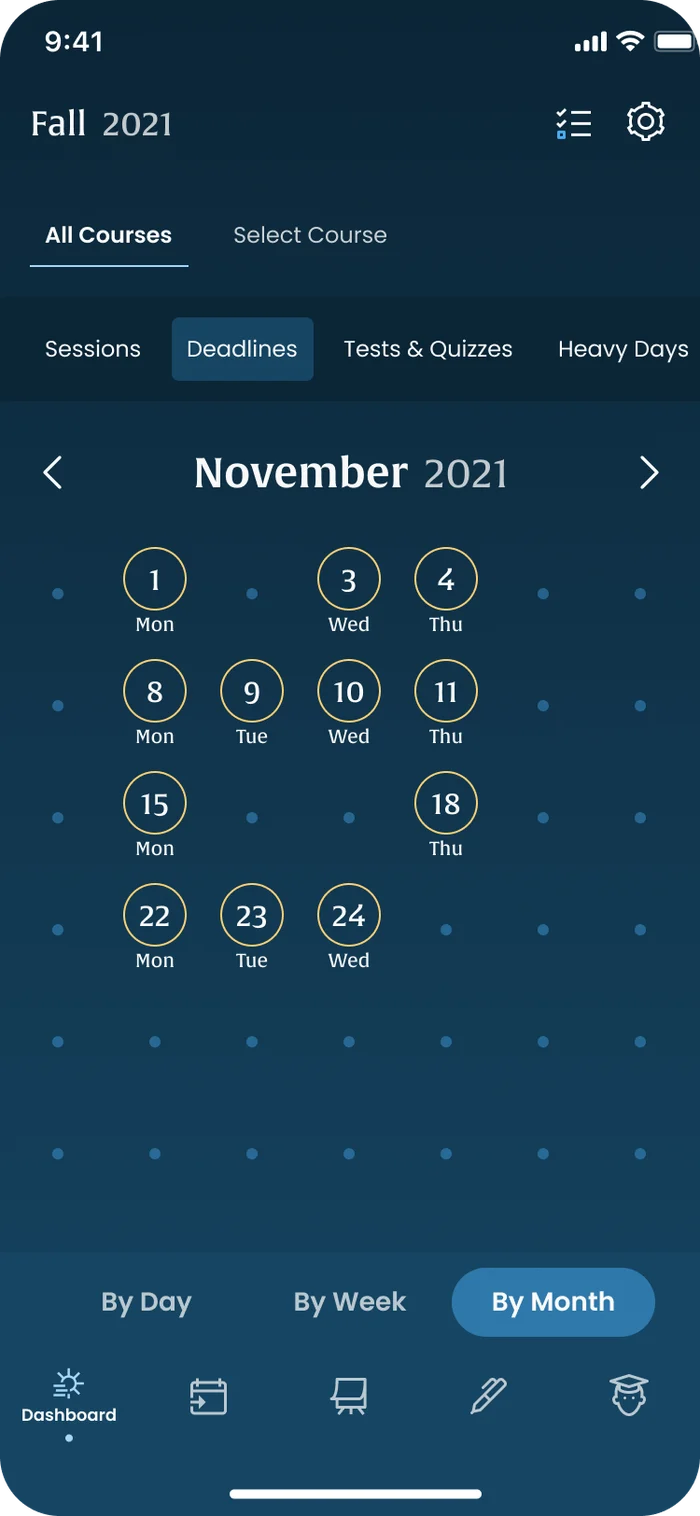
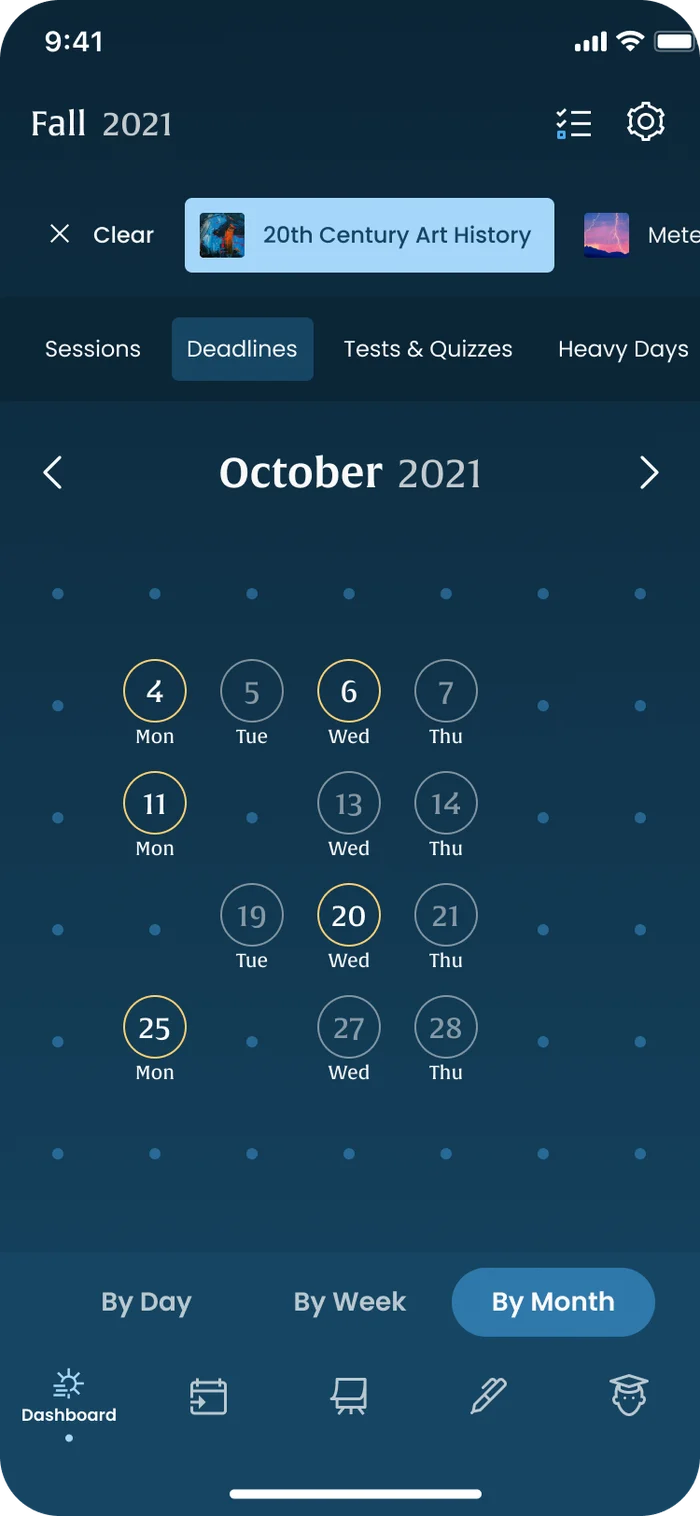
Important datesA calendar sheet of sessions, deadlines, tests and heavy days, filterable by course.
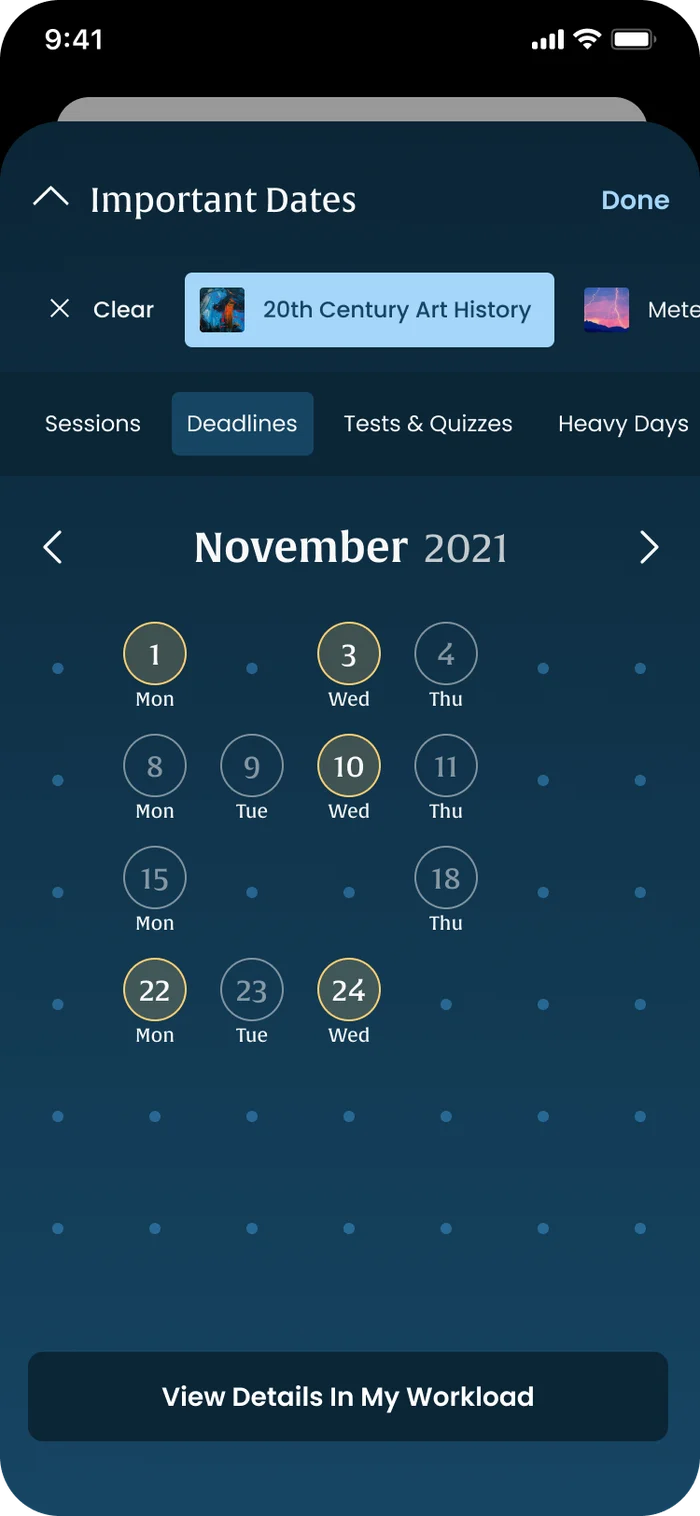
Important dates, filteredThe same calendar narrowed to one course or one kind of date.
Spotting heavy daysThe calendar flags days with too much due, before they arrive.
The semester calendarFull-page calendar by day, week or month.
The semester calendarCalendar view with a different filter applied.
The semester calendarCalendar state variant.
The semester calendarCalendar state variant.
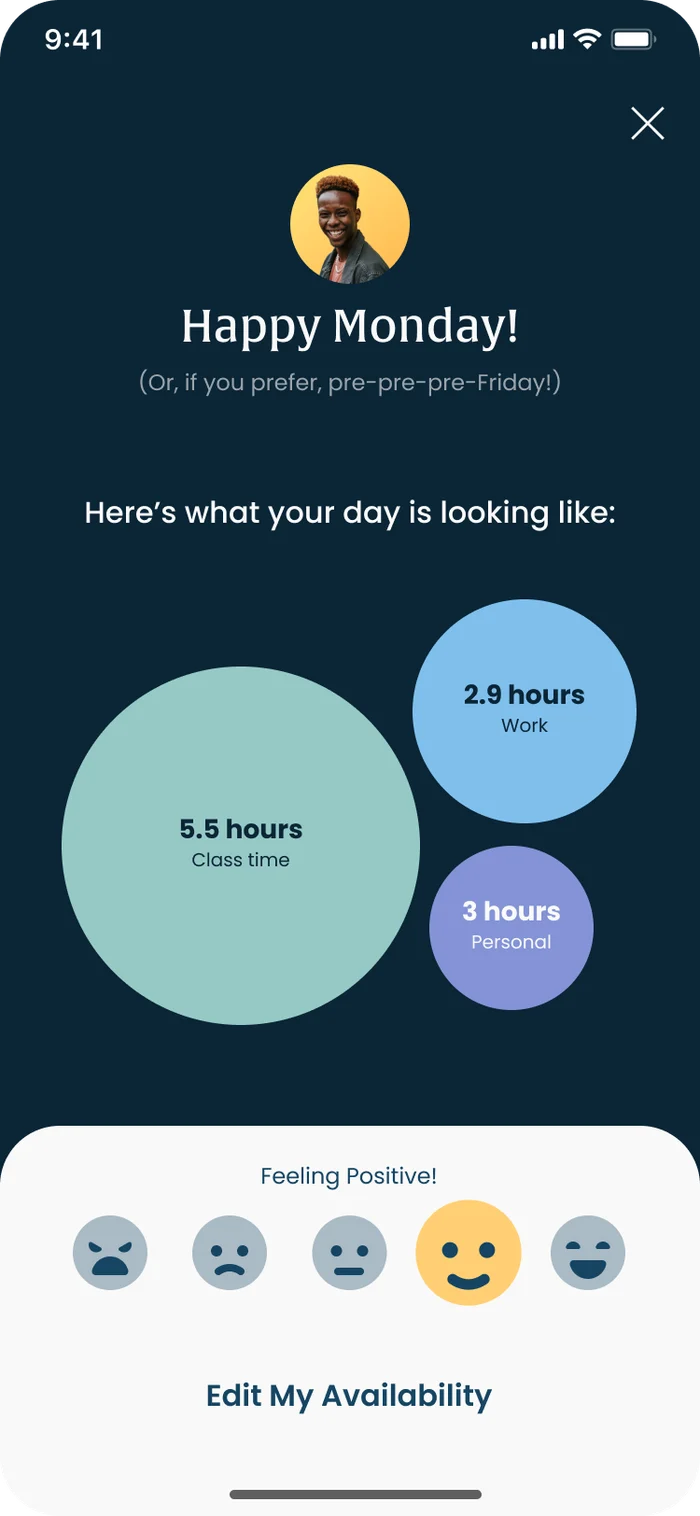
Morning check-in'Happy Monday!' A bubble chart of class, work and personal hours, plus a quick mood check.
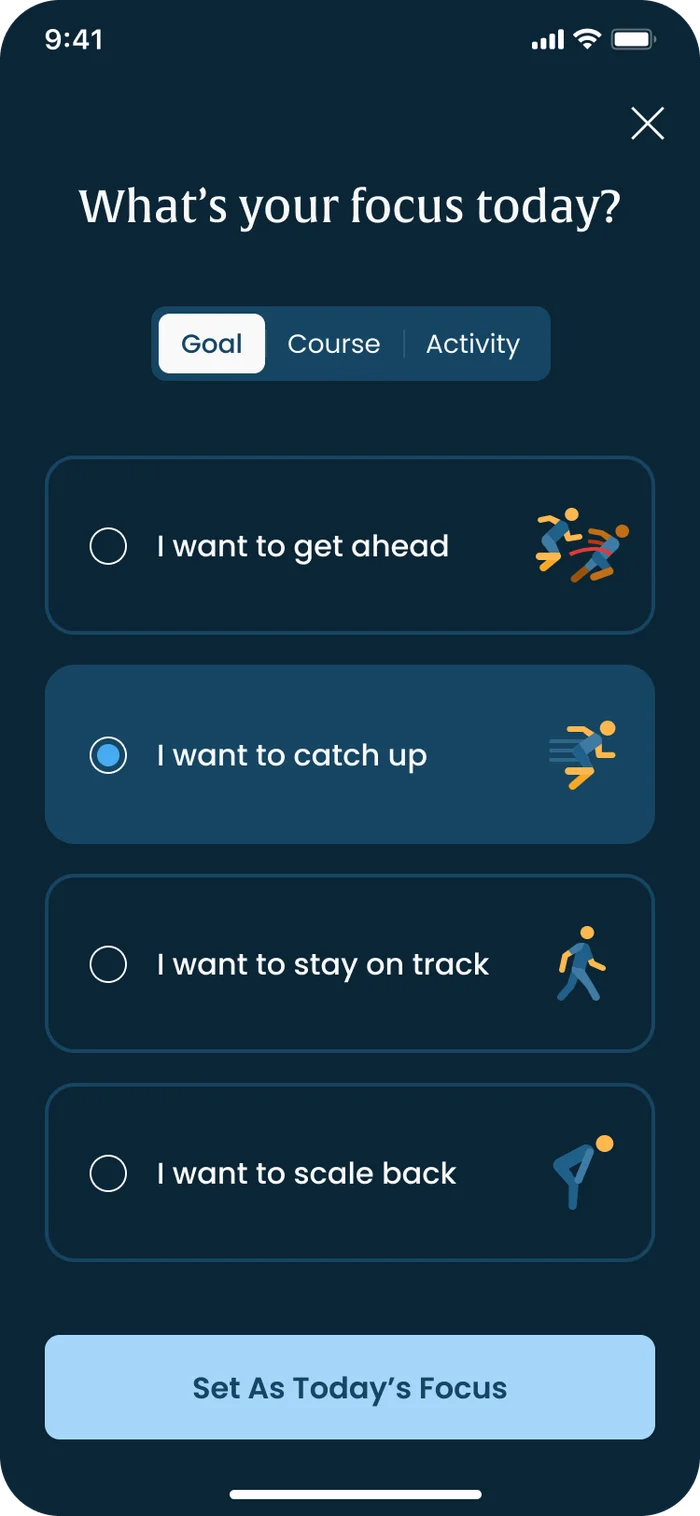
What's your focus today?Students choose to get ahead, catch up, stay on track or scale back, and the plan re-sorts to match.
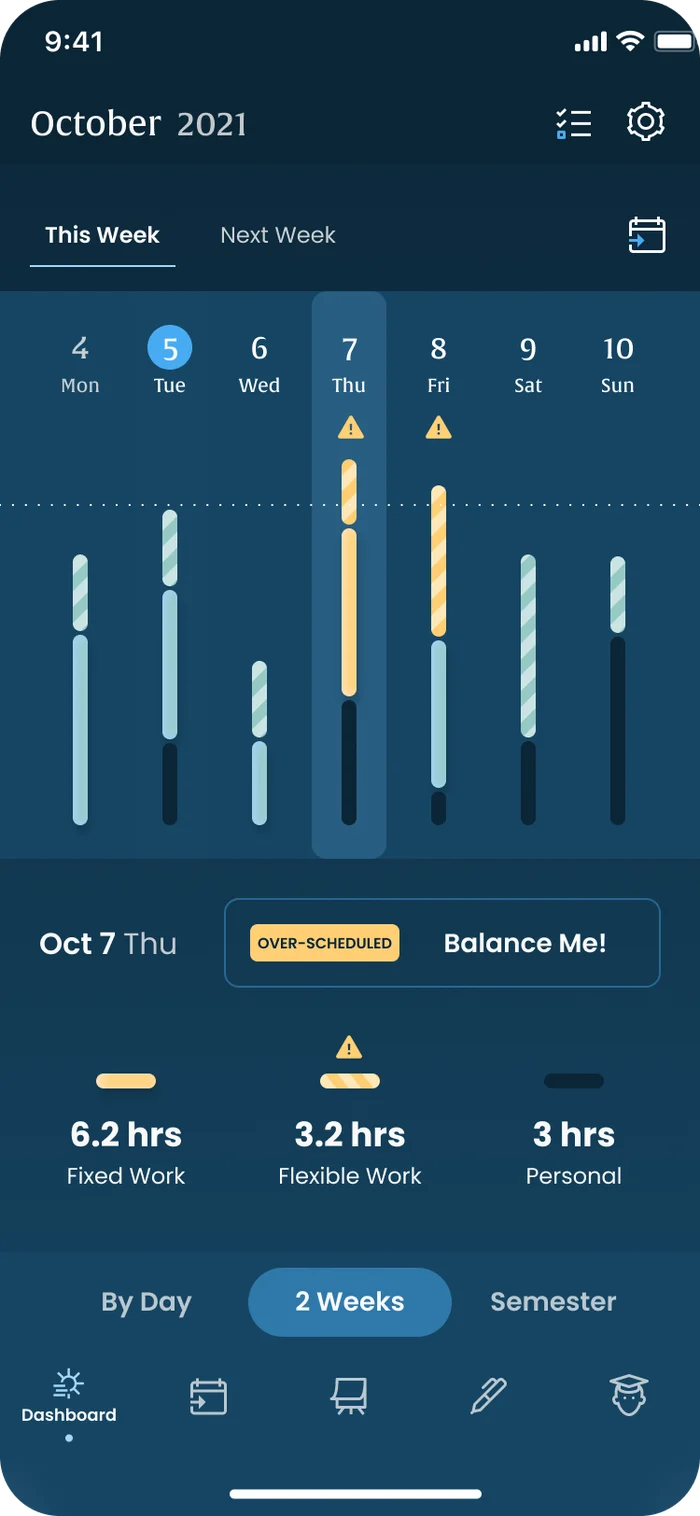
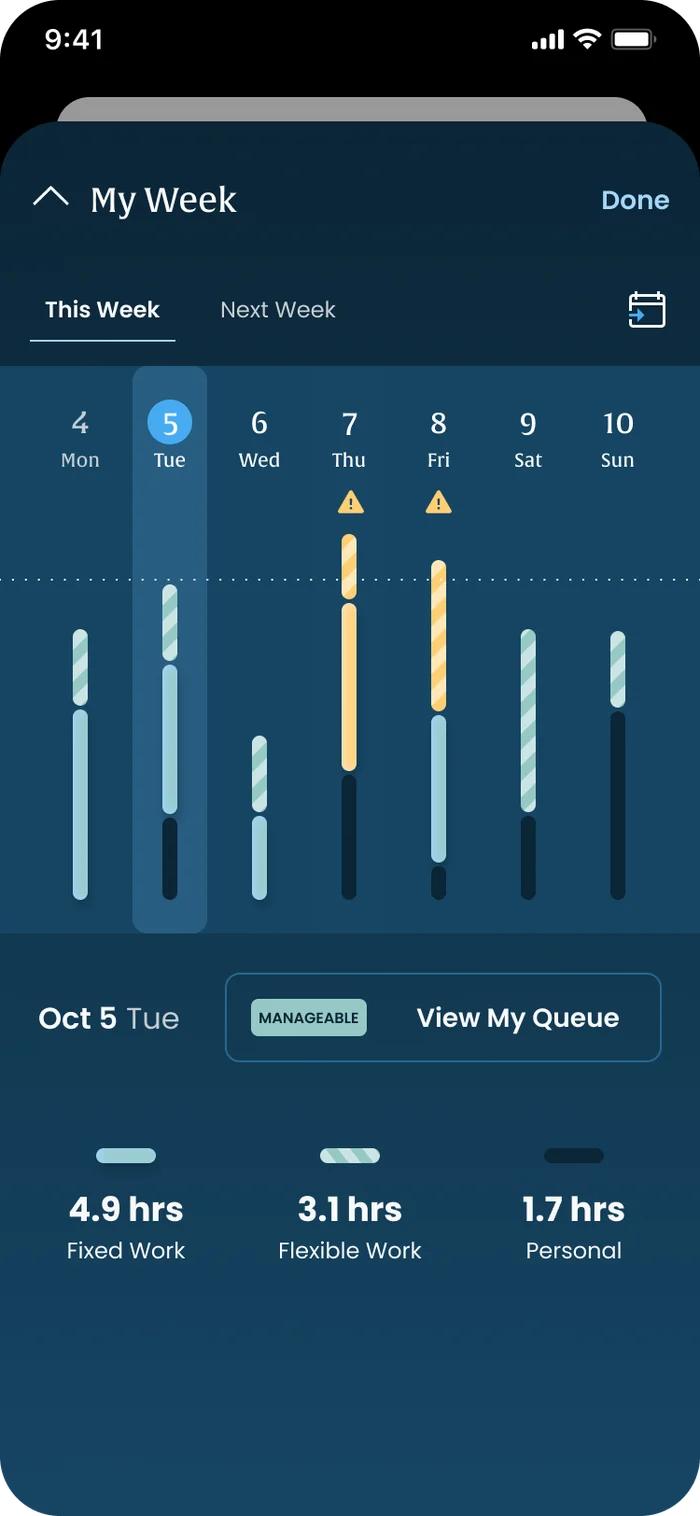
See the heavy week comingThursday is over-scheduled. Fixed, flexible and personal hours are split out, with a 'Balance Me!' button.
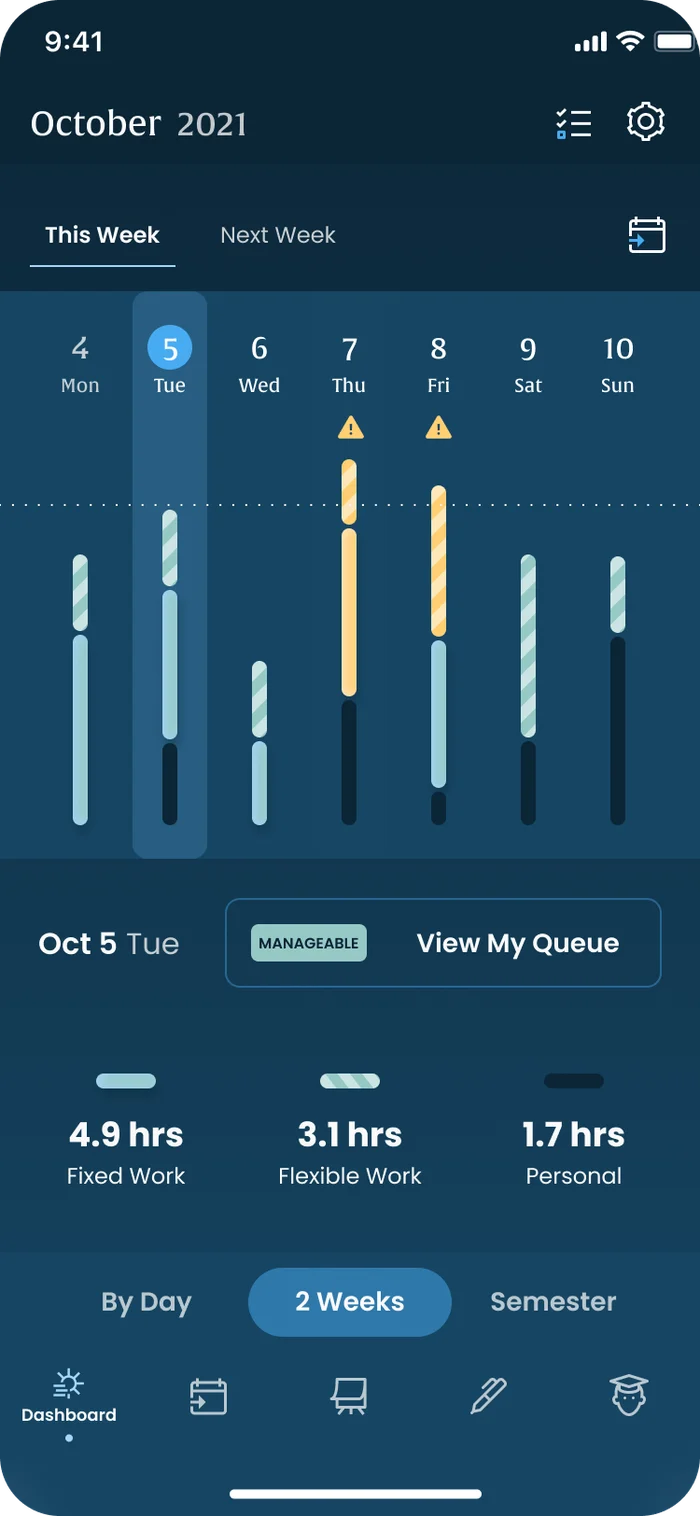
A manageable dayTuesday is fine. The same view, a calmer state, and a link to the queue.
On track'It's Tuesday. Meh.' Today is 64% done, the week is balanced, and the next session is two minutes away.
Off track'It's Monday. Again.' The same layout when a student is behind and the week is heavy.
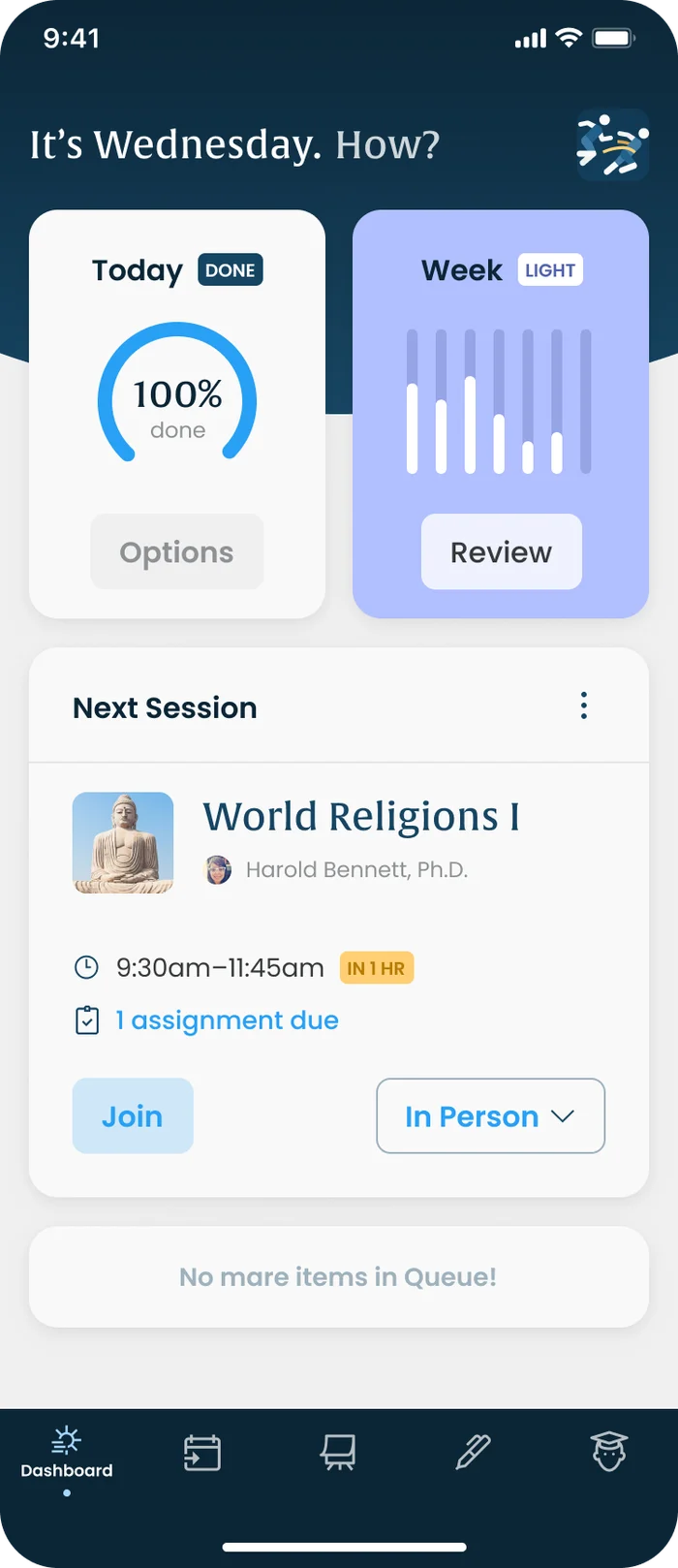
All done'It's Wednesday. How?' The queue is empty. One layout handles every state, with a voice that has some personality.
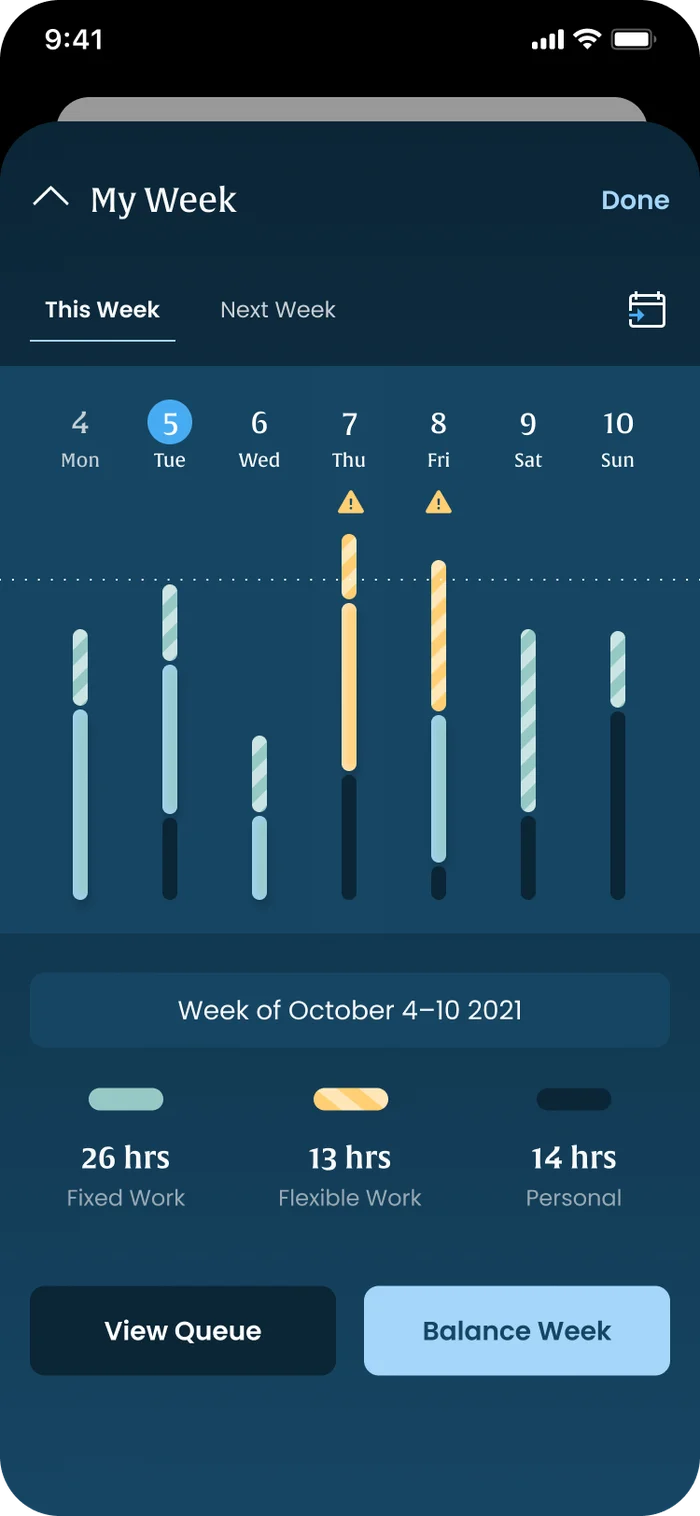
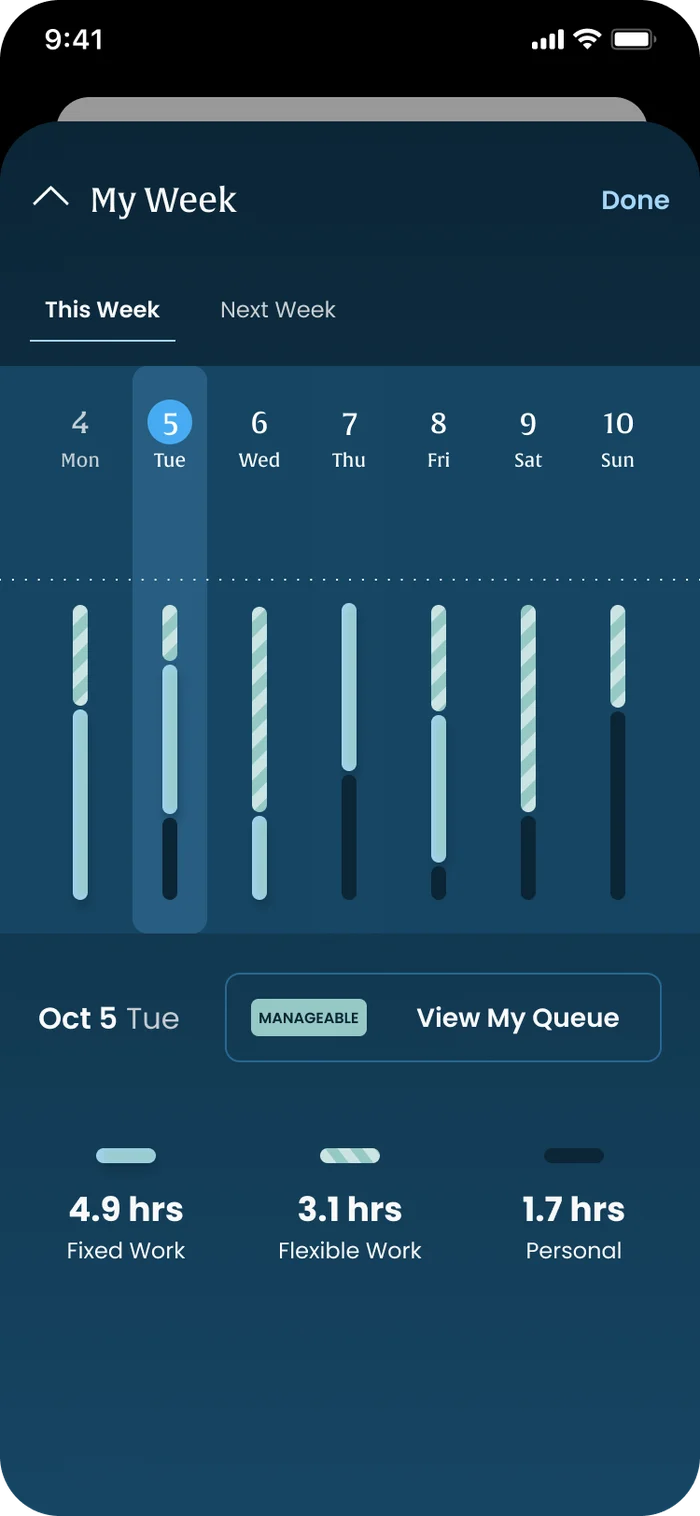
My weekTotals for fixed, flexible and personal hours, with View Queue and Balance Week.
Before balancingA lopsided week, day by day.
After balancingThe same week after 'Balance Week' spreads flexible work evenly.
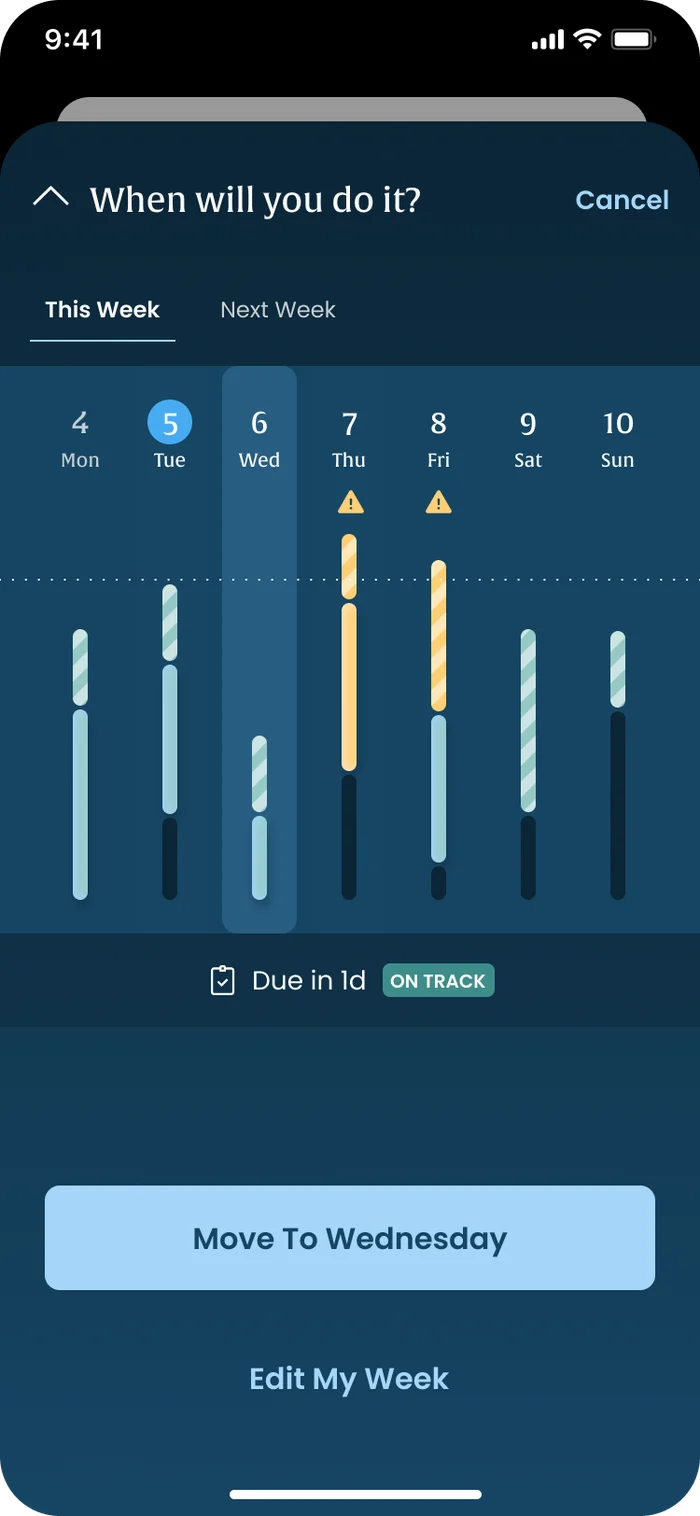
When will you do it?Moving a task is a one-tap choice of day.
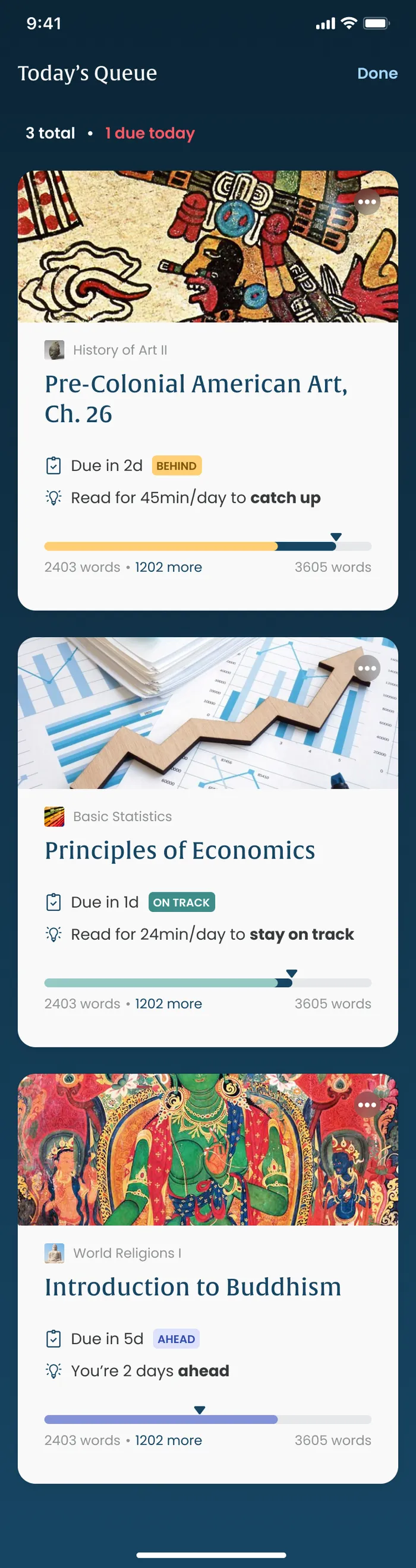
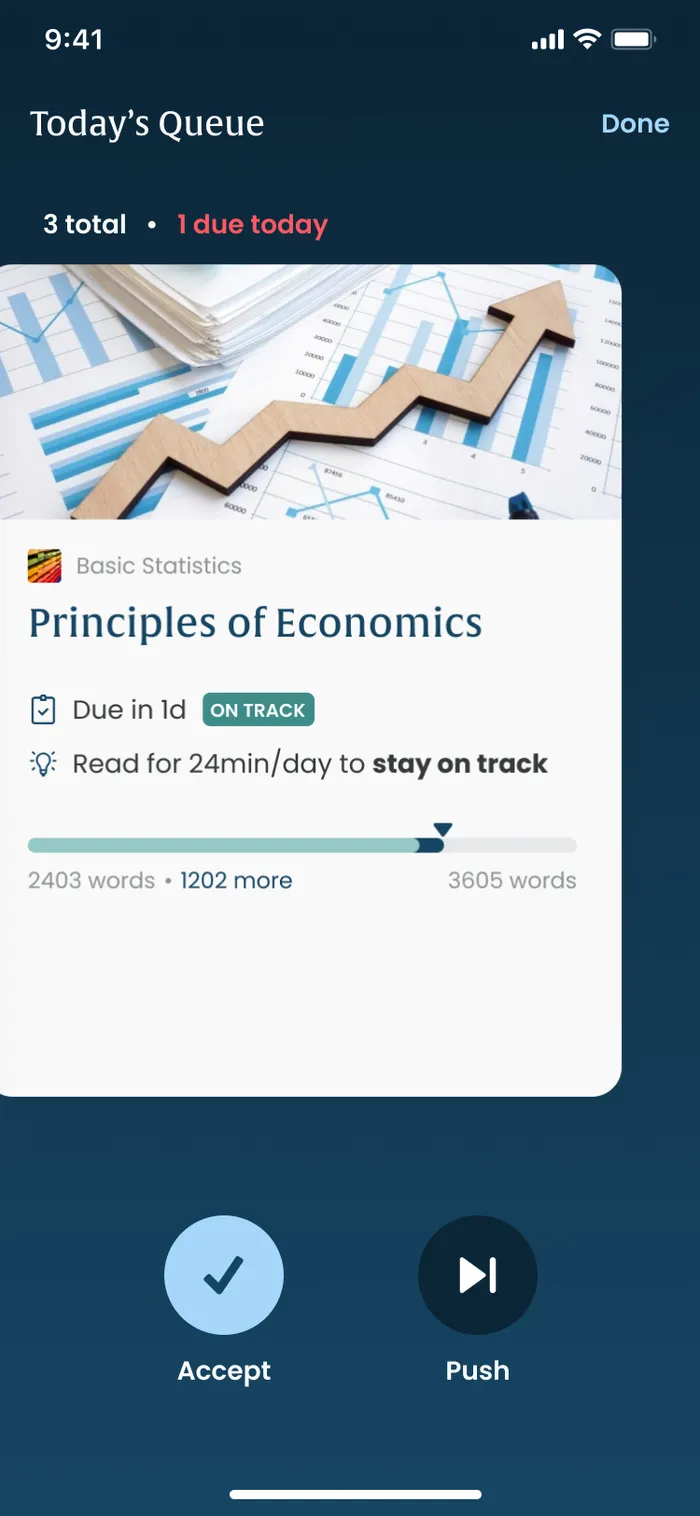
Today's queueThree tasks, one due today, with a clear first step.
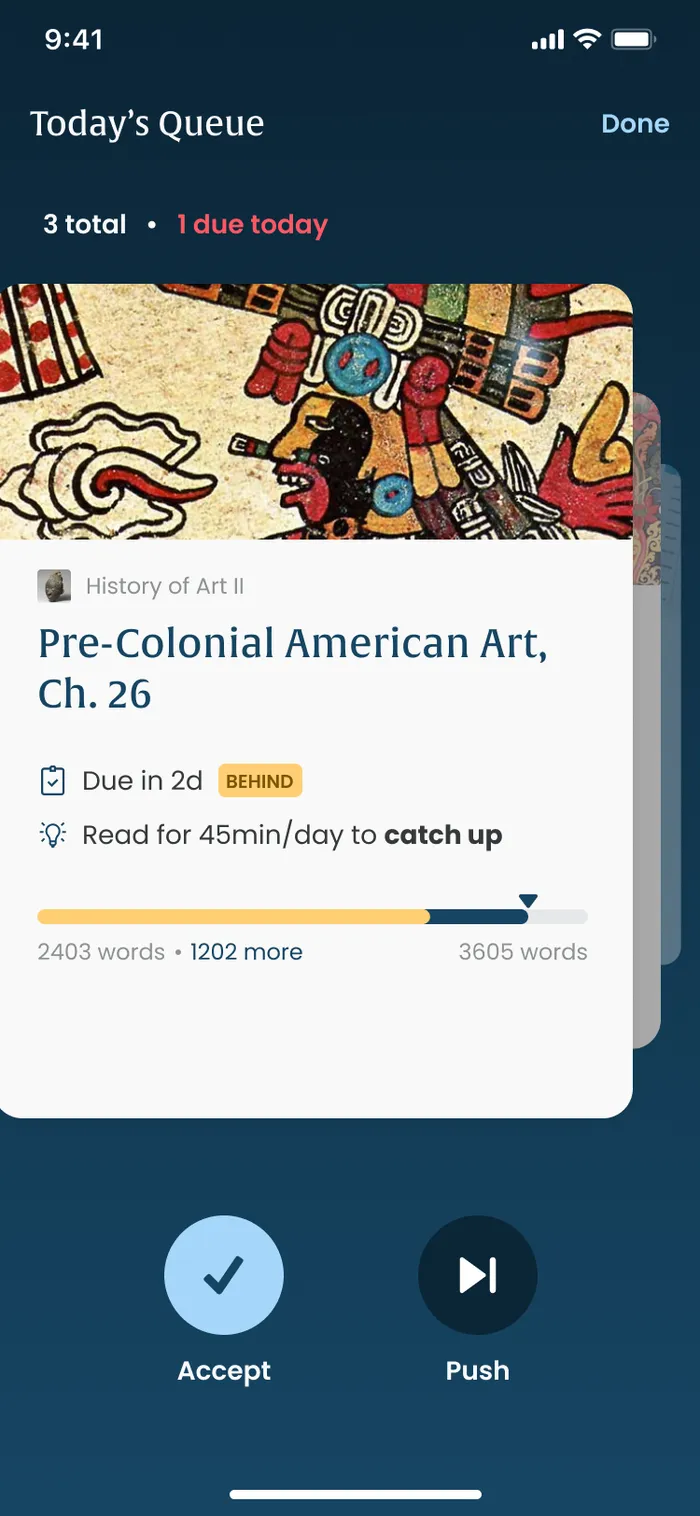
Triage, one card at a timeAccept or push each task, like sorting a deck. Planning becomes a 30-second ritual.
Triage, one card at a timeThe next card in the morning queue.
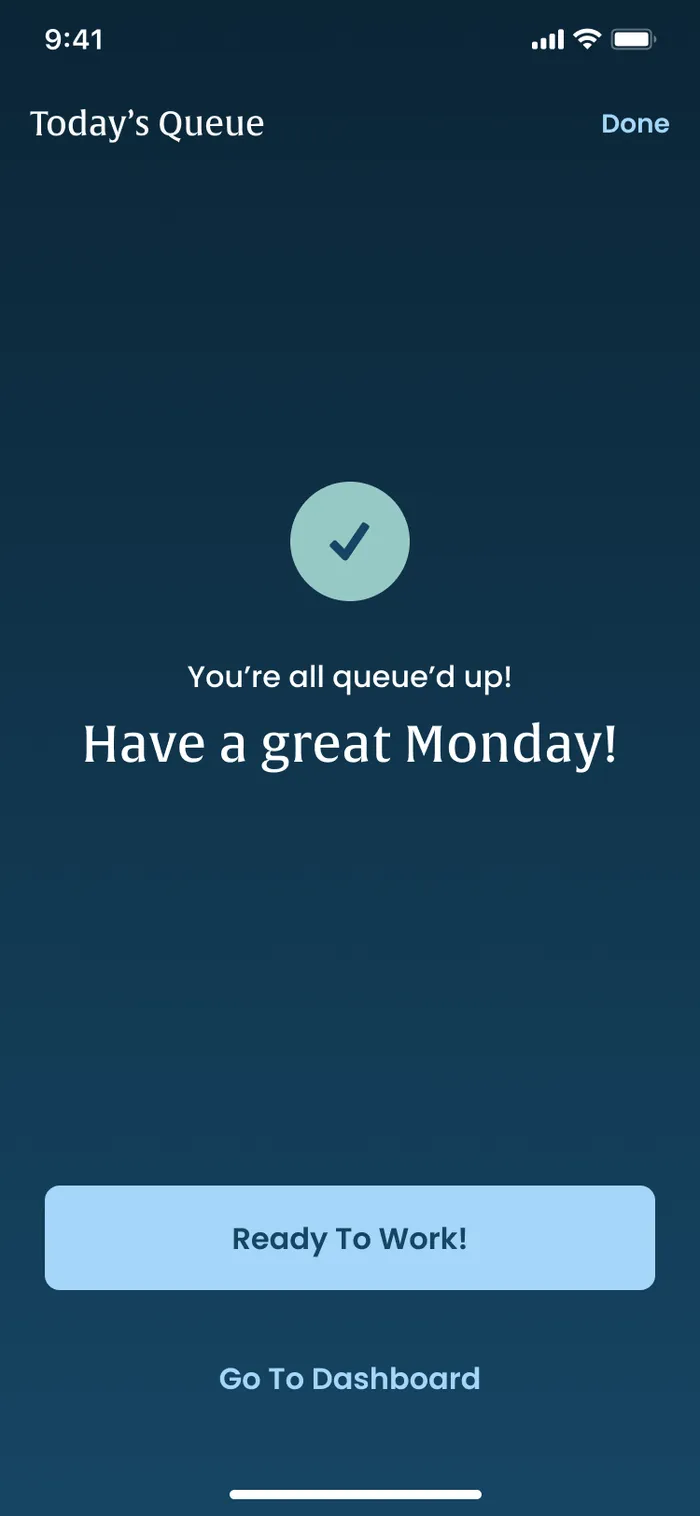
All queued up'You're all queue'd up! Have a great Monday!'
Live Class
26 screens
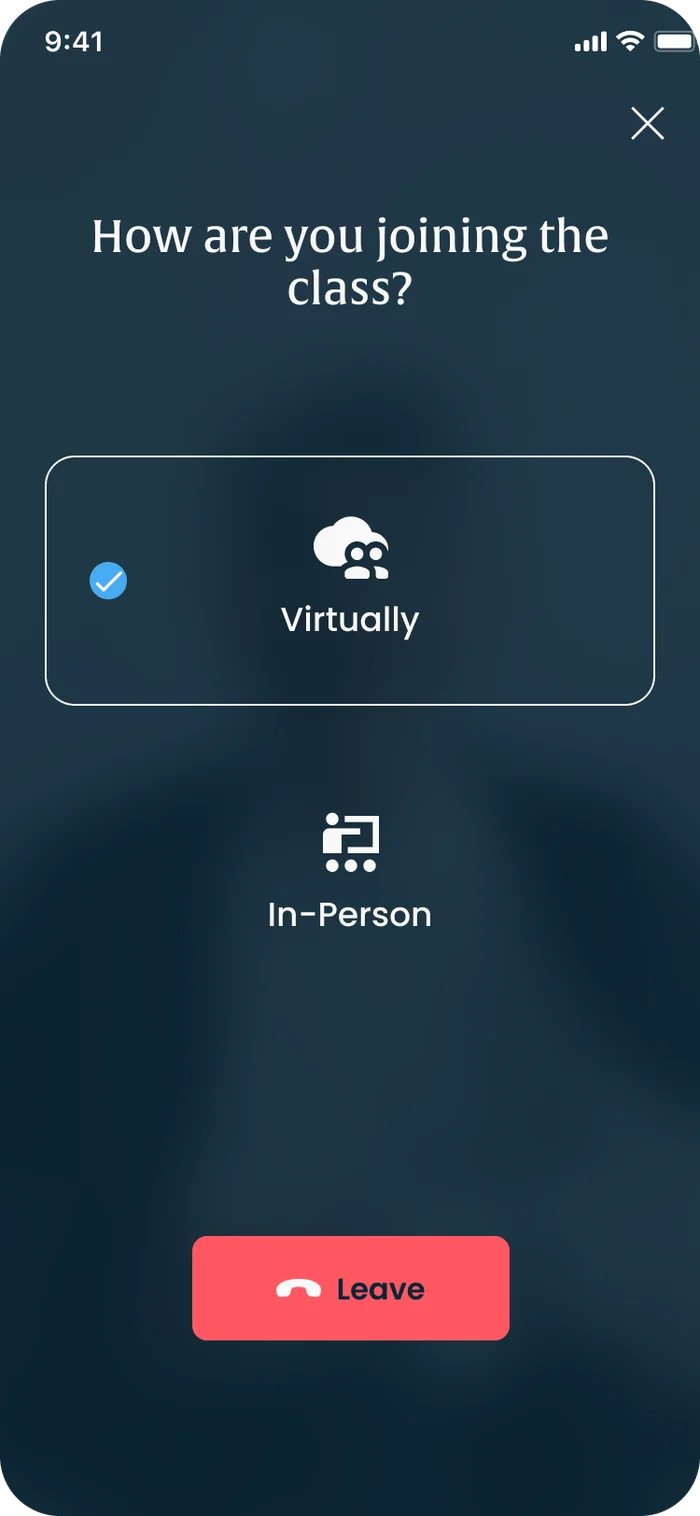
How are you joining?Every class is hybrid: choose to join virtually or in person.
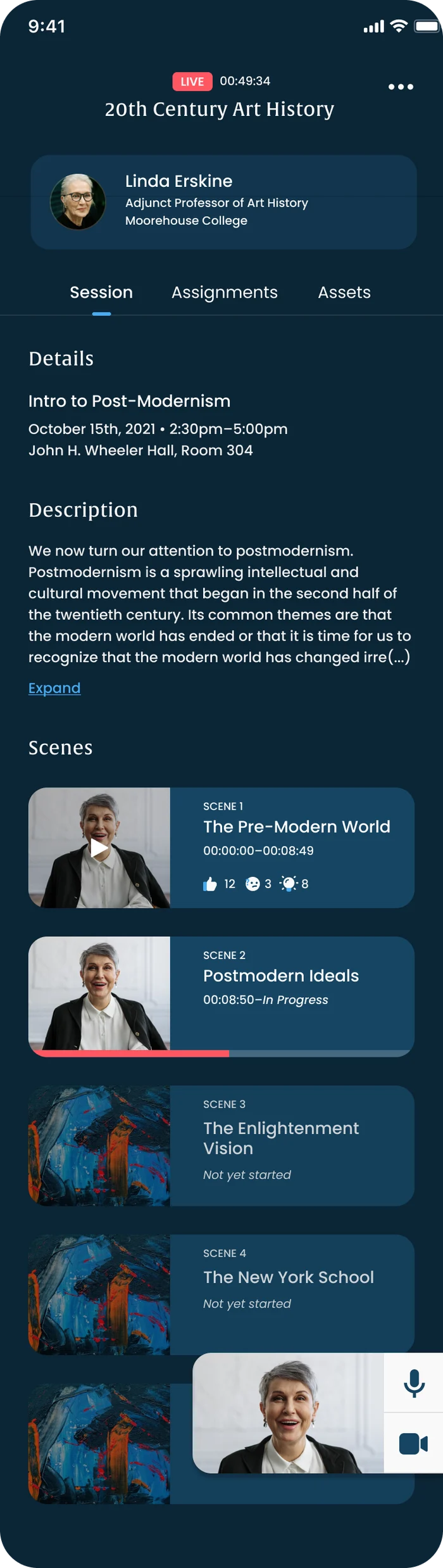
Session overviewInstructor, description and scenes, with reaction counts per scene so you can see which parts landed.
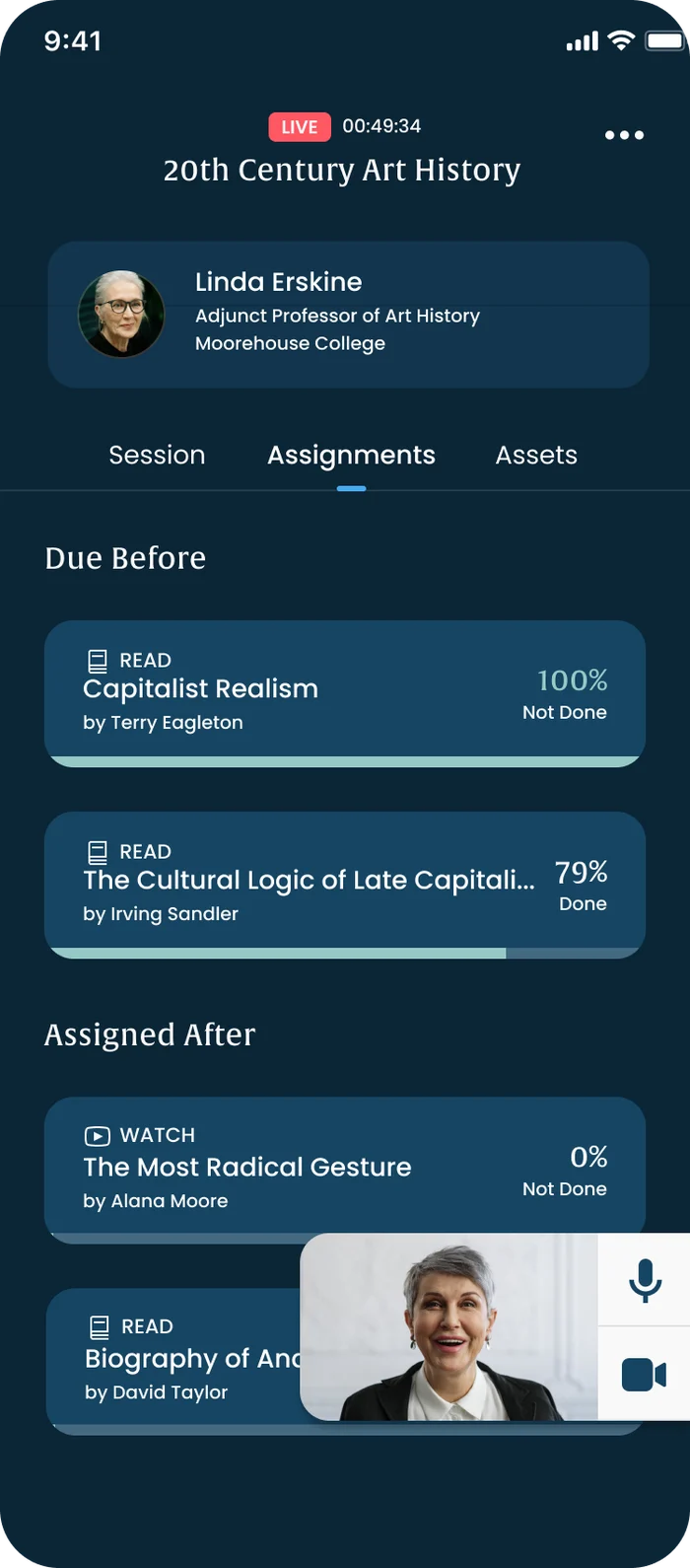
What to do before and afterReadings due before class and assignments set after it, with progress.
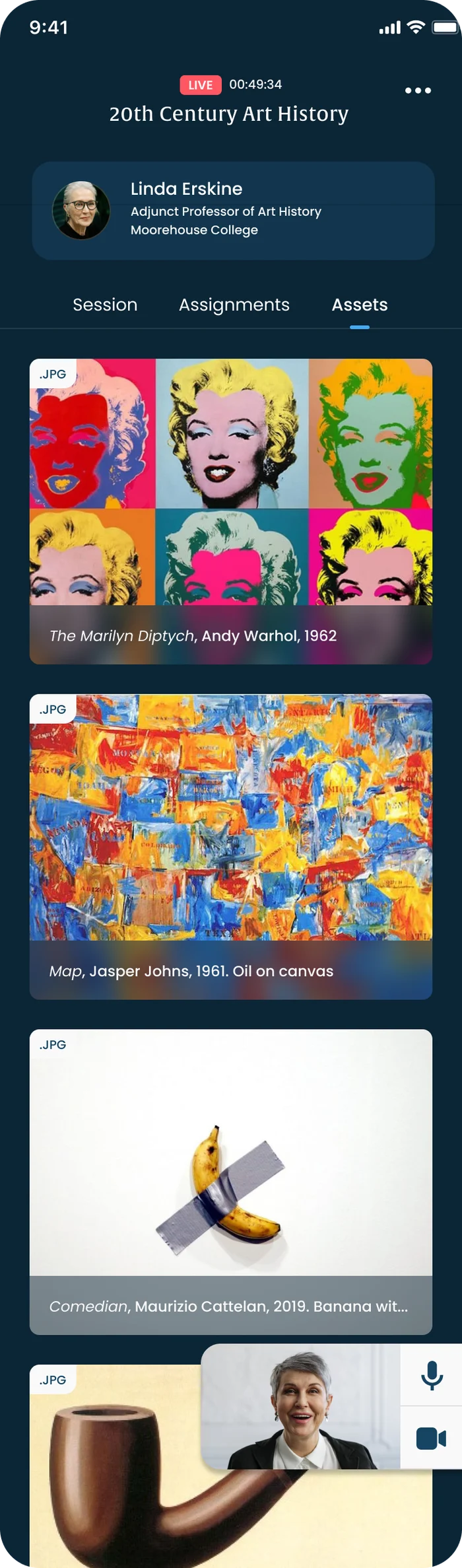
Session assetsEvery image the instructor uses, saved for later.
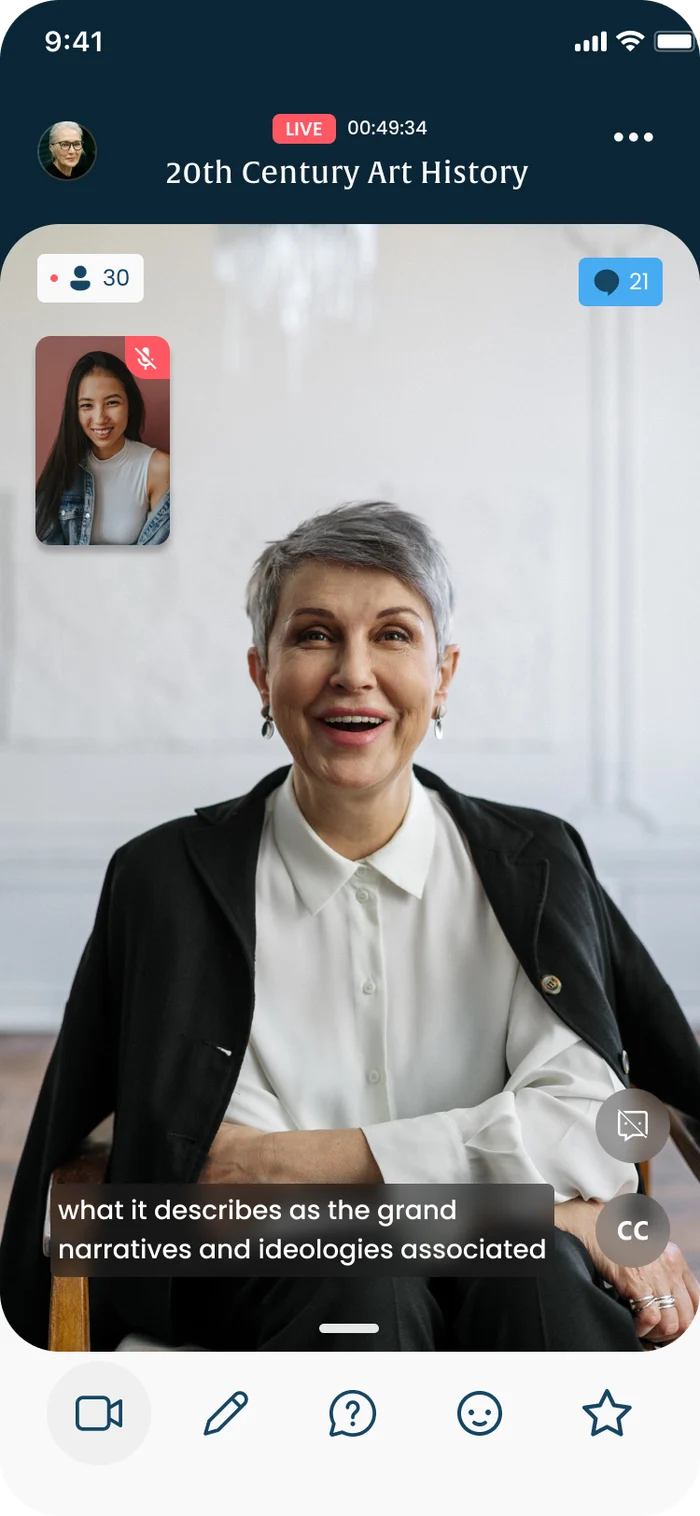
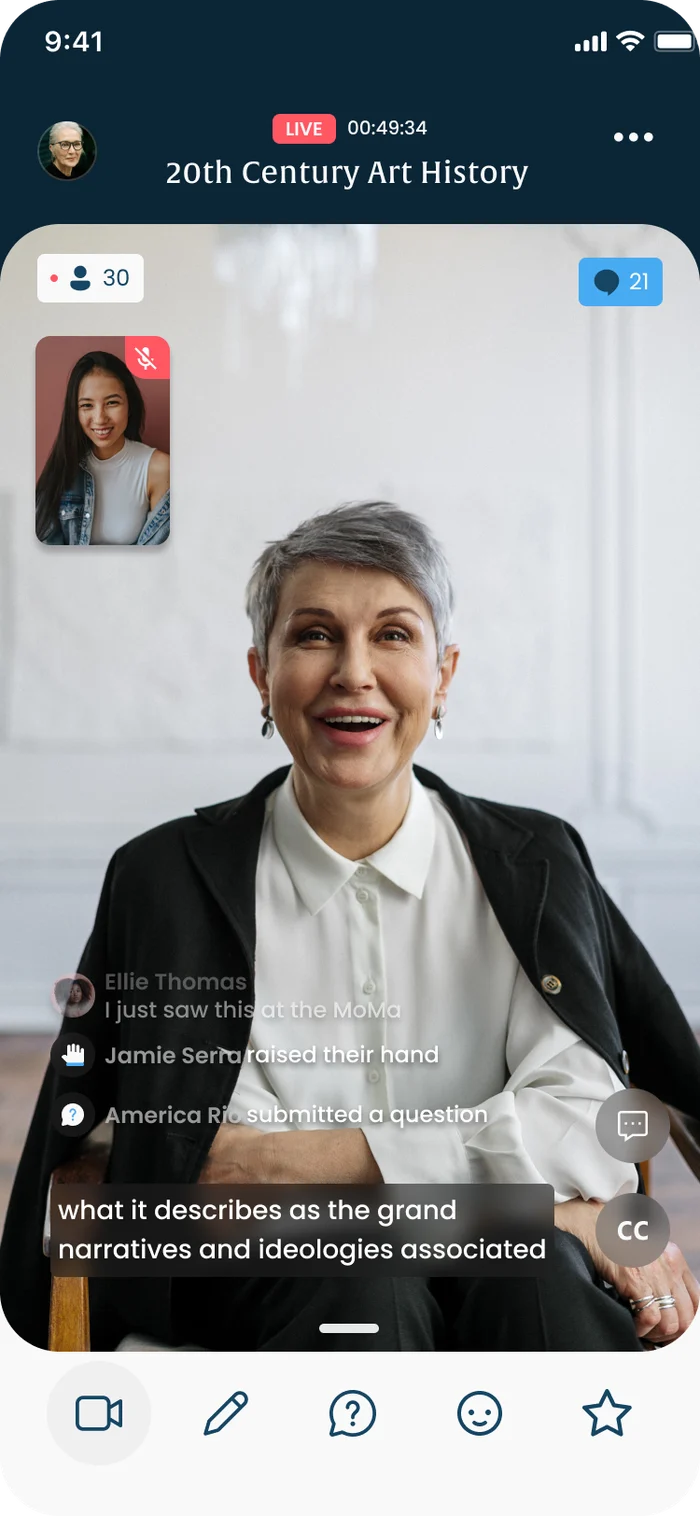
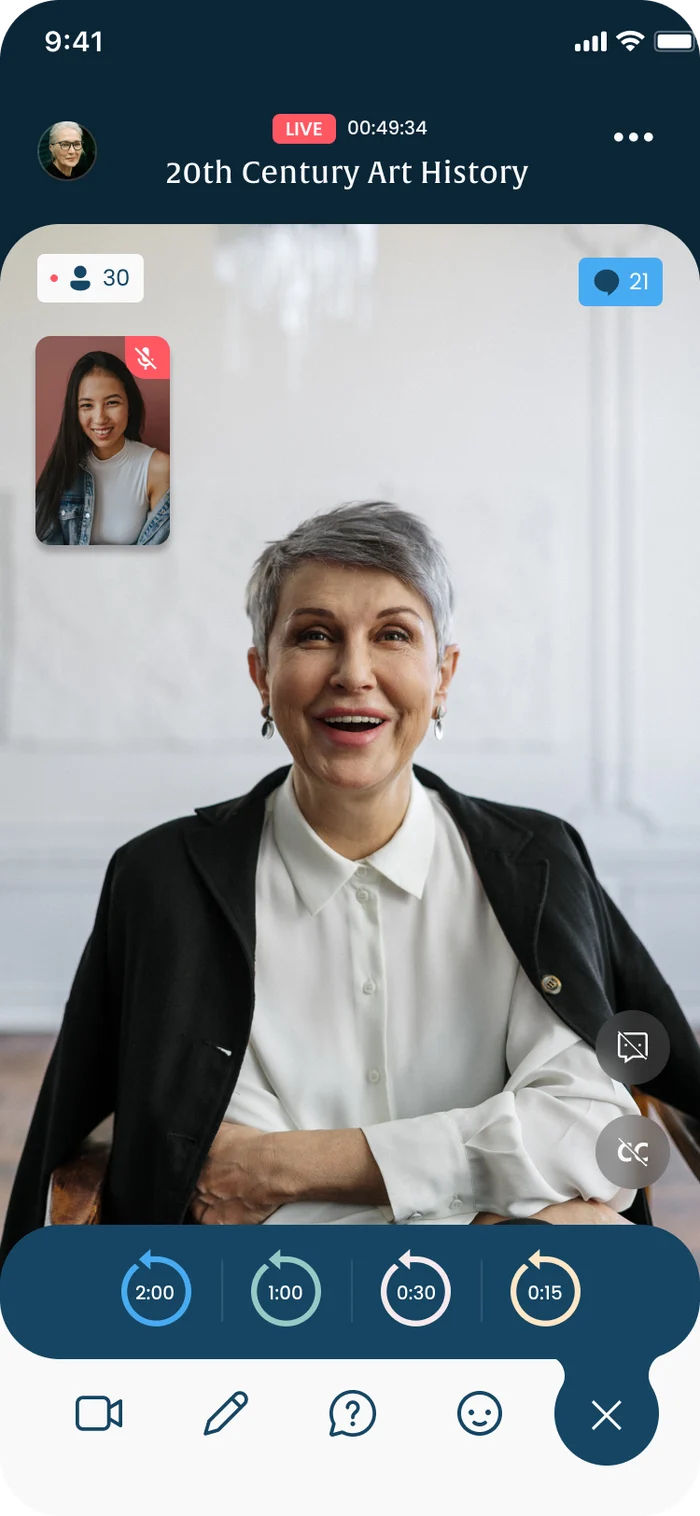
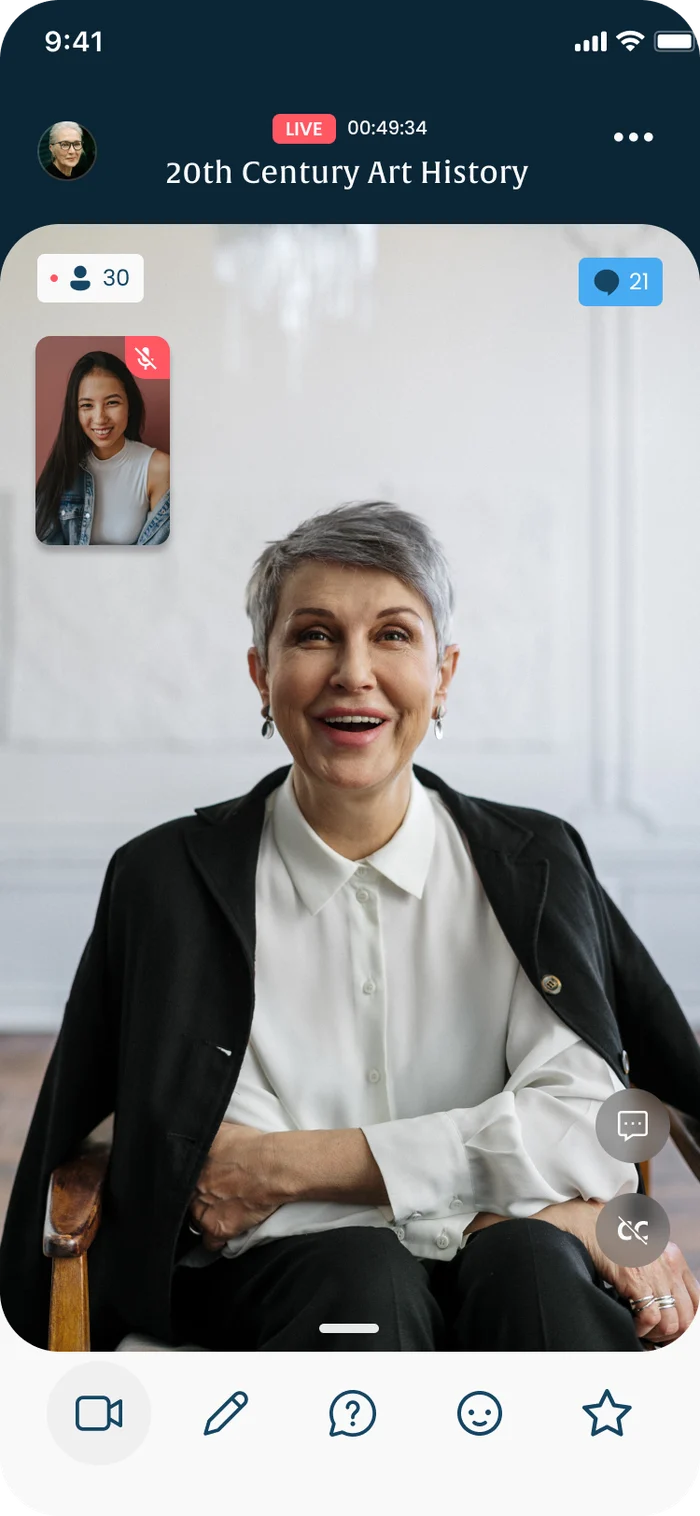
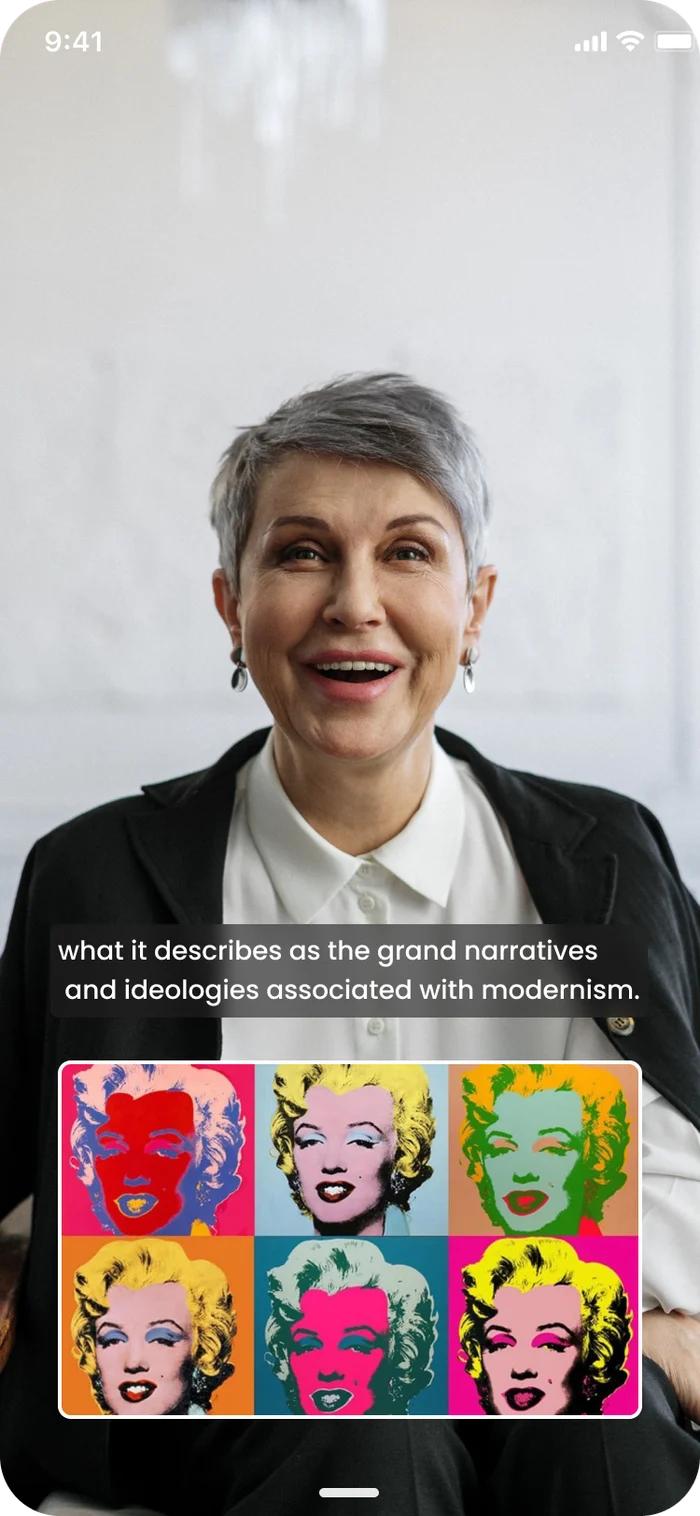
Live classLive timer, attendee and comment counts, live captions and your own video.
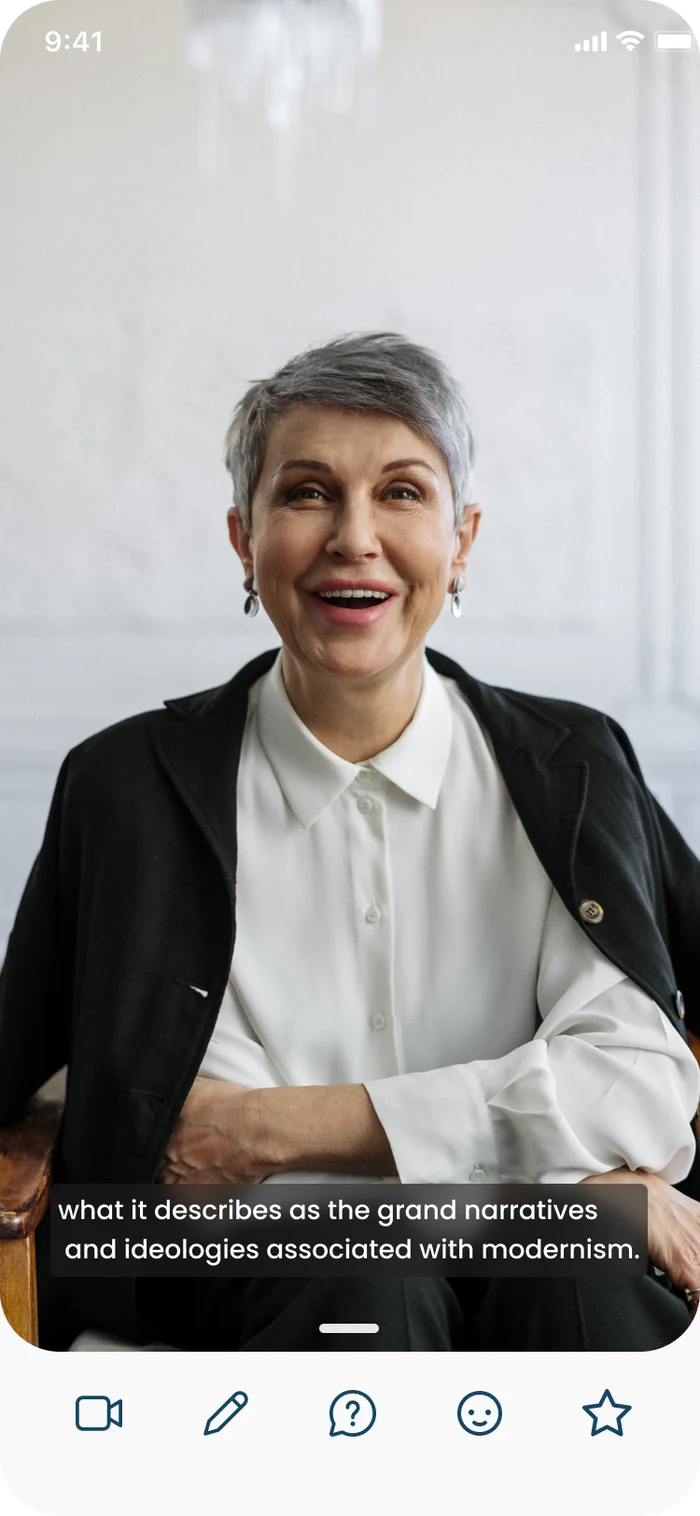
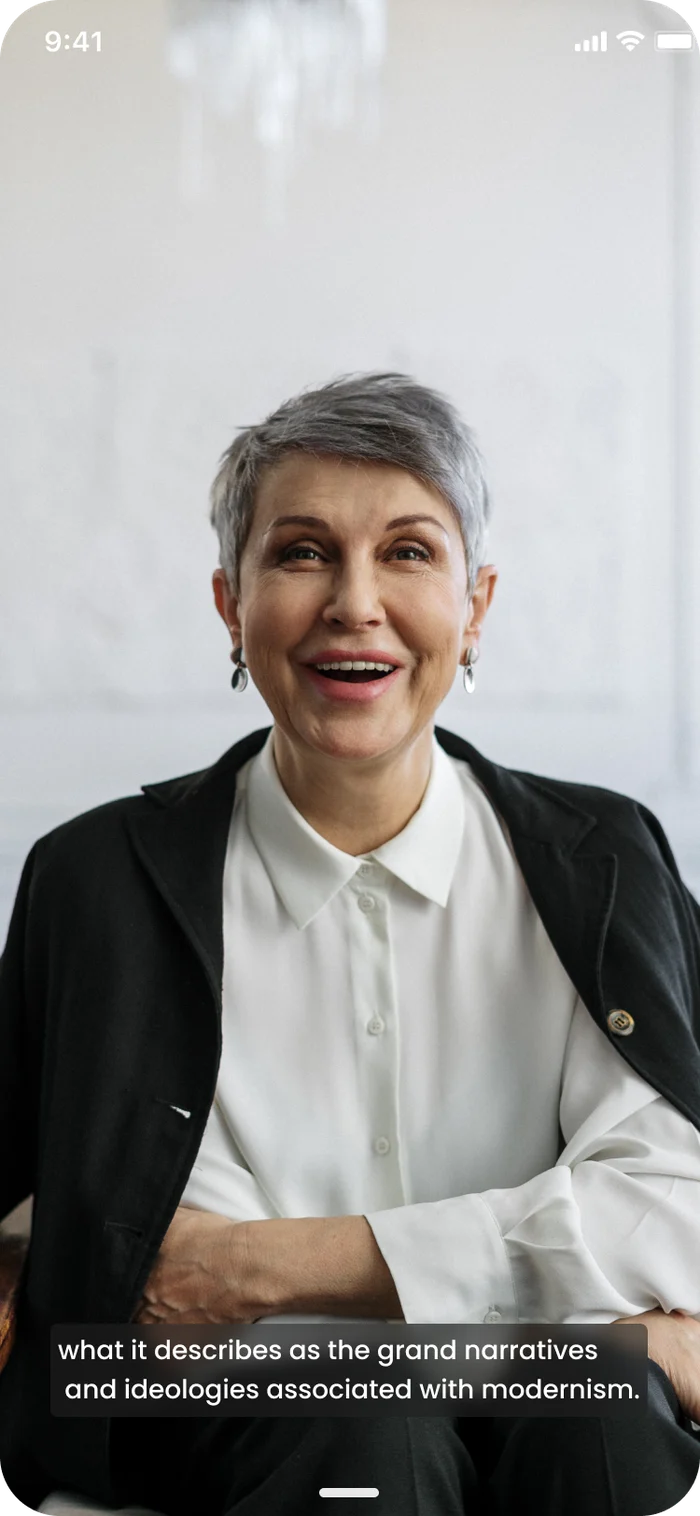
Immersive viewThe interface steps back so the class fills the screen.
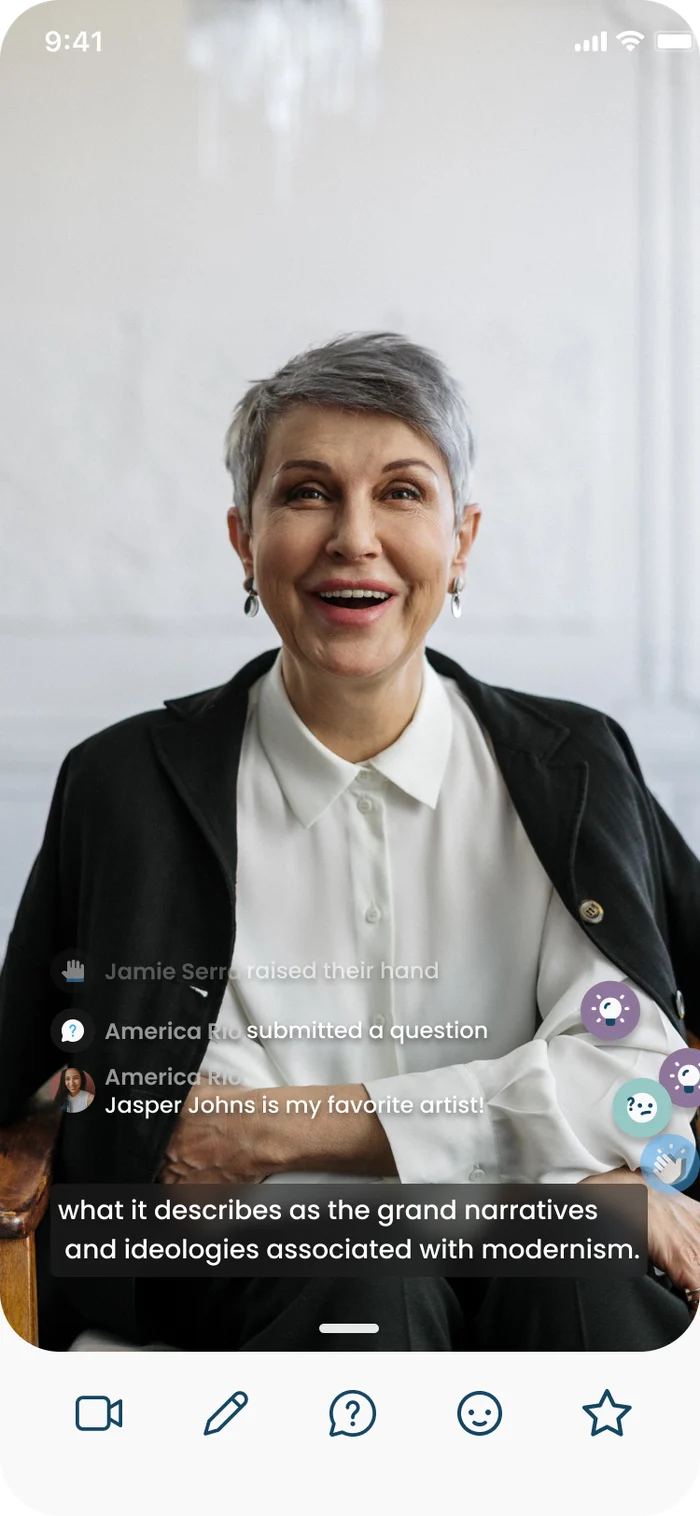
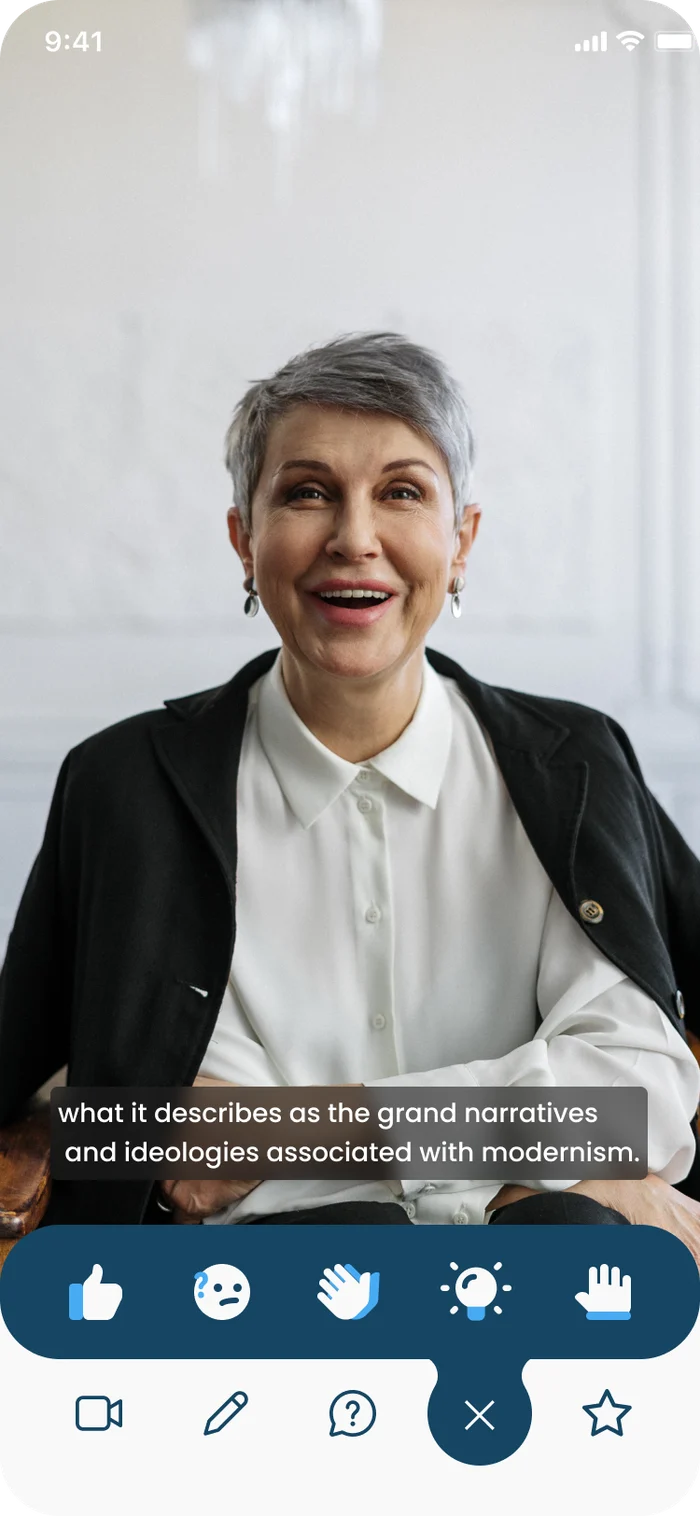
Reactions that teach the teacherConfused, a-ha, raise hand and applause float over the video: learning signals, not likes.
The room, on screenClassmates' comments and reactions appear in real time, so studying alone doesn't feel alone.
The room, on screenLive reactions and comments during class.
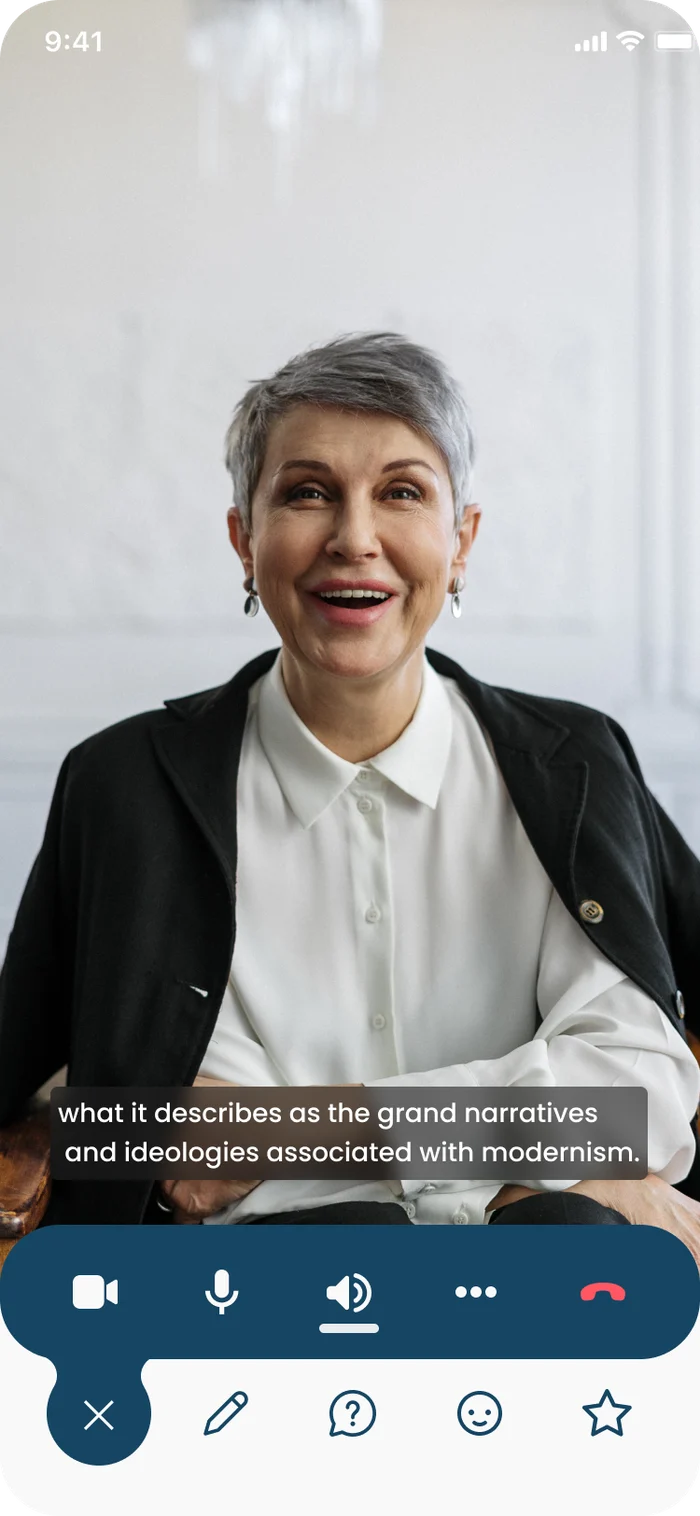
Class controlsMic, camera and tools in one tray.
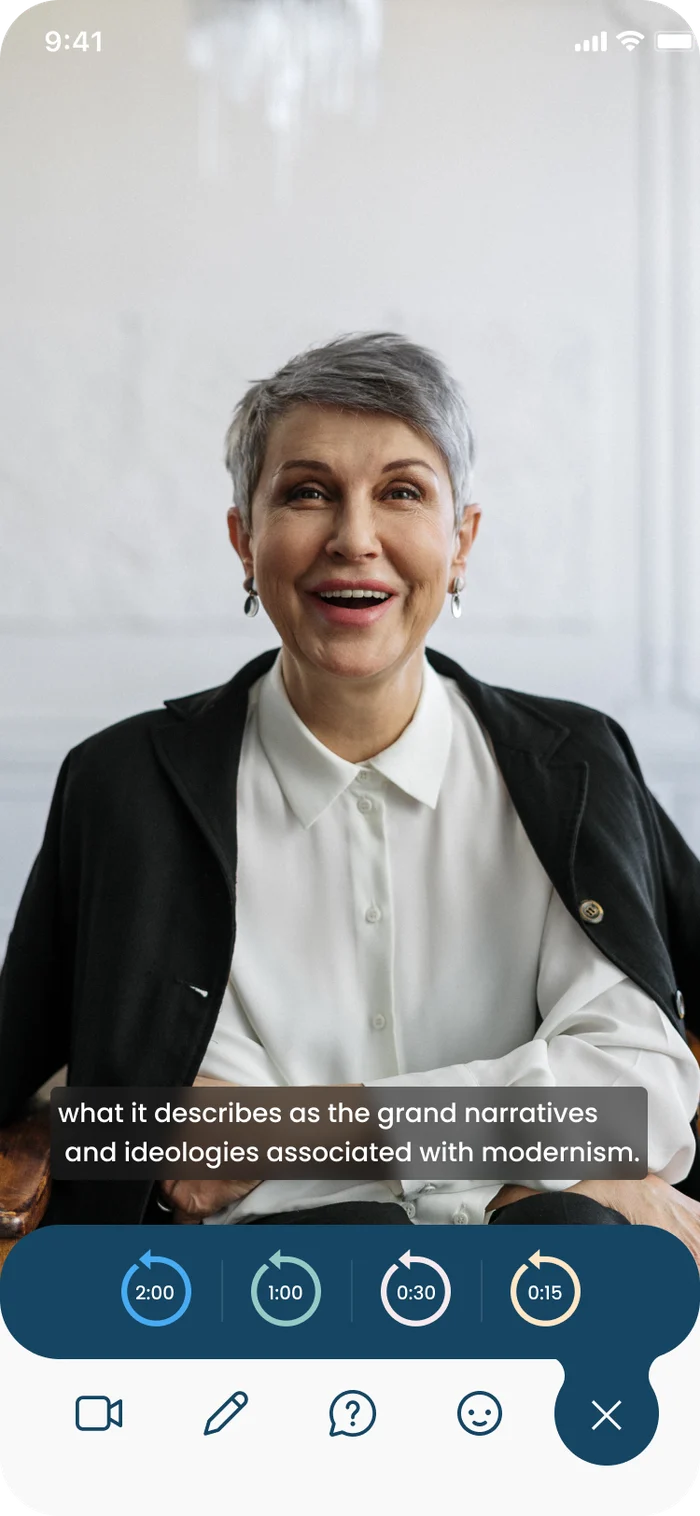
Rewind a live classMissed something? Jump back 15 seconds to 2 minutes without leaving the session.
Rewind a live classThe rewind tray in context.
React without interruptingThe reaction tray.
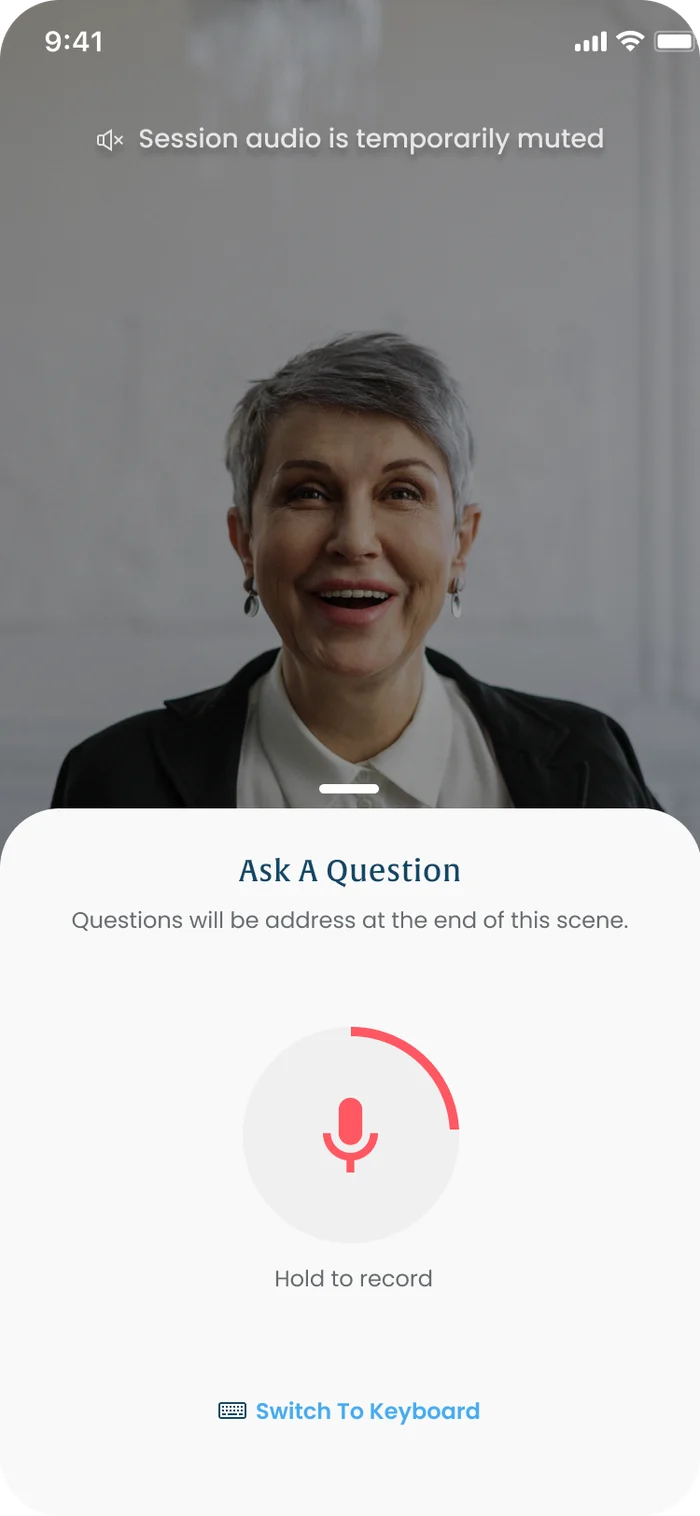
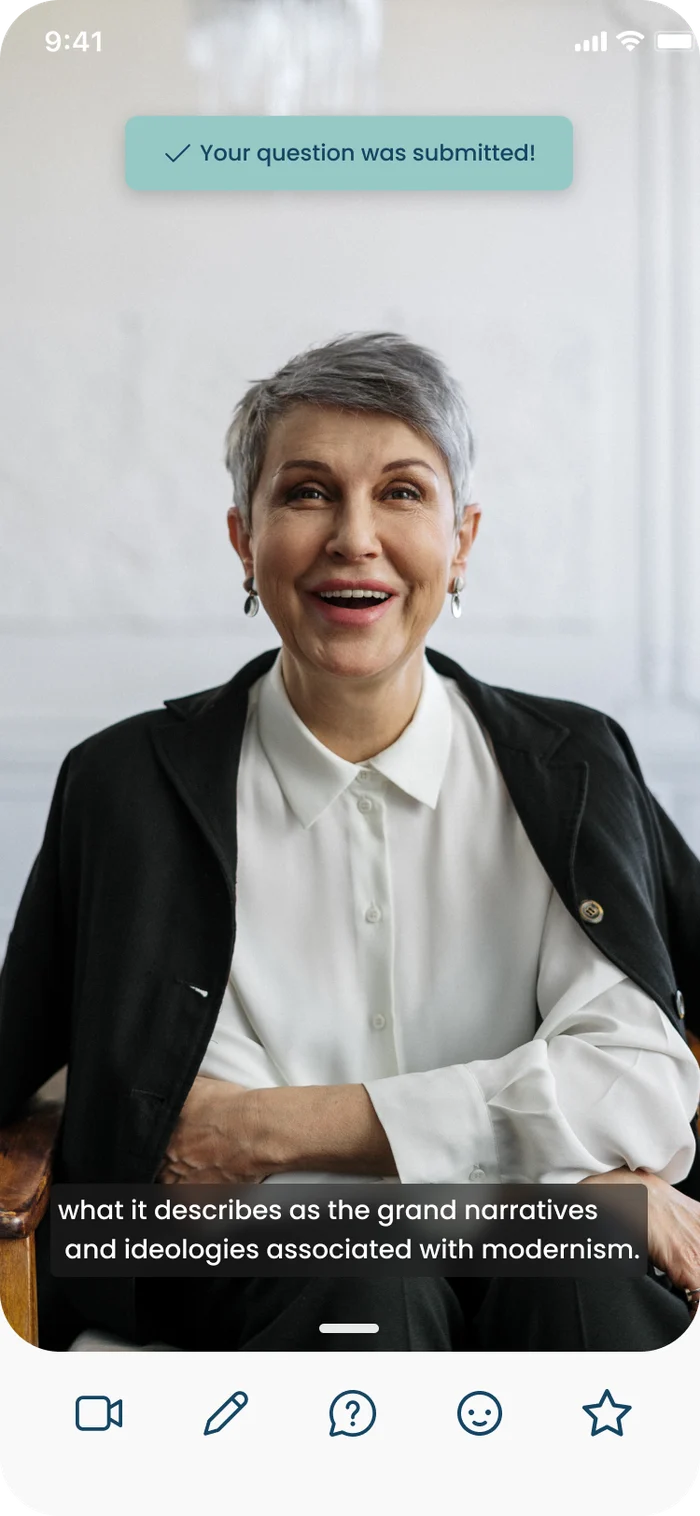
Ask without interruptingHold to record a question. It's queued for the end of the scene, and class audio mutes while you speak.
Question submittedConfirmation that your question is in the queue.
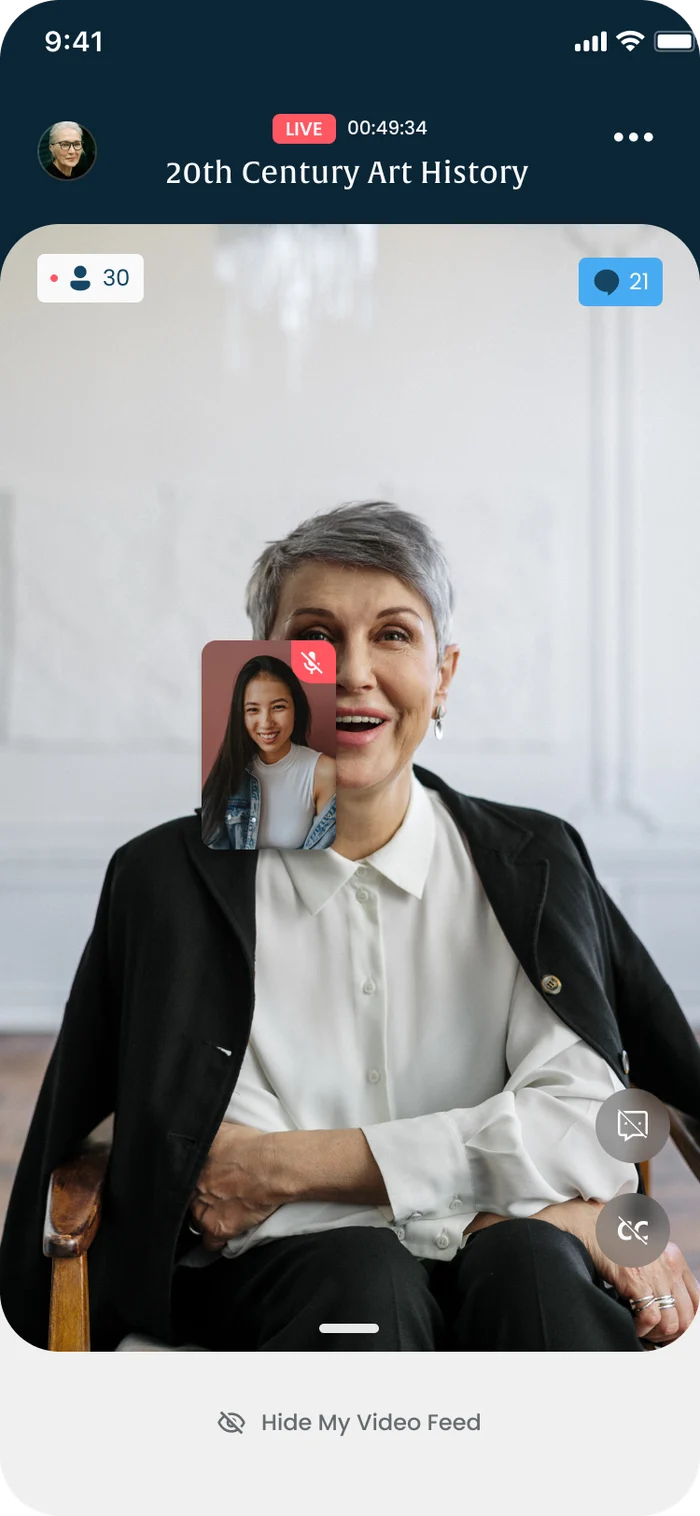
Your videoSelf-view controls.
Hide my videoStudents can hide their own feed.
The instructor shares an imageShared images appear as a card over the video.
The instructor shares an imageShared image card state.
The instructor shares an imageShared image card state.
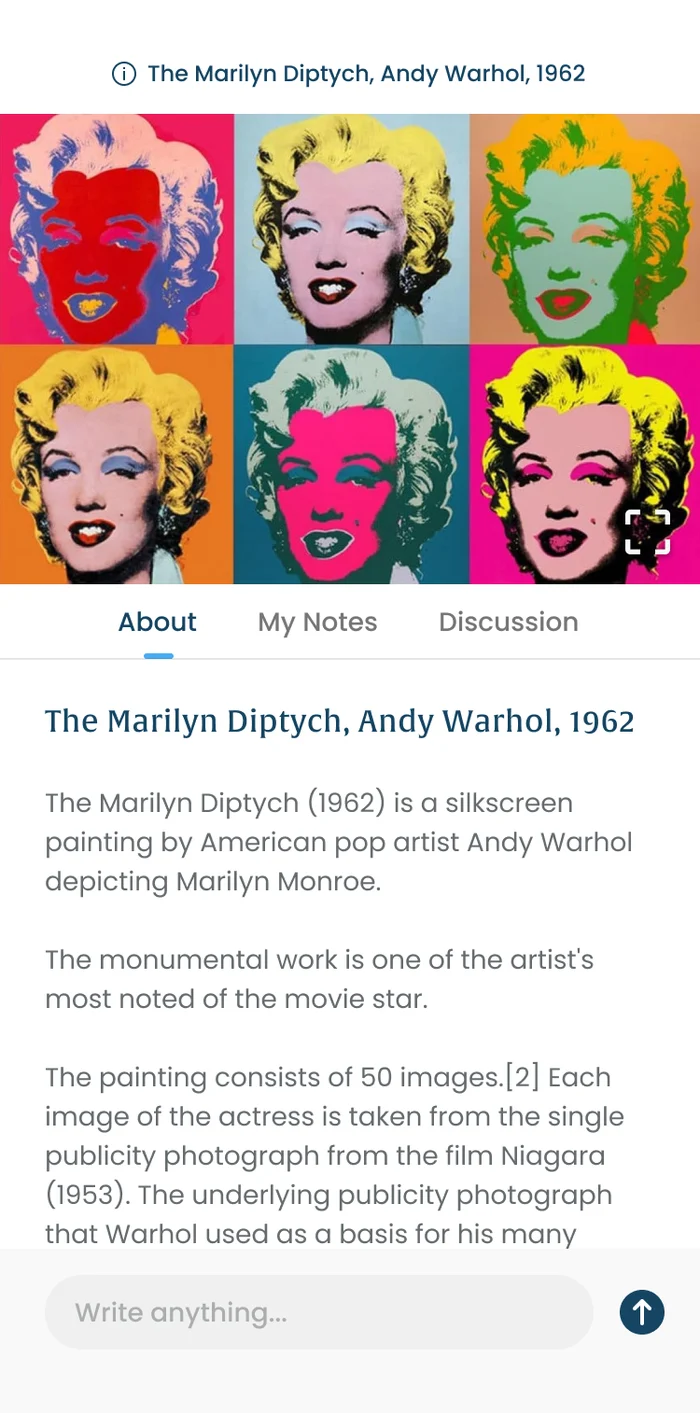
About this imageTap a shared image to learn more about it.
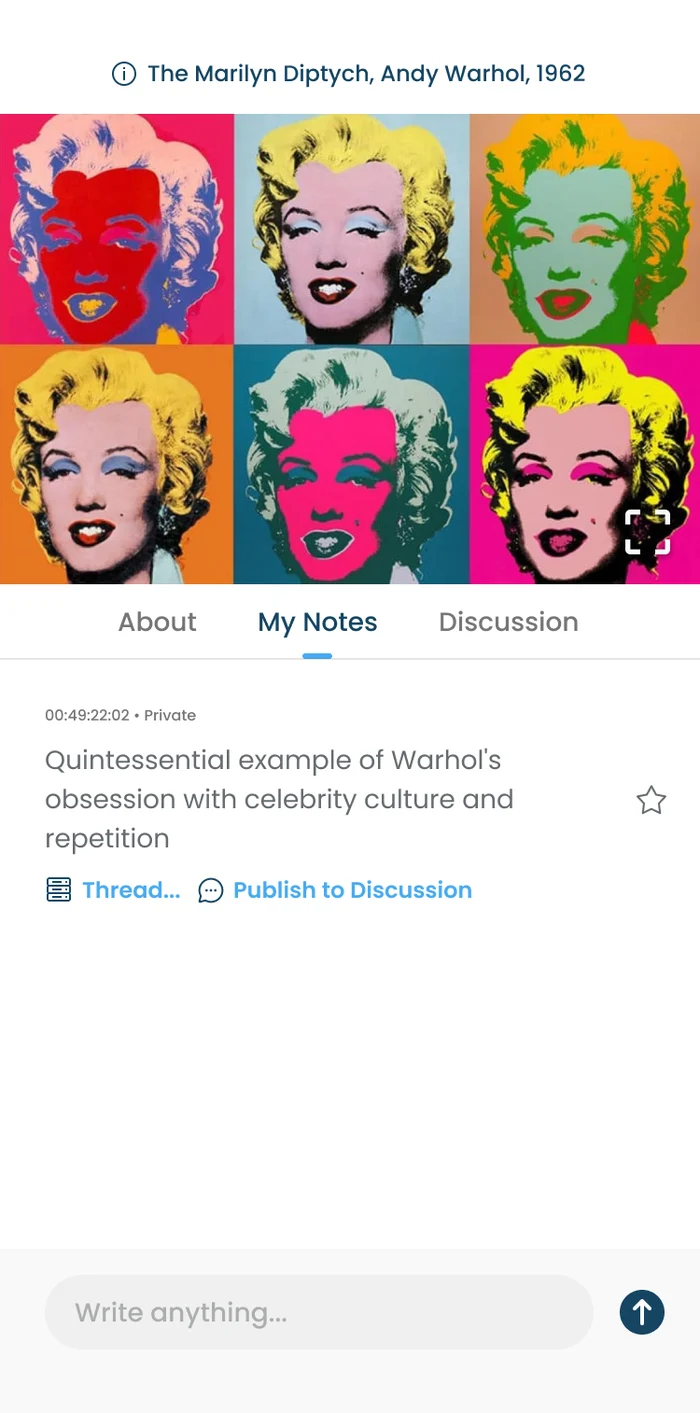
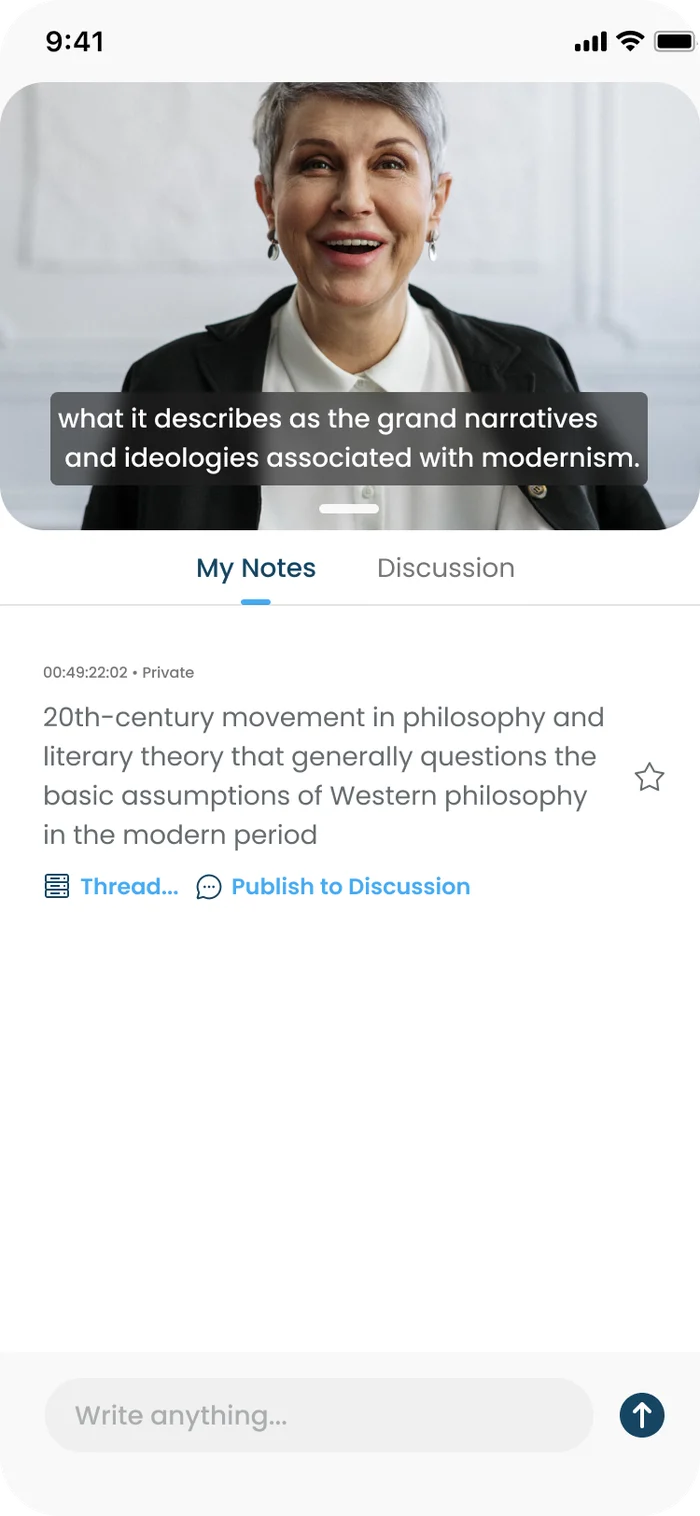
Notes on this imagePrivate notes attached to the moment.
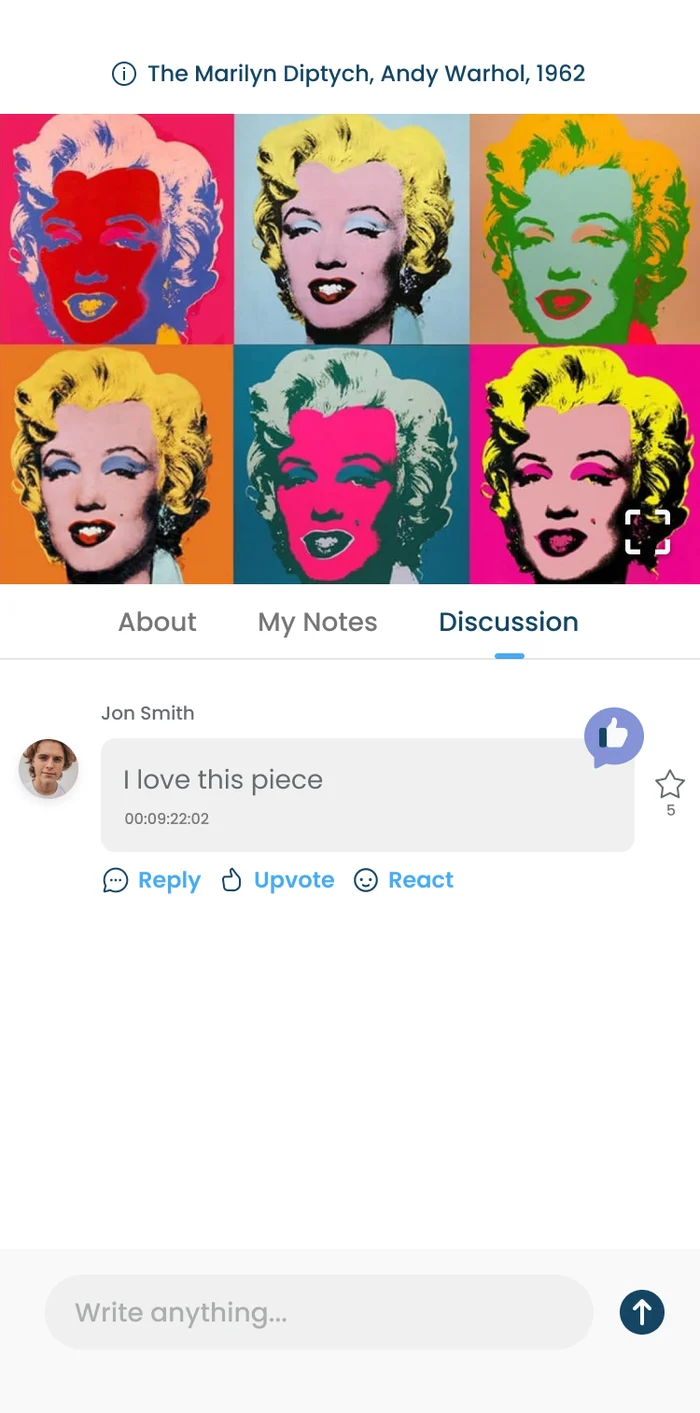
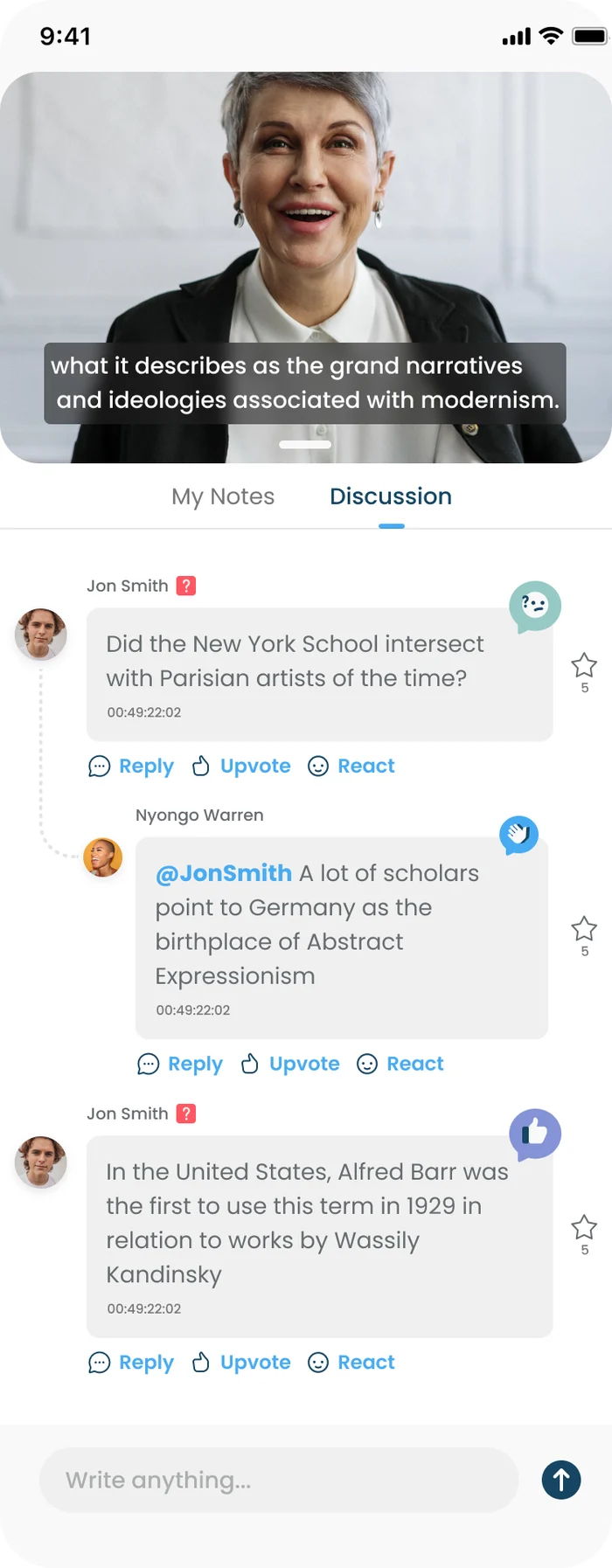
Discuss this imageA discussion thread for the image.
Notes and discussionTimestamped notes are private by default and can be published to the class discussion in one tap.
Class discussionThreaded comments with upvotes and reactions.
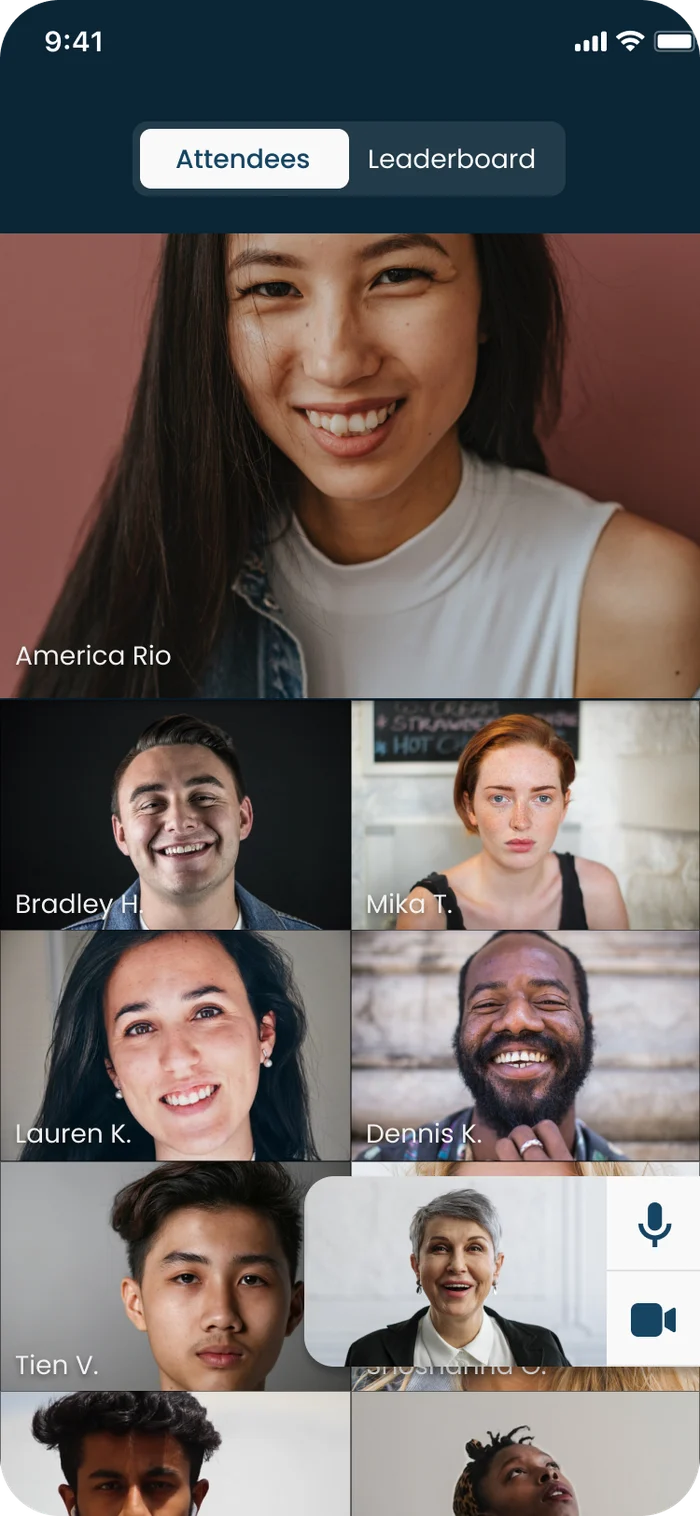
Who's hereAn attendee grid with a leaderboard tab.
Instructor Studio
18 screens
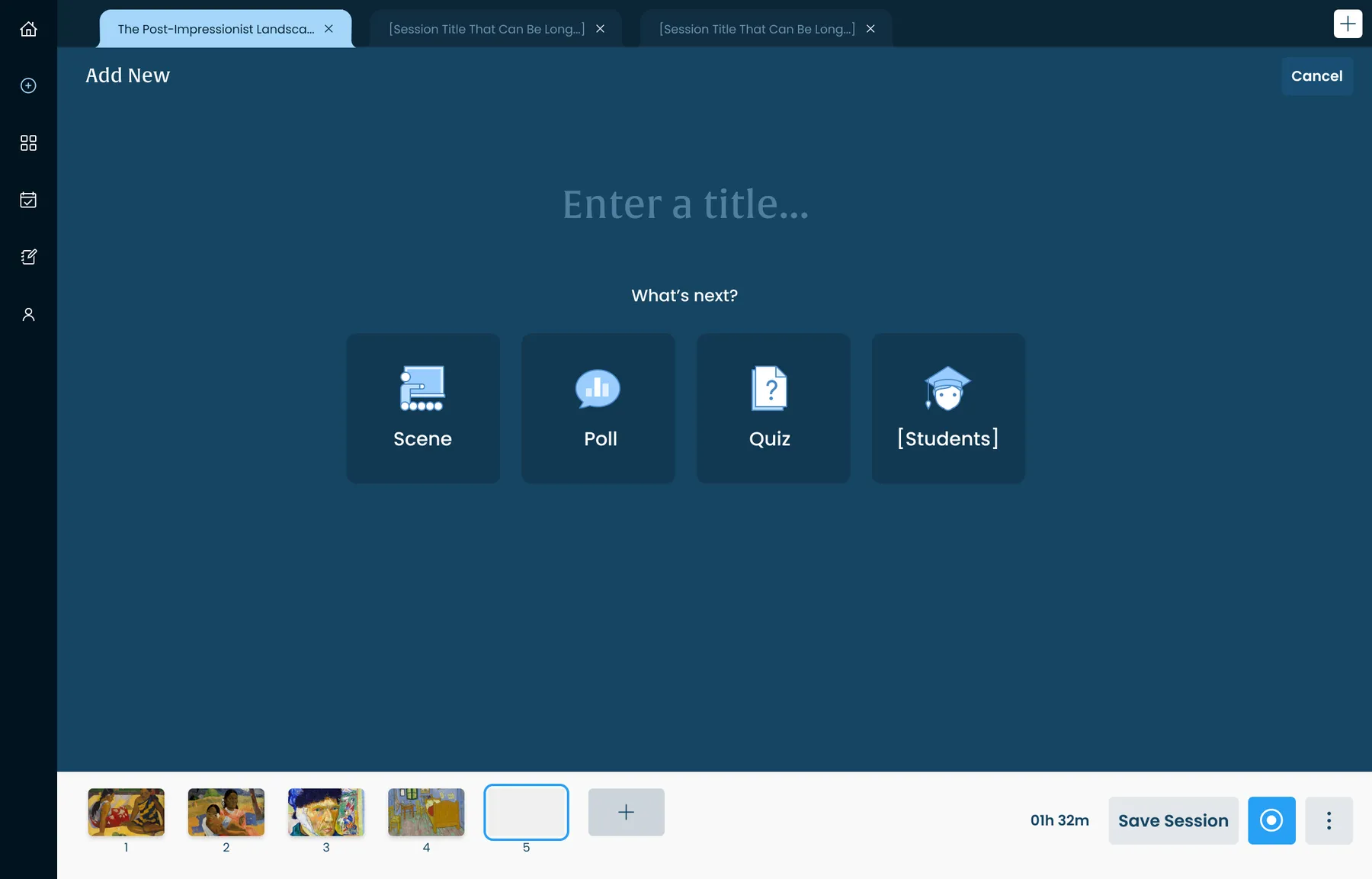
Build a class in scenesThe session builder: add a scene, poll or quiz; the filmstrip and running time sit along the bottom.
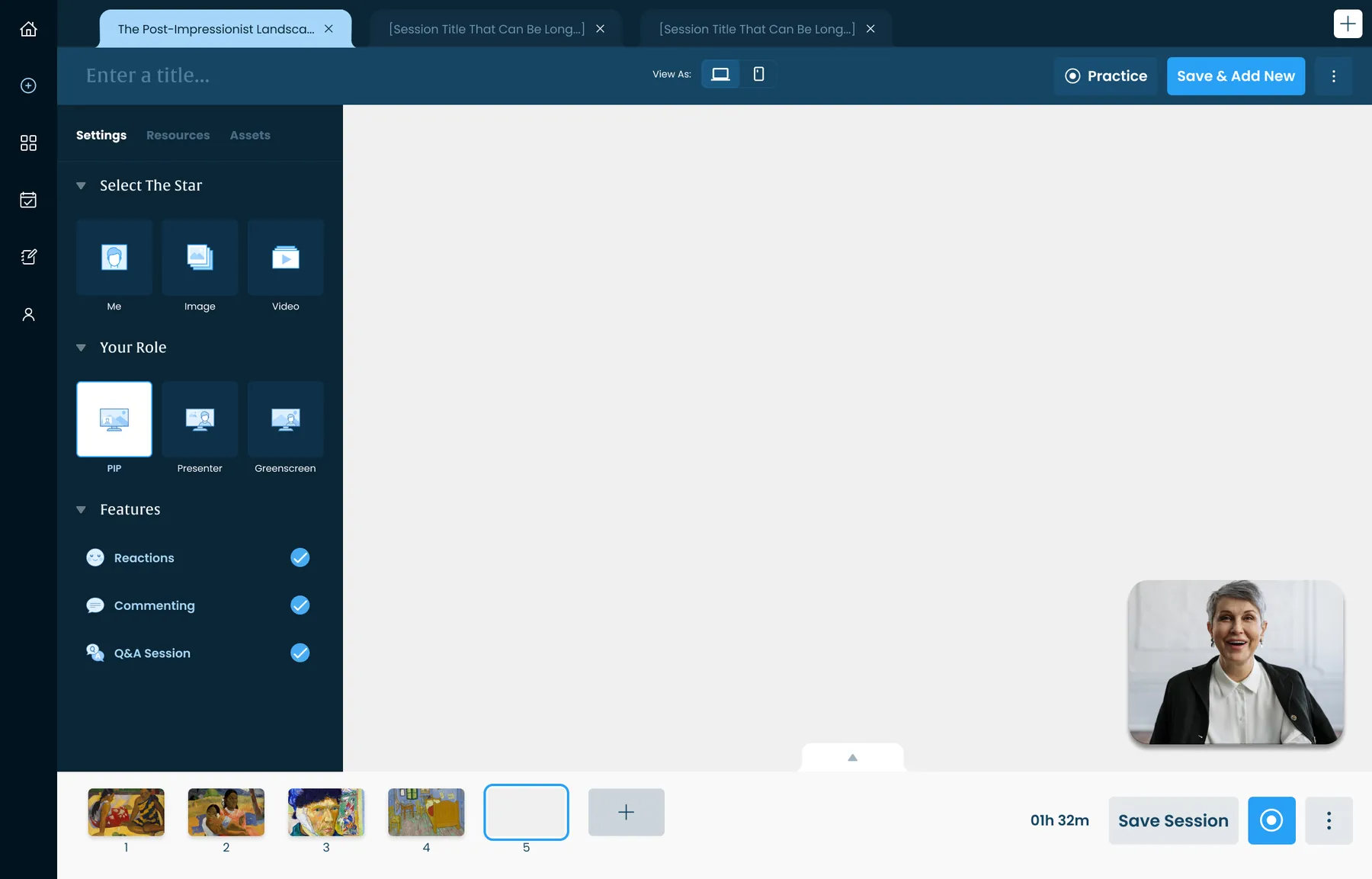
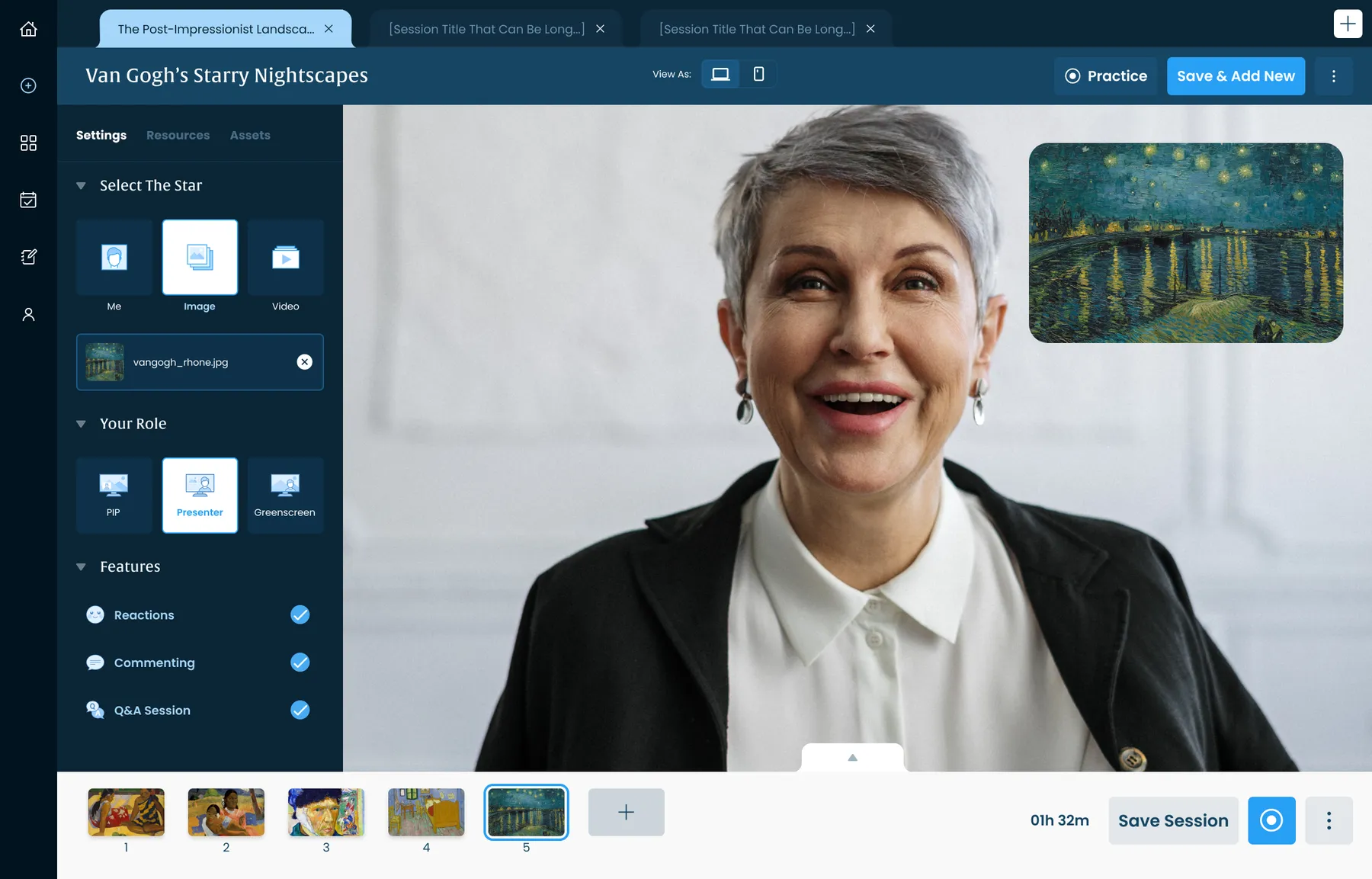
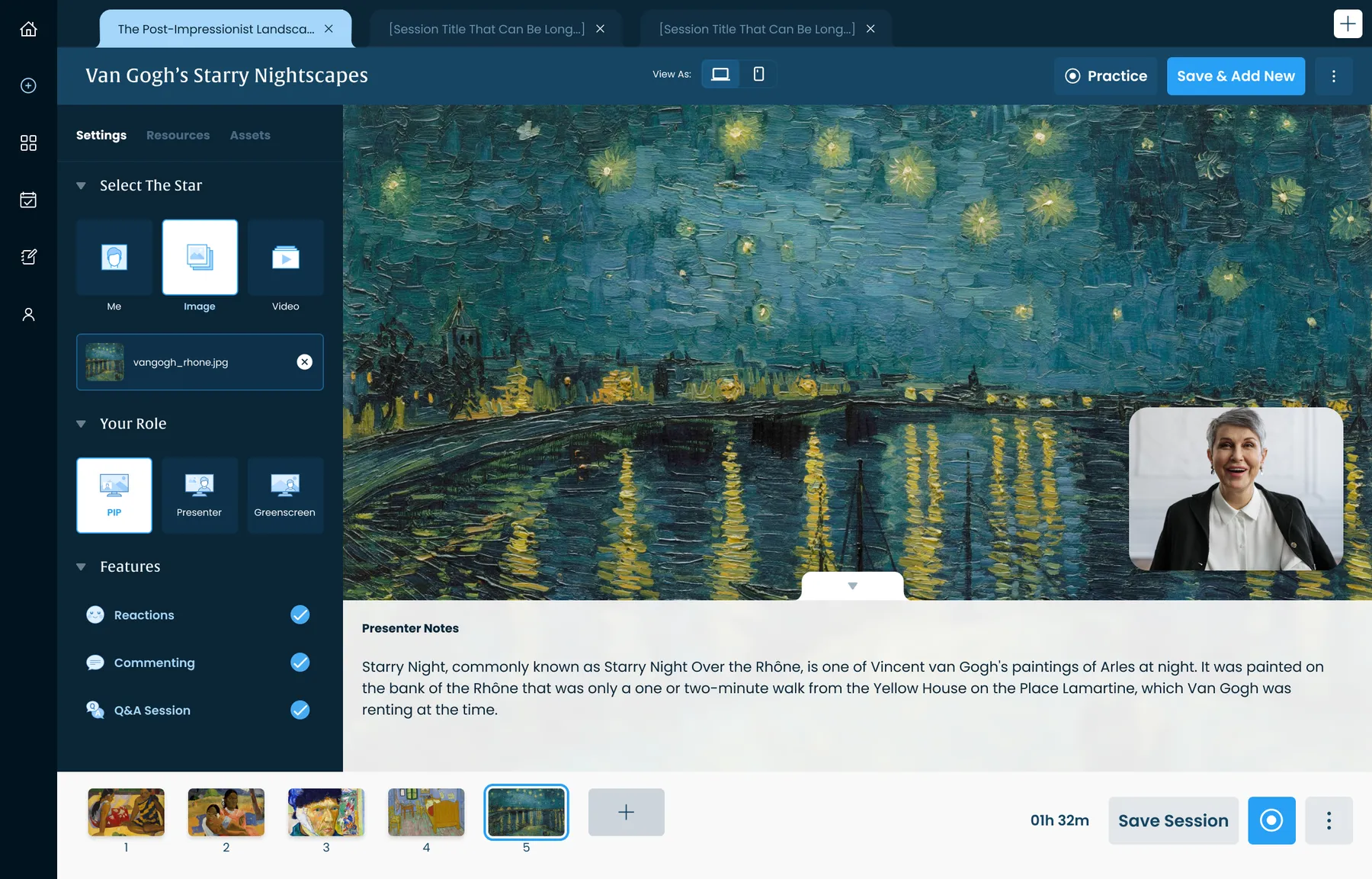
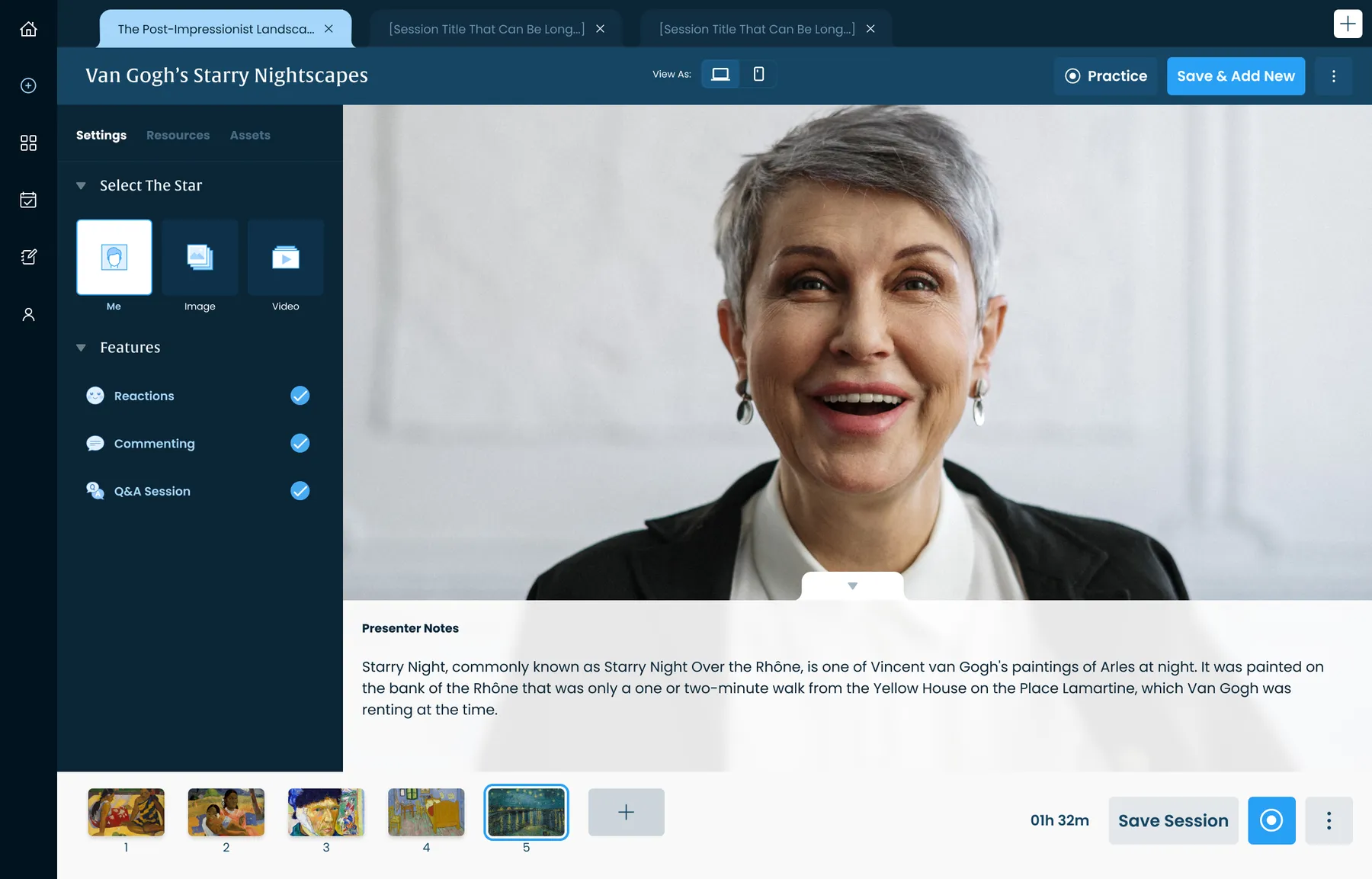
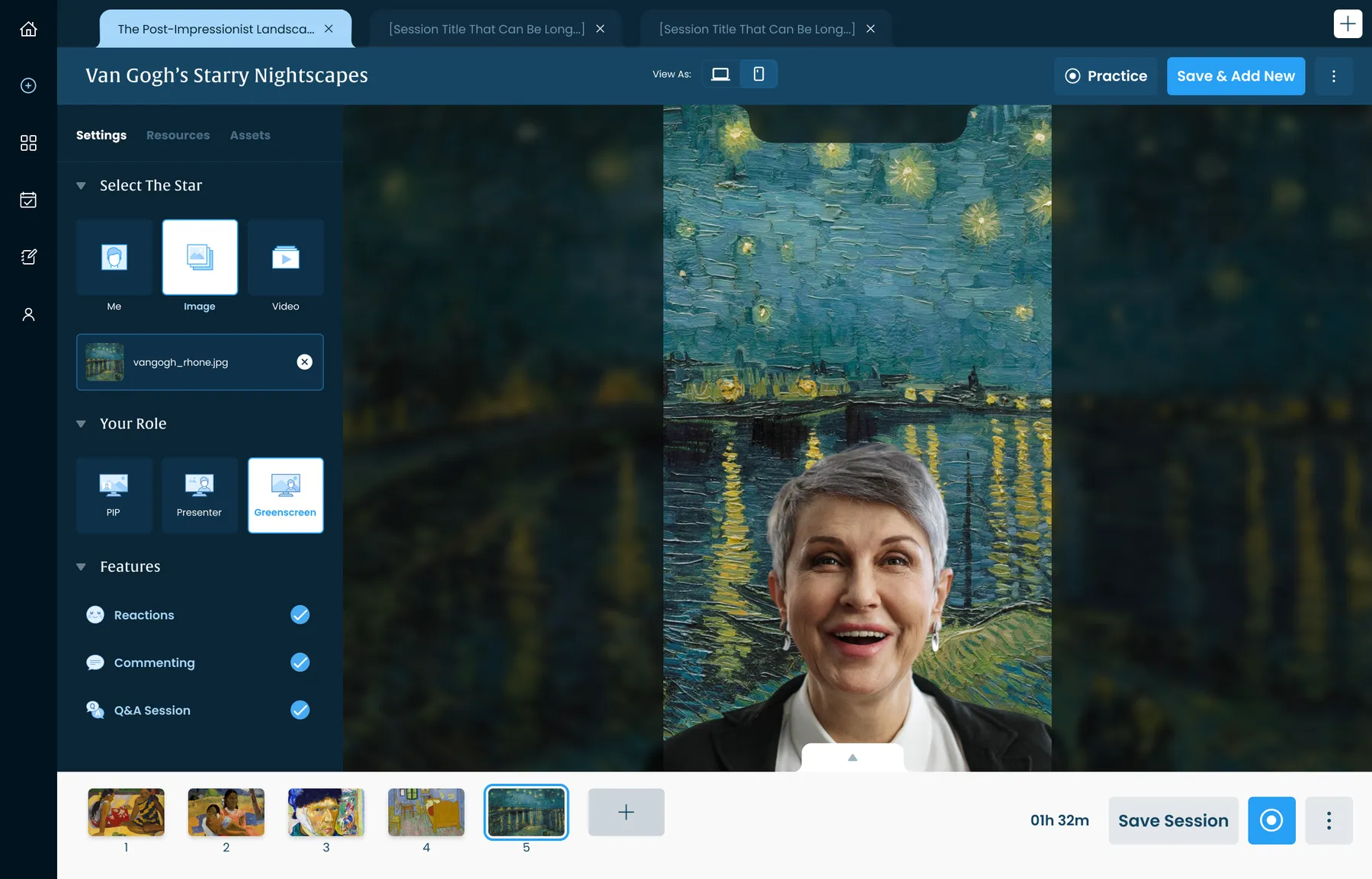
Two questions instead of a control roomAn empty scene with the settings that matter: Select the Star and Your Role.
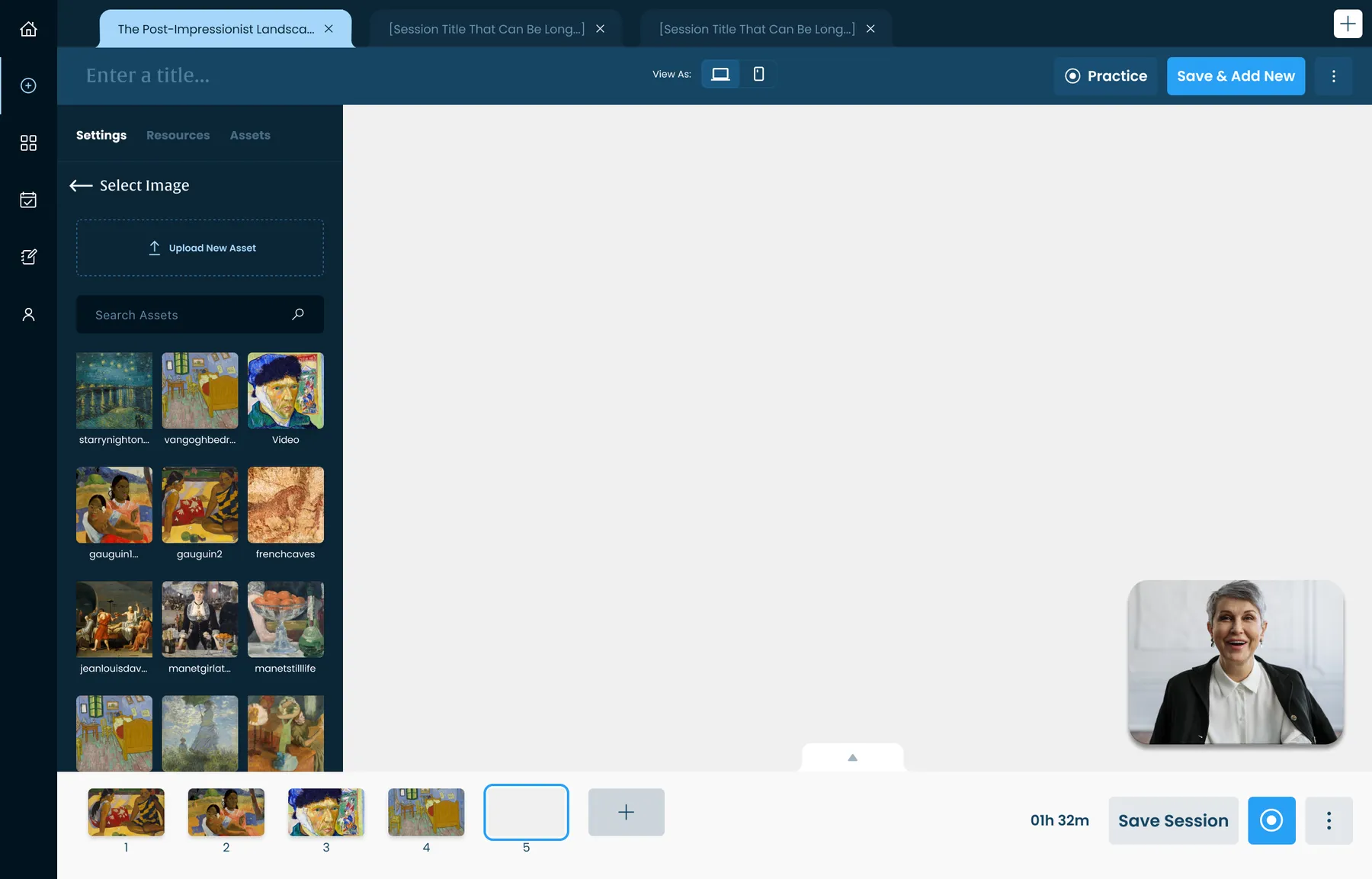
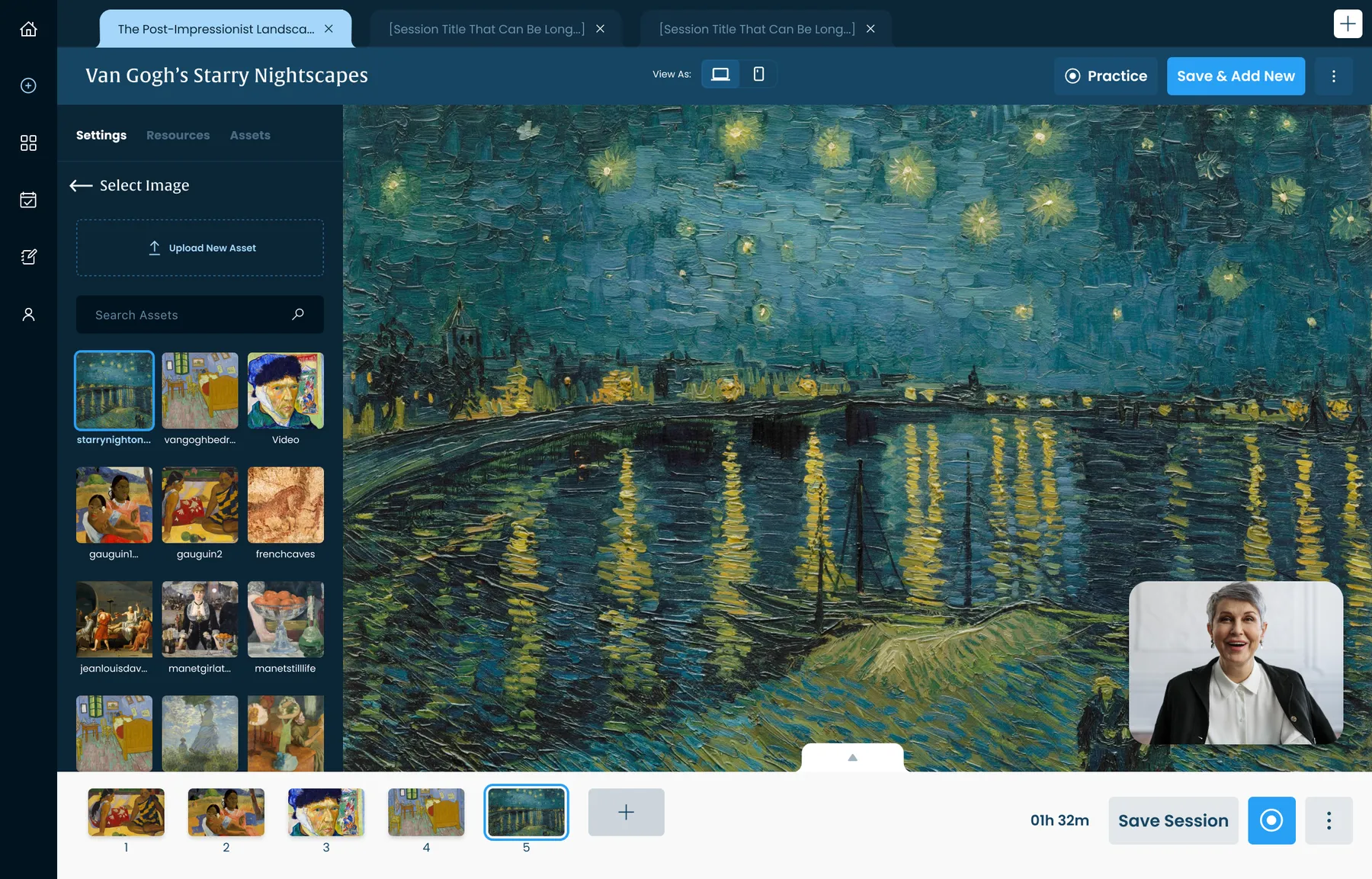
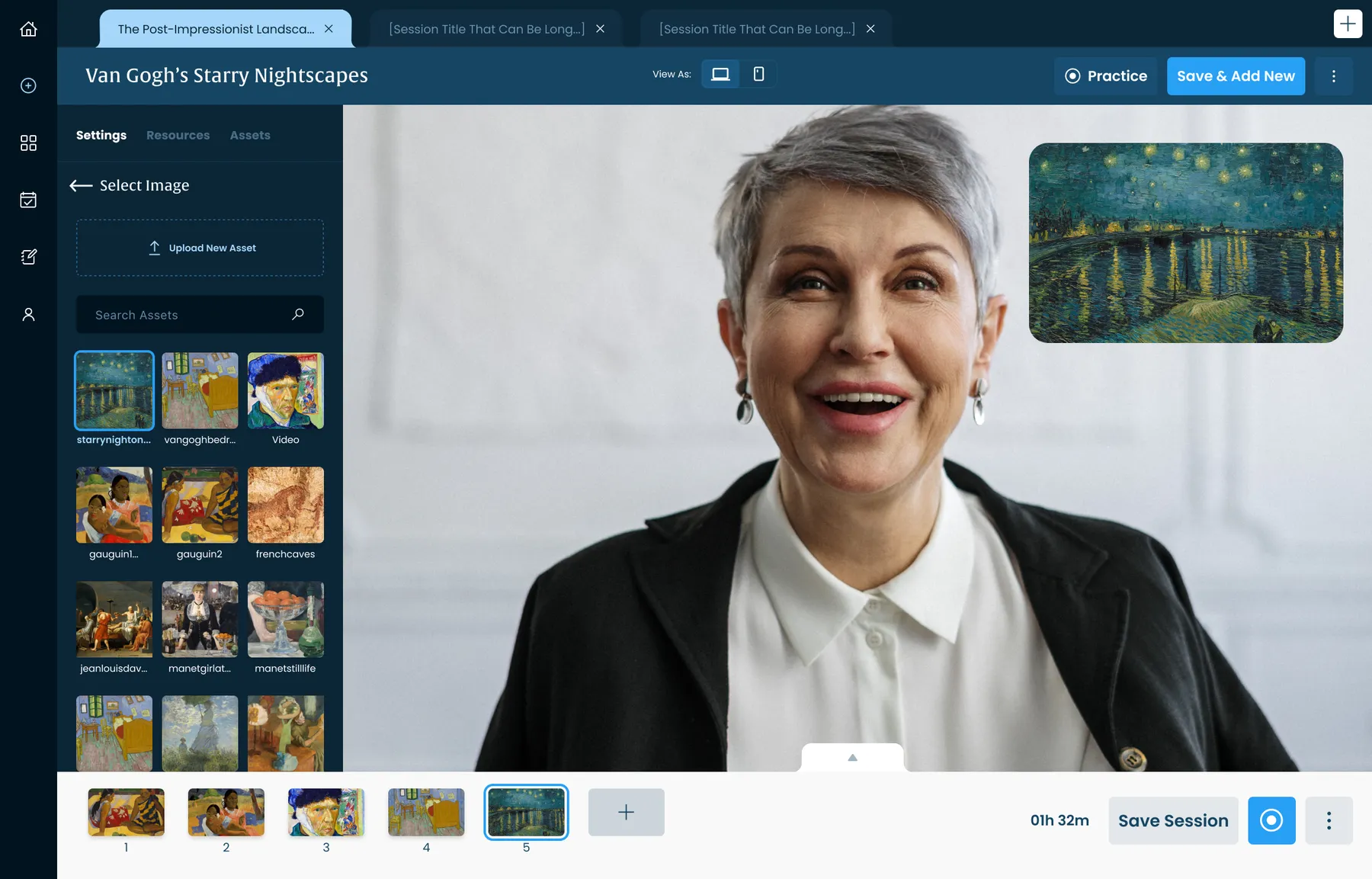
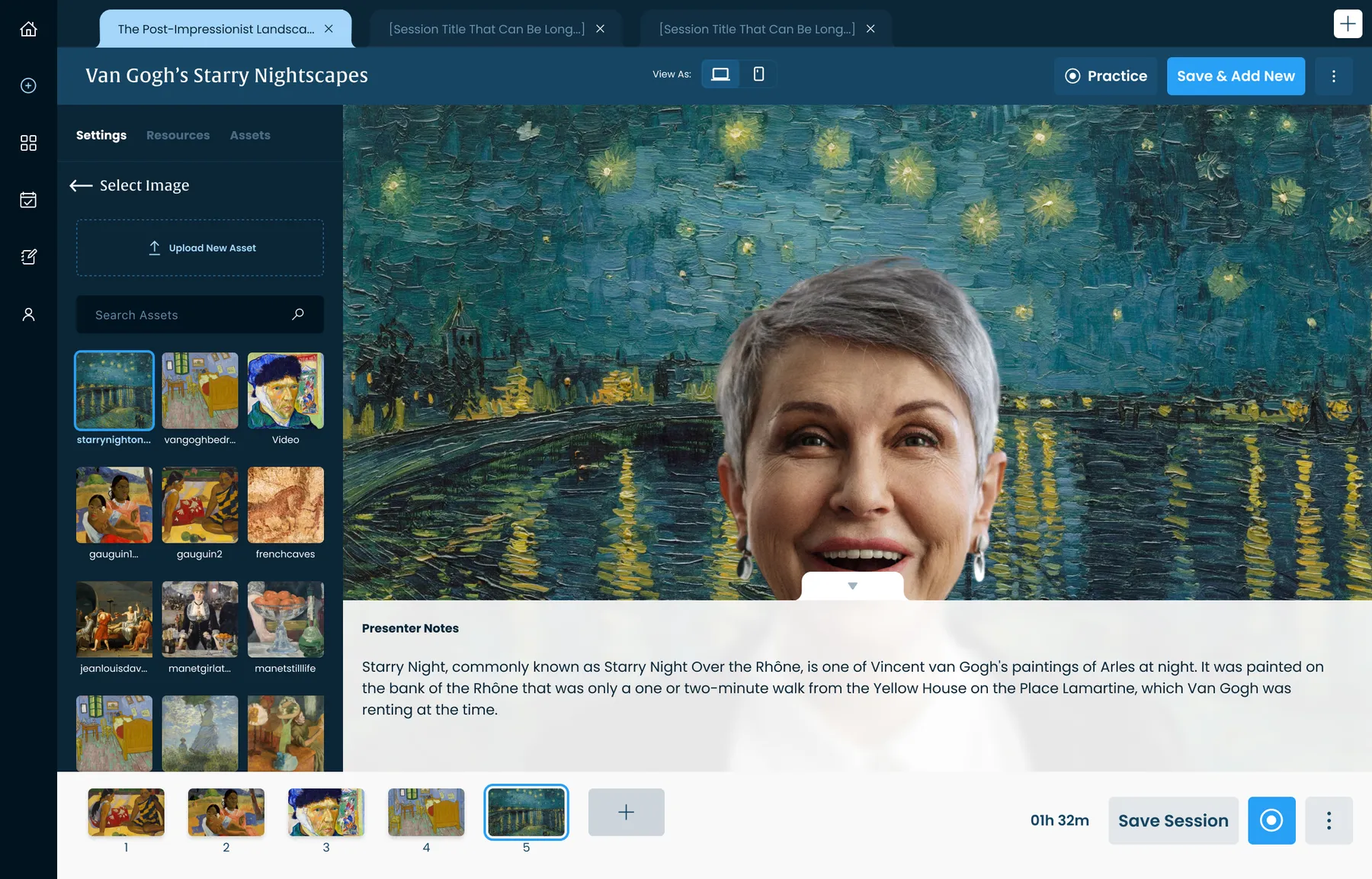
Pick from your assetsAn asset library with upload and search.
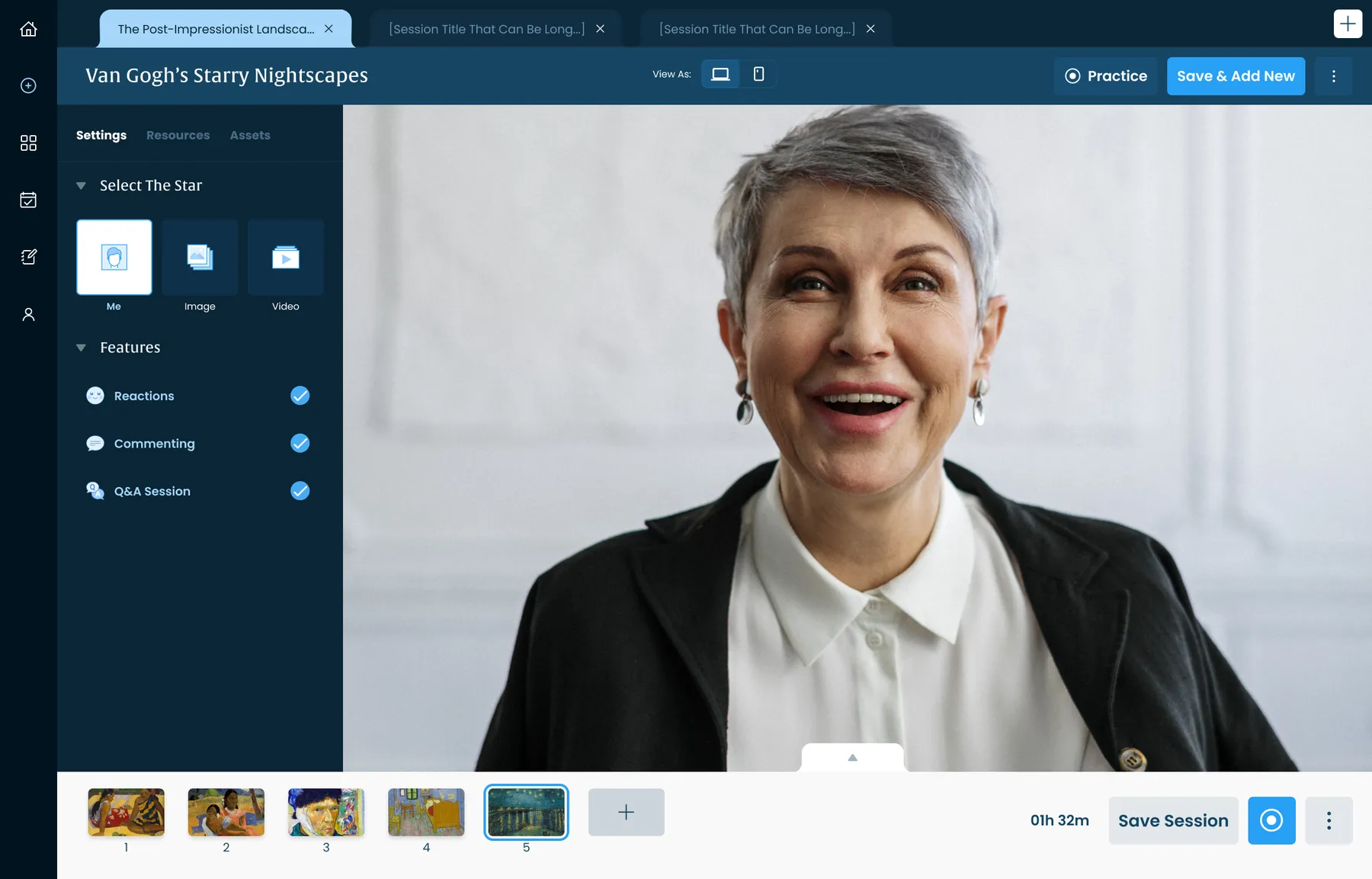
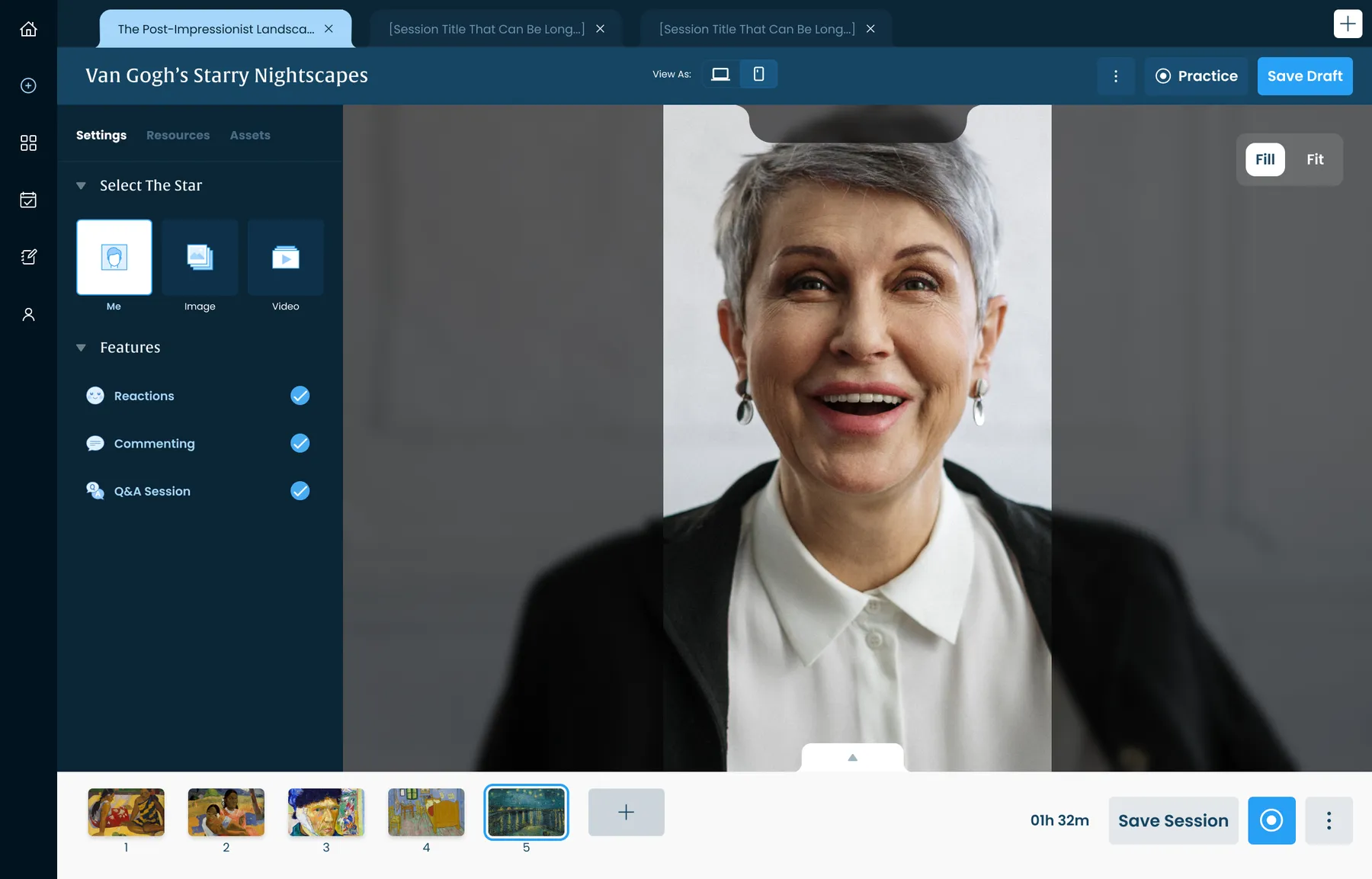
The instructor as the starWith no image selected, the instructor fills the frame.
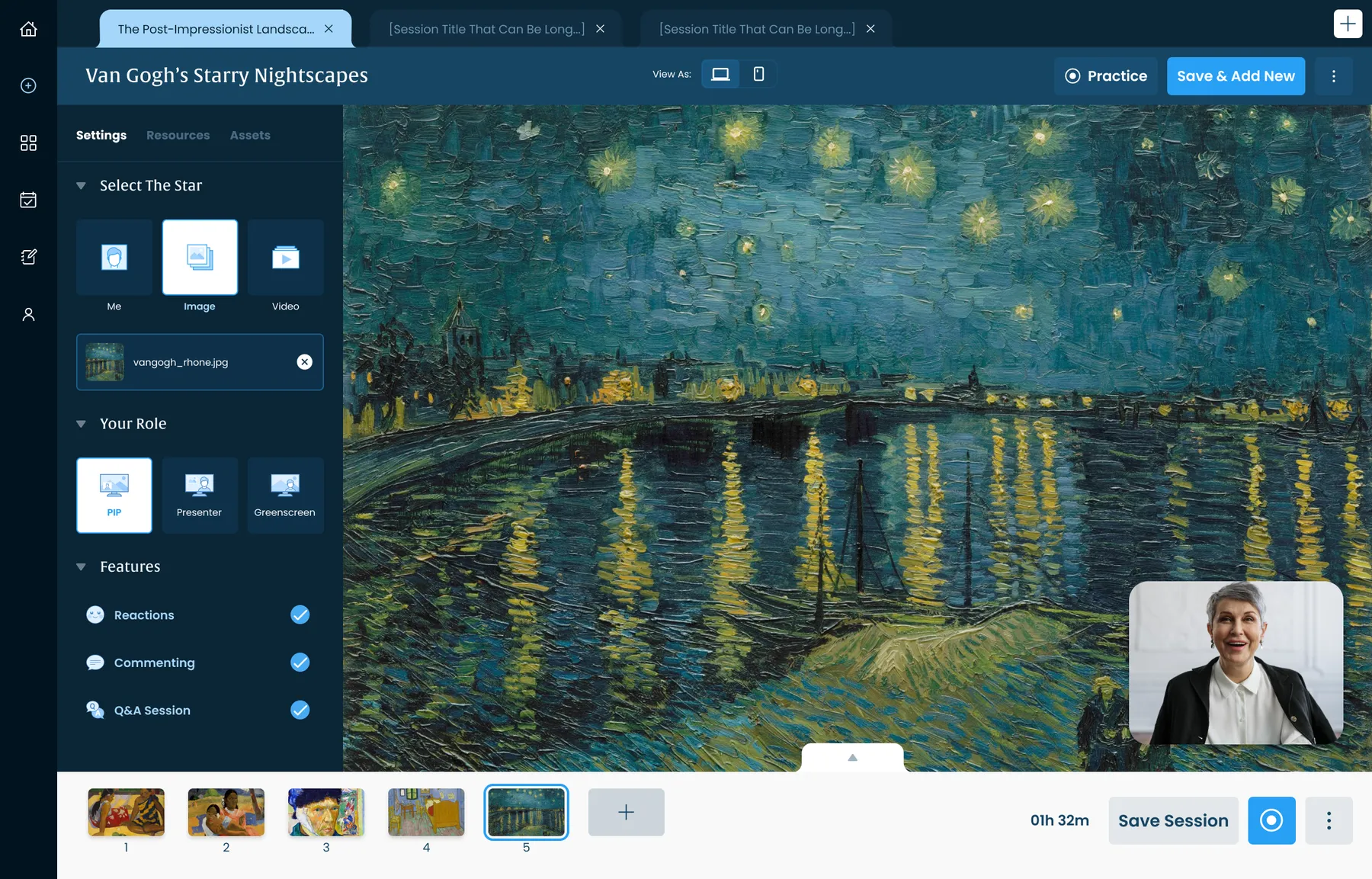
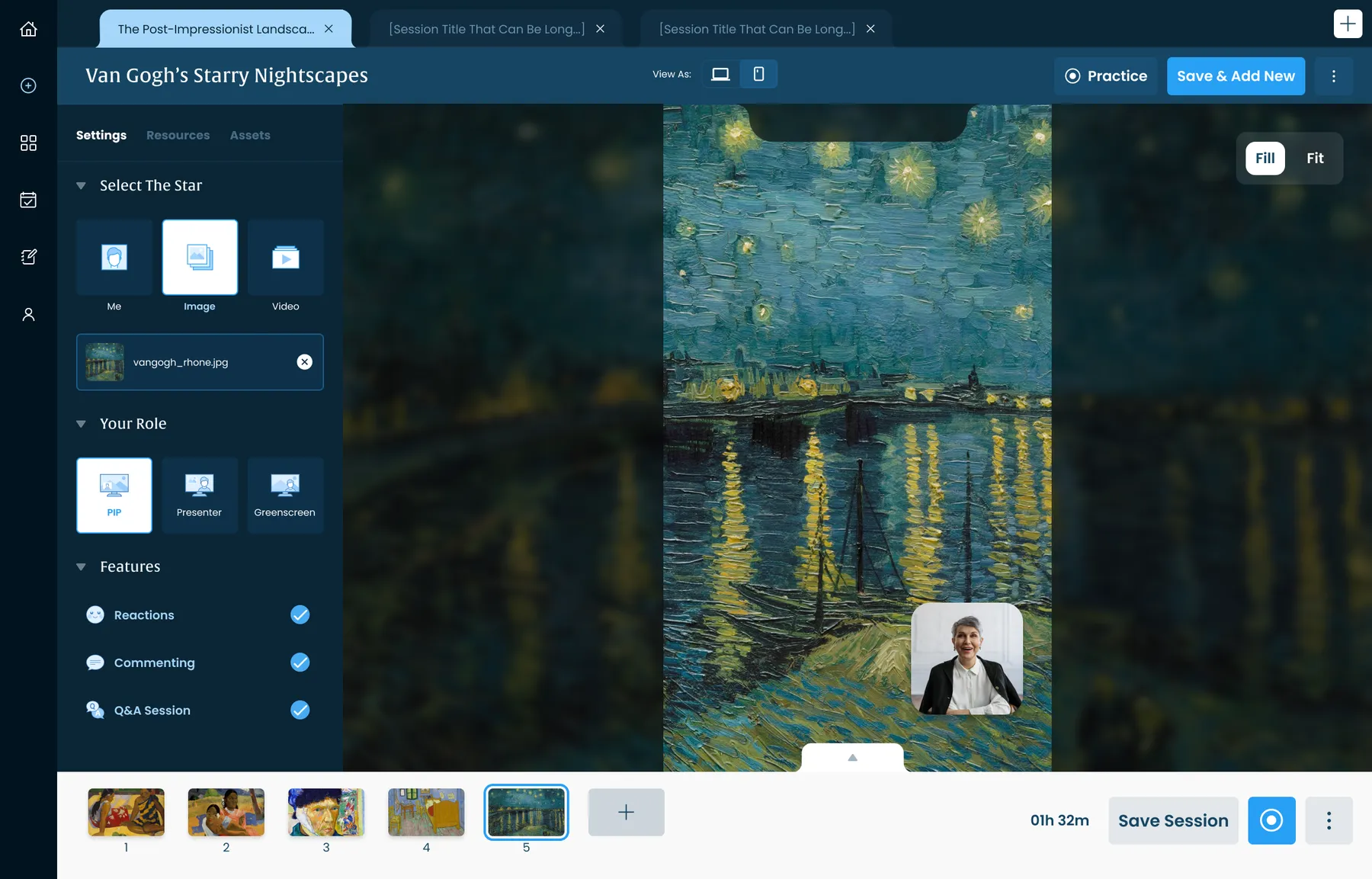
Role: picture-in-pictureThe artwork fills the screen and the instructor sits in the corner.
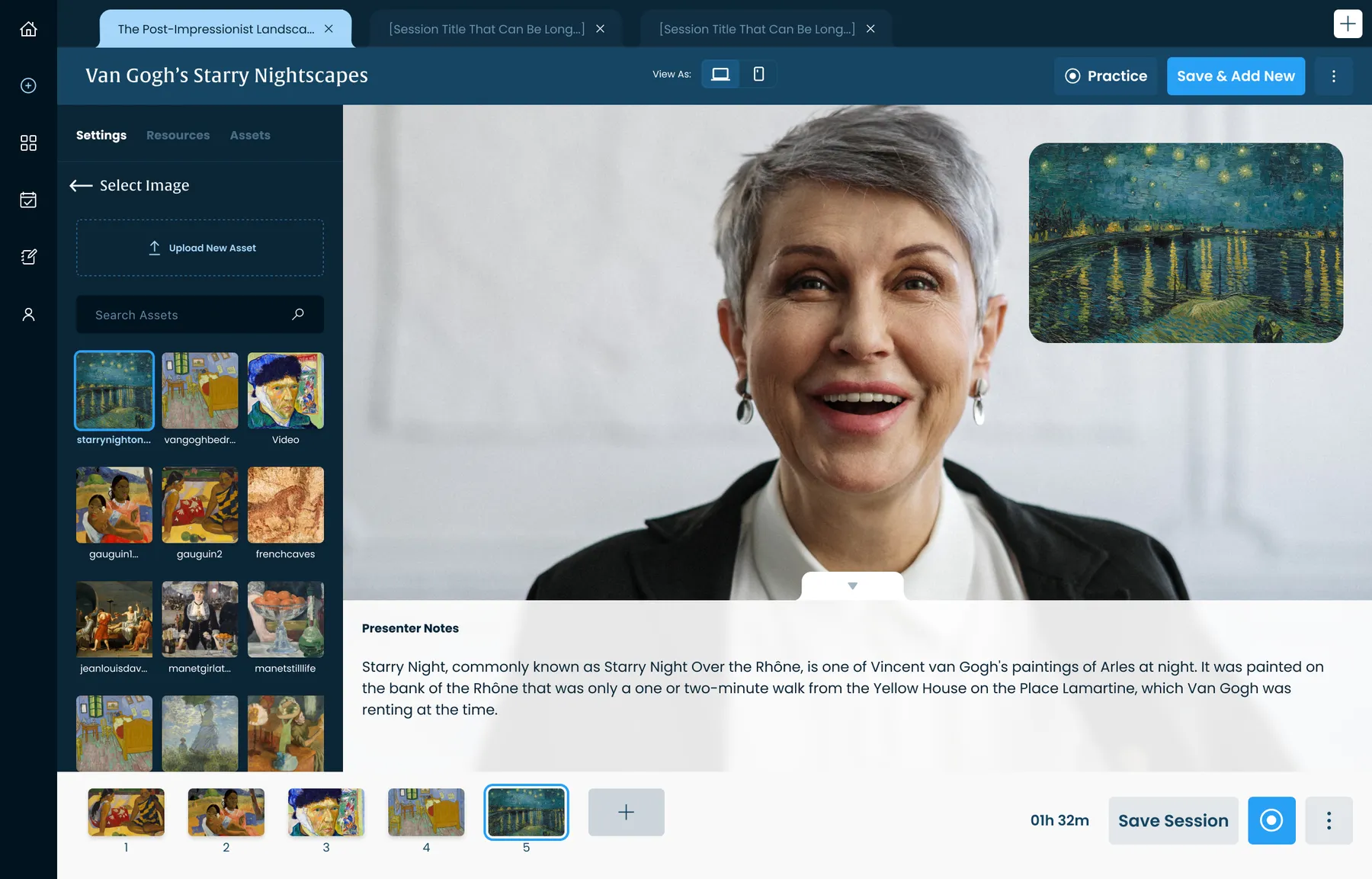
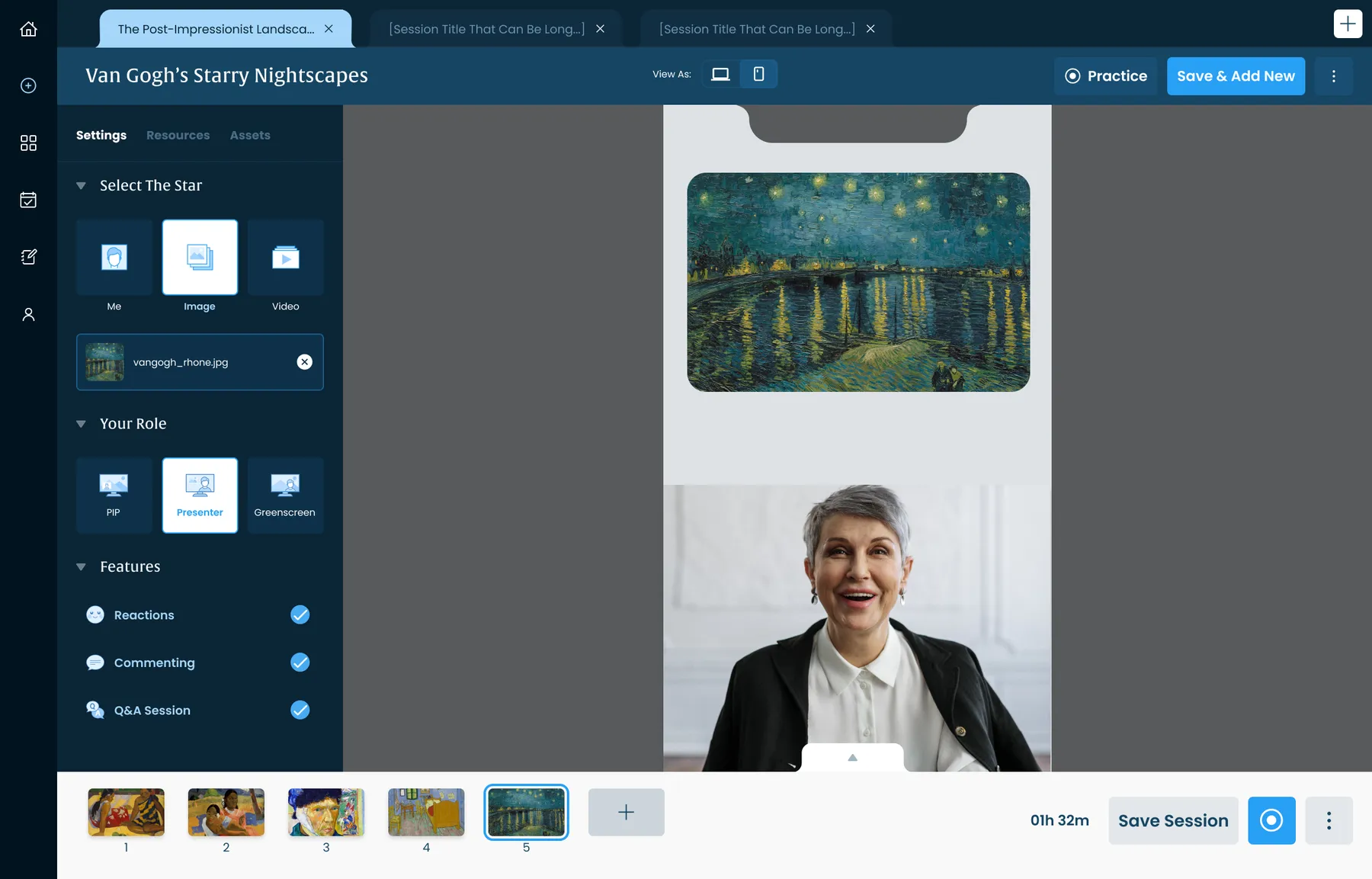
Role: presenterThe instructor leads, with the artwork beside them.
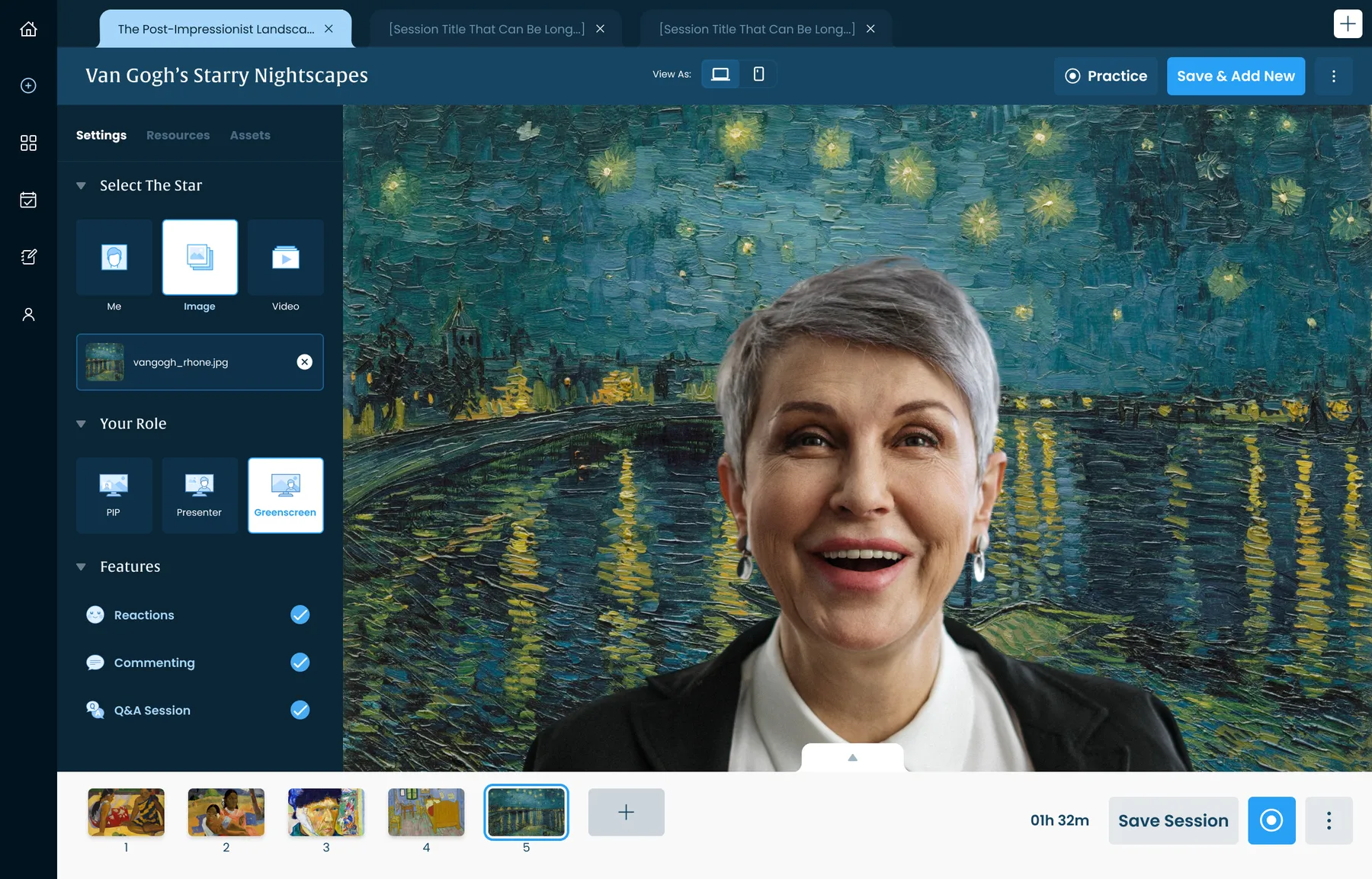
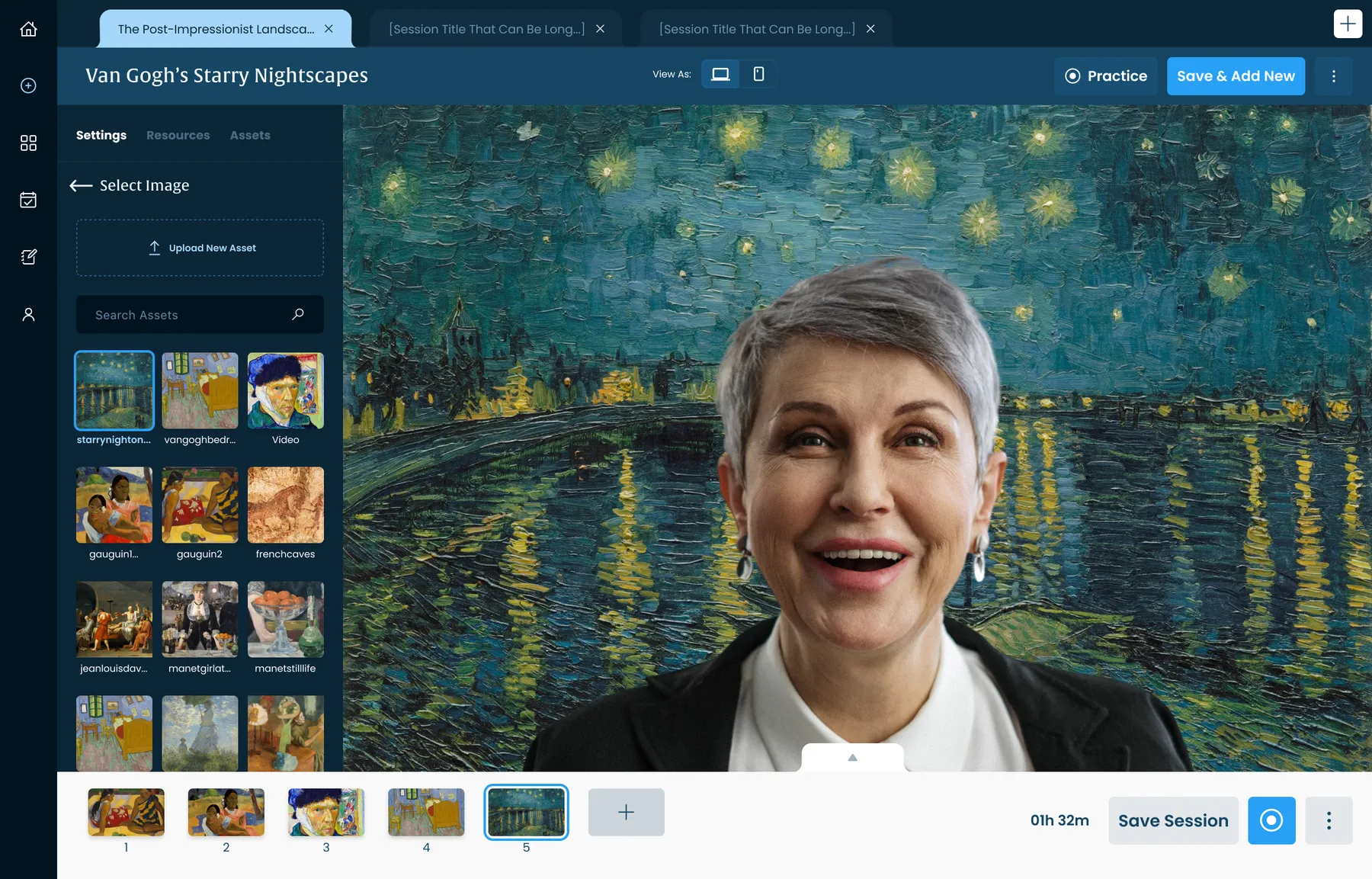
Role: greenscreenThe instructor appears in front of the artwork. TV production, without a producer.
Choosing the imageSelecting artwork from the library in picture-in-picture.
Choosing the imageSelecting artwork in presenter mode.
Choosing the imageSelecting artwork in greenscreen mode.
Presenter notesSpeaker notes slide up under the preview, with per-scene toggles for reactions, comments and Q&A.
Presenter notesNotes open with the instructor on camera.
Presenter notesNotes open in presenter mode.
Presenter notesNotes open in greenscreen mode.
Preview on a phoneInstructors see exactly what a student will see on mobile, with Fill and Fit.
Preview on a phoneMobile preview with the instructor on camera.
Preview on a phoneMobile preview in presenter mode.
Preview on a phoneMobile preview in greenscreen mode.
In Context
1 image
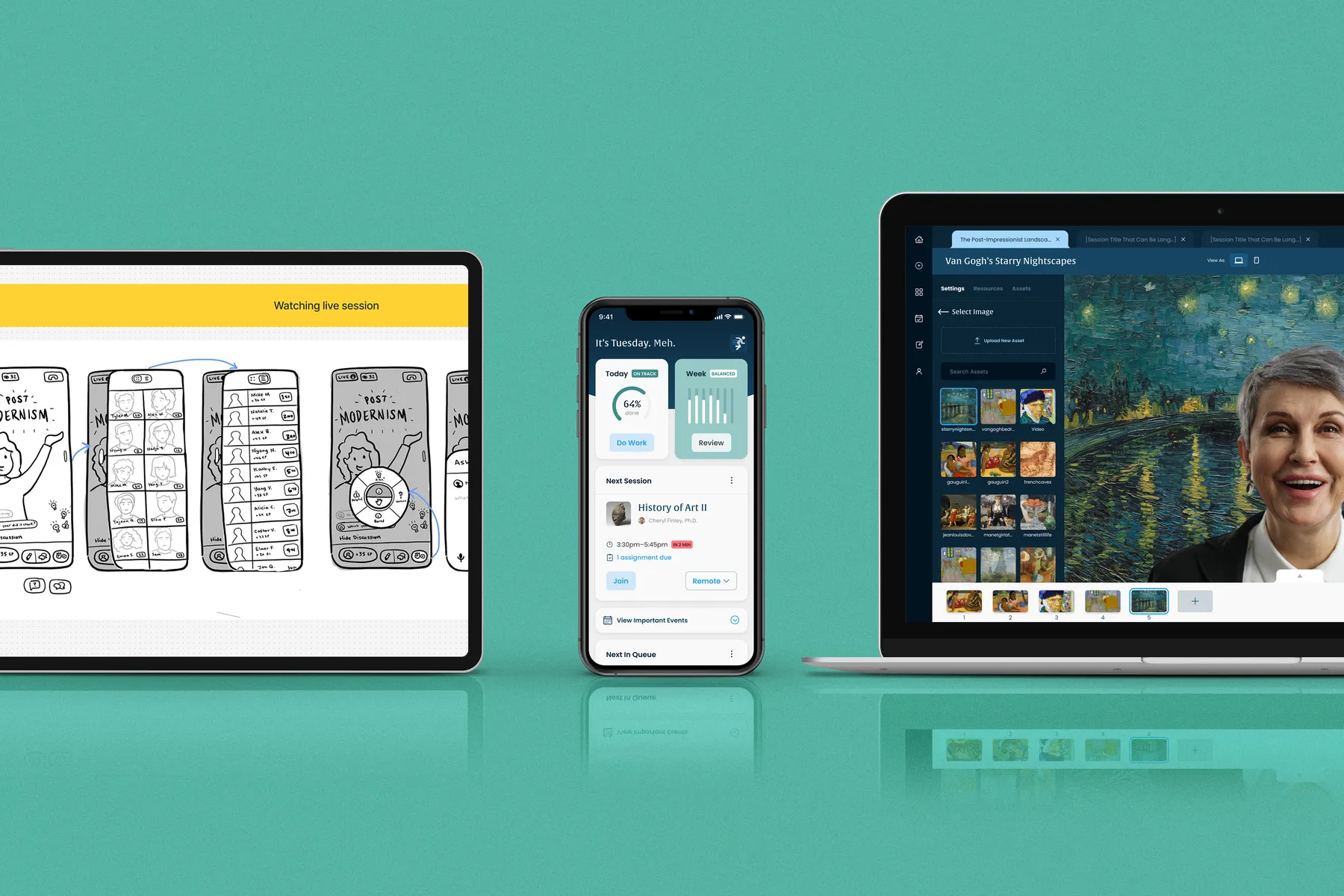
From sketch to shipped productWireframes, the student app and the instructor builder side by side: two audiences, one platform.




 Natalie


